
Subscribe To Our Newsletter
Join our 50,000+ happy customers
[mc4wp_form id=""]
We’ll Design 🎨 Your Card For Free!
Free Next Day 📦 Delivery in UK
We Ship Worldwide 🌎 ✈️
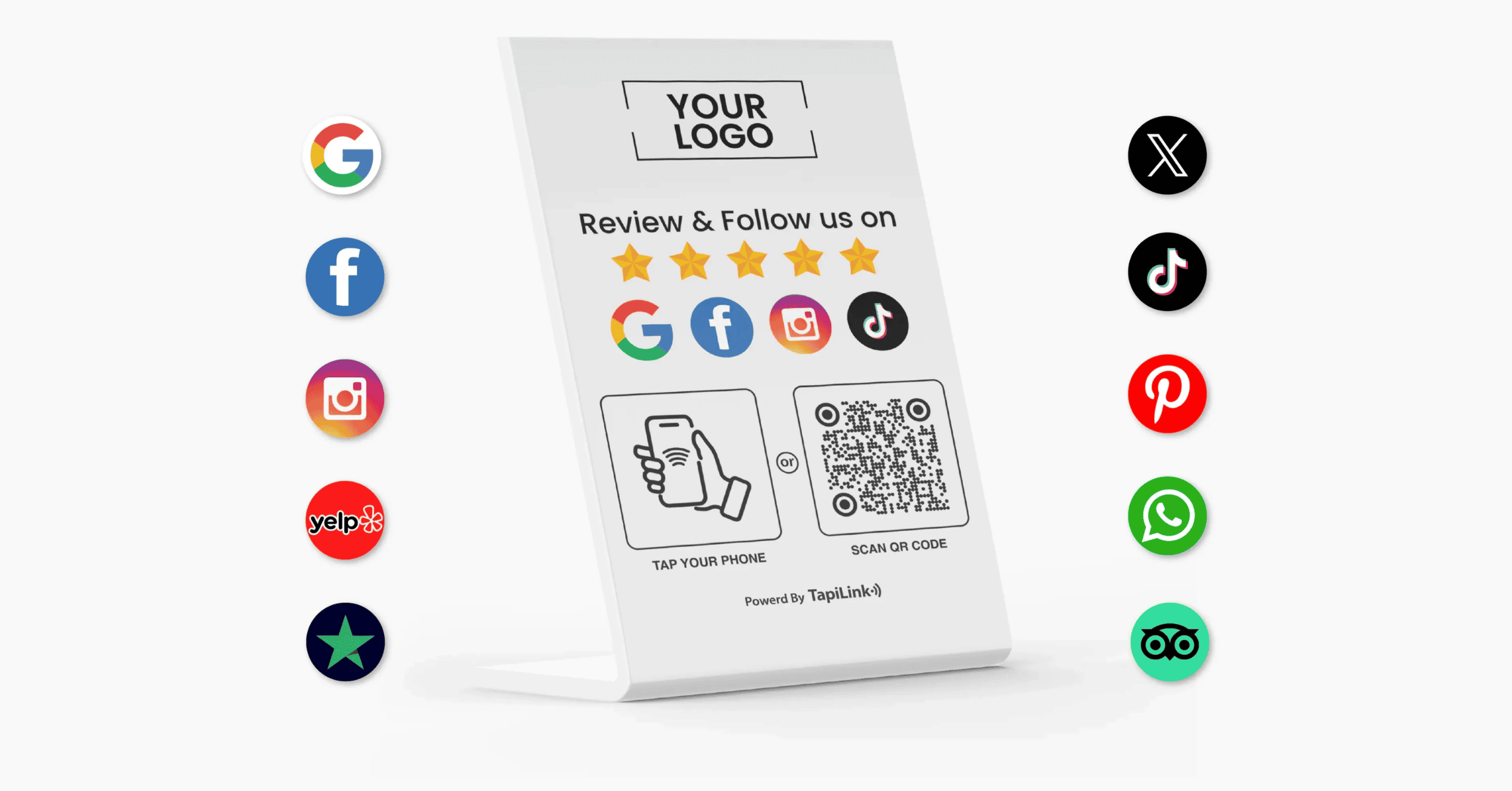
Setting up multi-link NFC review stands is one of the most effective ways for small business owners to improve customer engagement, increase online reviews, and strengthen their digital presence. Instead of relying on customers to remember your business name and leave feedback later, NFC review stands make the process instant. Customers simply tap their phone or scan a code and are taken directly to the right review or contact page. When set up correctly, this simple interaction removes friction, boosts review volume, and helps small businesses build credibility in a competitive market.
TapiLink makes this process simple and powerful with multi-link NFC review stands designed specifically for small businesses. With a single tap, customers can access Google reviews, social media profiles, contact details, or booking links without installing any app. This complete guide walks you through setup, placement, optimization, and best practices so you can get the maximum value from your TapiLink NFC review stand and turn everyday customer interactions into long-term trust and business growth.
Digital wallets and touchless payments have made tapping phones at the point of sale a normal part of customer interactions. By placing an NFC review stand near the exit or checkout, businesses meet customers where their phones already are. This simple setup encourages higher engagement, as customers can leave a review instantly without searching online, and interactive displays attract far more attention than static signs.
NFC review stands also enable real-time feedback, letting customers share their experience while it is fresh, which increases authenticity. A single stand can link to multiple platforms like Google, Yelp, and Facebook, as well as social media pages, contact forms, or ordering links, providing streamlined management. Collecting more feedback gives businesses actionable insights to improve service, enhance customer experience, and build a stronger reputation.
TapiLink’s stands contain an NTAG® 213 chip embedded in a durable, eco‑friendly sign. When a customer taps an NFC‑enabled smartphone on the stand or scans the printed QR code, their phone opens your customizable TapiLink profile. From there you can display links to your Google Review page, social media profiles, online ordering, contact information or any other URL. Unlike paper cards or static posters, the digital profile is dynamic, you can update the destination links without reprinting the stand. Since the tags comply with ISO/IEC 14443 A and support password‑protected access with a long 10‑year data retention and 100 000 write cycles, they’re reliable for years.
Traditional review collection usually involves verbally asking customers to look up your business and leave a review later. A Multi‑Link nfc stand removes friction and ensures that customers are directed to the right page every time. There’s no app to install, the stand uses the phone’s built‑in NFC or camera to open your links.
• Instant review access: Customers simply tap the stand with their phone or scan the QR code to go directly to your Google, Yelp, or Facebook review page—no search required. This streamlined process increases the likelihood of feedback.
• Multi-link functionality: A single NFC tag can hold multiple links, allowing customers to choose whether to leave a review, follow your social media, visit your website, or book another service.
• Frictionless customer interaction: There’s no app to download. The NFC tag launches the link automatically on most modern phones, while the QR code supports older devices.
• Custom branding: Stands can be personalized with your logo, colours, and messaging to match your décor. The digital profile is also fully customizable.
• Eco-friendly and cost-effective: TapiLink emphasizes durable materials and a one-time purchase, meaning your stand can last for years.
• Analytics and updates: Because the profile is dynamic, you can track engagement and update links over time without replacing the hardware.
Now that you know how TapiLink’s Multi‑Link review stands work and why they out‑perform traditional review requests, let’s explore the unique features and what you need before setting up your stand.
TapiLink stands come in different shapes (table‑top stands, wall plates, small mini‑stands) and are fully customizable. You can upload your business logo, choose colours and include a short call to action. Each stand integrates a printed QR code and an NFC chip so customers can tap or scan depending on their device. Since the digital profile behind the stand is editable, you can link multiple destinations, Google reviews, Yelp, Facebook, Instagram, a booking calendar or a contact form, ensuring customers have options. The stands are made from durable, recyclable materials and require only a one‑time purchase. This makes them an eco‑friendly investment compared with disposable paper cards or flyers.
TapiLink stands use NTAG 213 chips manufactured by NXP. These chips are widely compatible because they adhere to the ISO/IEC 14443 A standard and support data transmission rates up to 106 kbit/s. They include advanced features:
• FAST_READ command for efficient data retrieval, enabling quick loading of your digital profile.
• 32-bit password protection and ECC-based originality signature, which prevent unauthorized changes and help verify authenticity.
• Tear-resistant, reinforced polymer layers for long-term durability.
• 10-year data retention and 100,000 write cycles, allowing frequent link updates without degrading the NFC tag.
These technical attributes ensure that your stand functions reliably in busy retail environments and protect your customers’ data.
Before mounting your stand, gather the following:
• TapiLink NFC stand(s): Choose a size and design that fits your counter, reception desk, or wall.
• Compatible smartphone or tablet: You’ll need a device that supports NFC (most Android phones and iPhones after iPhone 6; older iPhones may require an NFC-reader app) to program and test the stand.
• QR code backup signage: Even though most phones support NFC, it’s best practice to include a QR code for older devices or users who prefer scanning.
• Clear signage or tent cards: Use a small sign with a clear call to action, such as “Tap or scan to leave us a review!” Digital signage or interactive screens can further boost engagement.
• Cleaning supplies: Clean the counter or wall surface so the stand’s adhesive sticks securely and remains stable.
Before physically placing the stand:
• Create or update your TapiLink account: Log in and set up your digital profile. Upload your logo and choose a background image that reflects your brand.
• Add multiple destinations: Insert links to your Google Review page, Yelp or Tripadvisor listing, Facebook page, Instagram profile, online booking system, and contact form. The Multi-Link feature lets customers choose what matters to them.
• Verify each link: Open every URL to confirm it directs to the correct page. Make sure your Google Business Profile is claimed and ready to receive reviews.
• Enable analytics (if available): Use TapiLink’s dashboard to track taps and scans, and turn on notifications for new reviews or link clicks.
Once your digital profile is prepared, you’re ready to mount the stand. The next section walks through device compatibility and accessibility to ensure every customer can interact with your stand.
Android devices: Most Android smartphones include built‑in NFC hardware that is enabled by default. Customers simply unlock their phone and tap the stand.
Apple devices: All iPhones from the iPhone 7 onward can read NFC tags without an app. Older models (iPhone 6 and 6 Plus) require a third‑party app.
QR code fallback: Including a printed QR code ensures compatibility with devices that lack NFC or have it disabled. Customers can scan the code with any smartphone camera.
Accessibility: Provide clear written instructions (“Tap your phone or scan the QR code to leave a review”) and make sure the stand is at a height accessible to all patrons, including those using wheelchairs.
Address privacy concerns: Surveys suggest that about 28 % of users worry about NFC safety. Assure customers that the tag opens only a public web page and does not collect personal data unless they voluntarily submit a review.
High contrast: Use a dark QR code on a light background so cameras can scan easily. Avoid glossy finishes that reflect light.
Placement: Position the QR code near the NFC icon on the stand so customers can choose either method. On wall‑mounted stands, place the code at eye level or slightly above the counter.
Size: Ensure the QR code is large enough (at least 1 inch square) so it can be scanned from a short distance.
Testing: Scan the QR code with multiple phones (Android and iOS) to confirm quick detection. Test from various angles and distances.
Redundancy: Consider printing a larger QR code on a nearby tent card or signage for those who may not notice the small code on the stand.
Instruction label: Include a clear call to action such as “Tap or scan to rate us” and keep the text simple. If many of your customers speak languages other than English, translate the instructions accordingly.
Setting up TapiLink stands is straightforward and typically takes only a few minutes. You’ll attach the stand to its mounting surface, link it to your digital profile, and verify that taps and scans direct to the correct pages. After installation, the stand works passively, customers simply tap or scan to leave a review. The following sections provide detailed instructions and conclude with common troubleshooting tips.
Use these strategies to maximise interaction:
• Checkout counters: Place a stand next to the point-of-sale terminal so customers can tap while waiting for their receipt. A clear sign or digital display encourages action and leverages the high engagement of digital signage.
• Exit doors and reception areas: Customers are often more willing to share feedback as they leave. Position a stand near the exit or reception with a friendly prompt like “Let us know how we did!”
• Waiting areas: In salons, clinics, or auto shops, placing a stand on a coffee table invites waiting customers to explore your services or leave feedback.
• Tables and seating: Restaurants can use small mini-stands at tables, allowing guests to tap and leave a review after their meal without getting up.
• Multiple stands: In larger spaces, place several stands at key touchpoints. Interactive displays attract more attention than static signs, and spreading stands across the space can increase engagement by 20–30%.
• A/B testing and rotation: Rotate stands between different locations and compare taps and reviews over a few weeks. Use the data to identify the highest-performing spots and standardize those placements.
• Surface preparation: Clean the area where you plan to place the stand. Remove dust, grease, or moisture so the adhesive sticks properly.
• Mount the stand: Peel off the protective film from the adhesive backing and press the stand firmly onto the counter, wall, or table. For freestanding models, simply place them in position.
• Avoid metal interference: Do not mount the tag directly on metal surfaces, as metal can interfere with NFC signals. If placement near metal is unavoidable, use a non-metallic spacer.
• Connect your profile: Open the TapiLink app or website on your phone, select “Program tag,” and choose your digital profile. Hold your phone over the tag to write the data to the NTAG 213 chip. Password-protected memory ensures only authorized users can make changes.
• Pair QR code signage: Print the QR code generated by TapiLink and attach it to the stand or a nearby tent card. Confirm that the code matches the programmed digital profile.
• Clear instructions: Place a small sign next to the stand with a message like “Tap or scan to leave a review” so customers clearly understand what to do.
Use this checklist to confirm the setup works correctly:
• Test on multiple devices: Use an Android phone and a recent iPhone to tap the stand. The link should open instantly. If there’s a delay or error, confirm that the correct URL was written to the tag.
• Scan the QR code: Scan the code with at least two different smartphone cameras (iOS and Android) and verify it leads to the same digital profile.
• Check link accuracy: Click every button on your digital profile to ensure all links (Google, Yelp, Facebook, booking, contact form) open the correct pages. Incorrect links can confuse customers and reduce engagement.
• Monitor analytics: Log in to your TapiLink dashboard and confirm that test taps and scans appear in the analytics. This verifies proper data transmission and tracking.
• Write speed and range: Test the NFC read range (typically within 4 cm). If the phone must be extremely close, reposition the stand or remove nearby metal objects.
• Update digital links: Review and update your profile regularly when you add services or change platforms. With support for 100,000 write cycles, the tag allows frequent updates without degradation.
After your stand is installed, you’ll want to keep it functioning smoothly. NFC tags are reliable, but improper placement or environmental factors can cause errors. Understanding common problems allows you to fix them quickly and maintain customer confidence.
According to RFIDLabel experts, the most common causes of NFC errors include the following:
Improper tag positioning: The NFC chip must be within about 4 cm of the phone’s reader; if the tag is positioned awkwardly or hidden behind signage, phones may fail to read it. Fix: Reposition the stand so that customers can easily tap the NFC symbol.
Metal interference: Mounting the tag on or near metal surfaces or electronic equipment can disrupt the NFC signal. Fix: Use a plastic or wooden backing or move the stand away from metal objects.
Physical damage: Scratches, cracks or wear can damage the chip or antenna. Fix: Inspect the tag regularly; replace the stand if there’s visible damage or if reading becomes intermittent.
Incompatible tag types: Some tags operate at different frequencies and aren’t readable by all smartphones. TapiLink uses NTAG 213, which is widely compatible. Fix: If customers report issues, verify that you’re using the correct tag and update to the recommended NTAG 213.
Empty or misprogrammed tags: If the tag is blank or incorrectly programmed, phones will not know what to open. Fix: Use the TapiLink app to reprogram the tag; ensure that the URL is correct and that the password has been set to prevent unauthorized changes.
Check the user’s device: Verify that the customer has NFC enabled and is tapping the right area of the phone.
Remove interference: If the stand is near a metal counter or electronic display, temporarily move it and test again.
Inspect the stand: Look for cracks, peeling stickers or water damage. Replace the tag if needed.
Test with a different phone: If a specific phone fails to read the tag, try another device. This helps determine whether the problem is the tag or the user’s phone.
Contact supplier support: If issues persist, reach out to TapiLink or your tag supplier. Provide the tag’s serial number and details about the problem.
Investing in an NFC review stand is about more than technology, it’s about creating a frictionless feedback loop and demonstrating that customer opinions matter. By setting up TapiLink’s Multi‑Link stand, customizing it to your brand, training your staff and maintaining it regularly, you can:
• Increase engagement and review volume: Customers are far more likely to leave reviews when it takes only a few seconds to tap or scan.
• Capture valuable feedback: Real-time insights help you improve services, resolve issues quickly, and strengthen what you already do well.
• Streamline your online presence: A single tap can lead to multiple platforms, letting customers follow you on social media, book future appointments, or contact you directly.
• Demonstrate professionalism and innovation: A modern, branded NFC stand shows that your business embraces new technology and values customer experience.
By applying the guidance in this comprehensive guide, choosing the right stand, positioning it thoughtfully, ensuring compatibility, training your team and following privacy best practices, you’ll unlock the full potential of TapiLink’s NFC review stands. This will not only boost your online reputation but also create stronger, long‑lasting relationships with your customers.
Join our 50,000+ happy customers

Copyright © 2025 TapiLink, made with ❤️ in United Kingdom. TapiLink is a trading name of SERVICEWORLD LIMITED (company number: 13239157), whose registered office is at 34 Green Street, London, England, E7 8BZ
Subscribe to our newsletter below and get 10% exclusive discount on your first order.