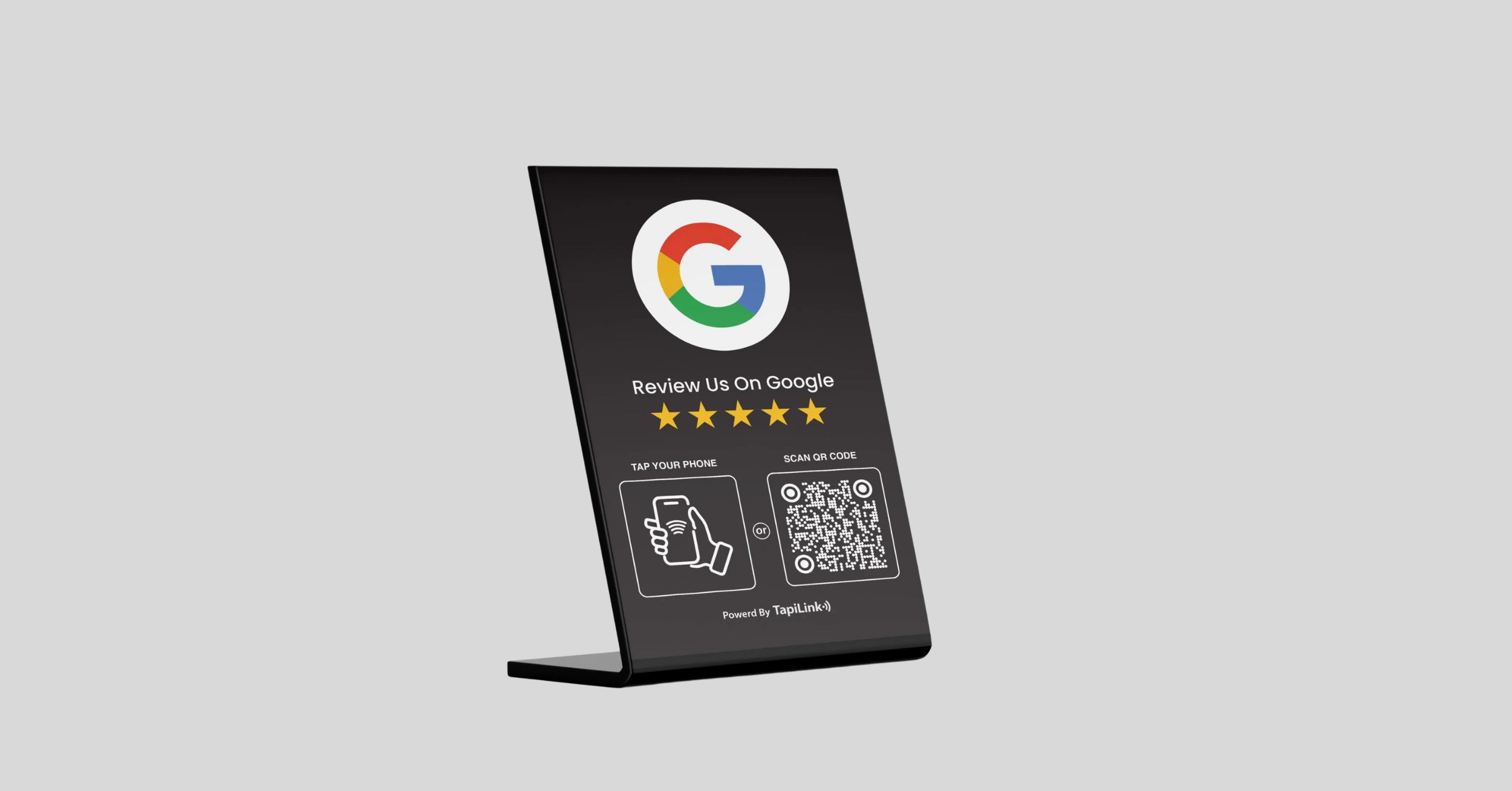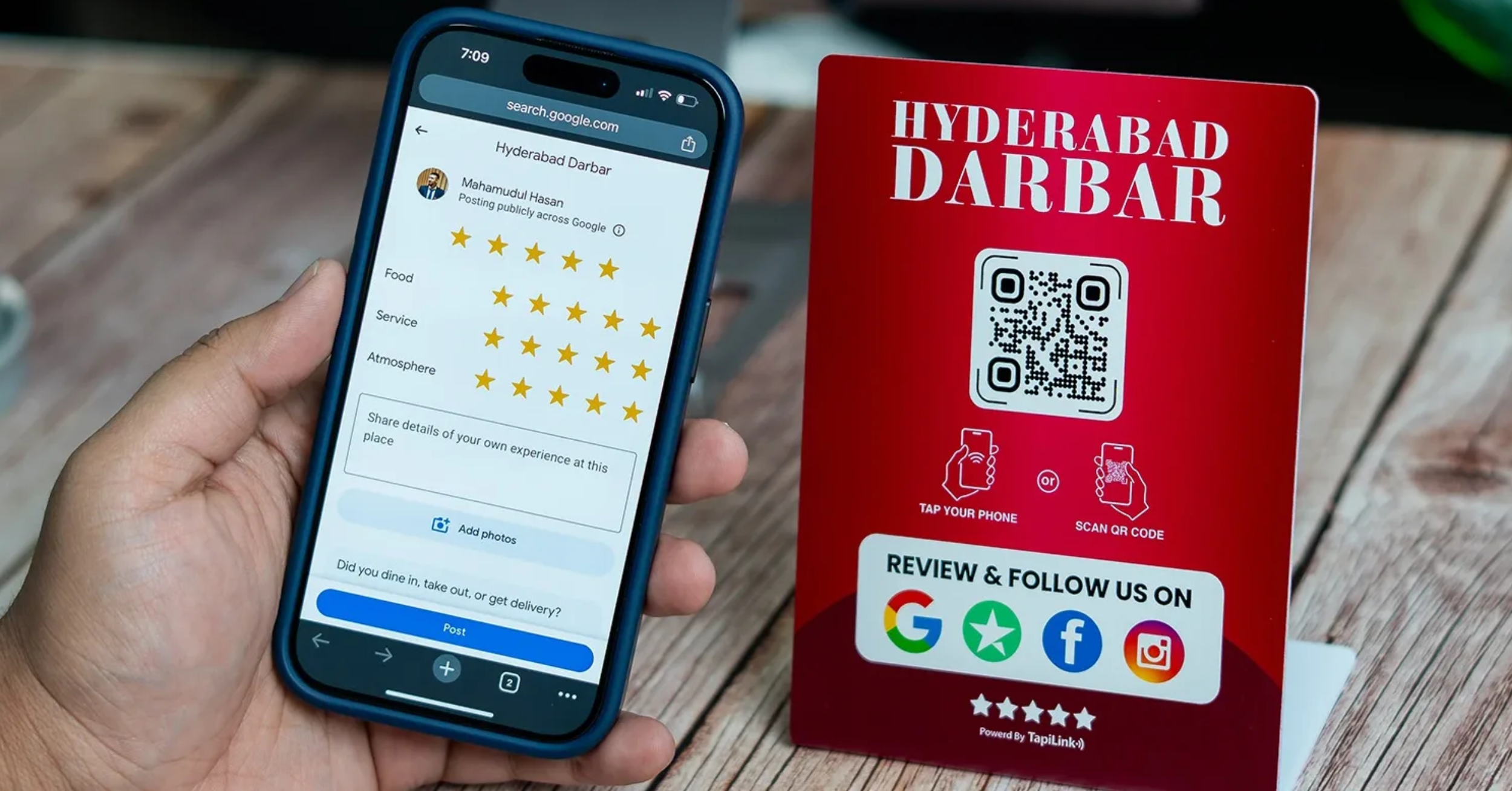
If you are wondering how to turn more happy moments at checkout into 5-star ratings, the answer is a properly configured NFC or QR review stand that opens your direct Google review link in seconds.
A Google review stand uses NFC technology and a QR code to create a tap to review experience. The customer taps their iPhone or Android device, your Google review form opens, and they can post feedback without searching for your business. Fewer clicks means less friction. And less friction means more reviews.
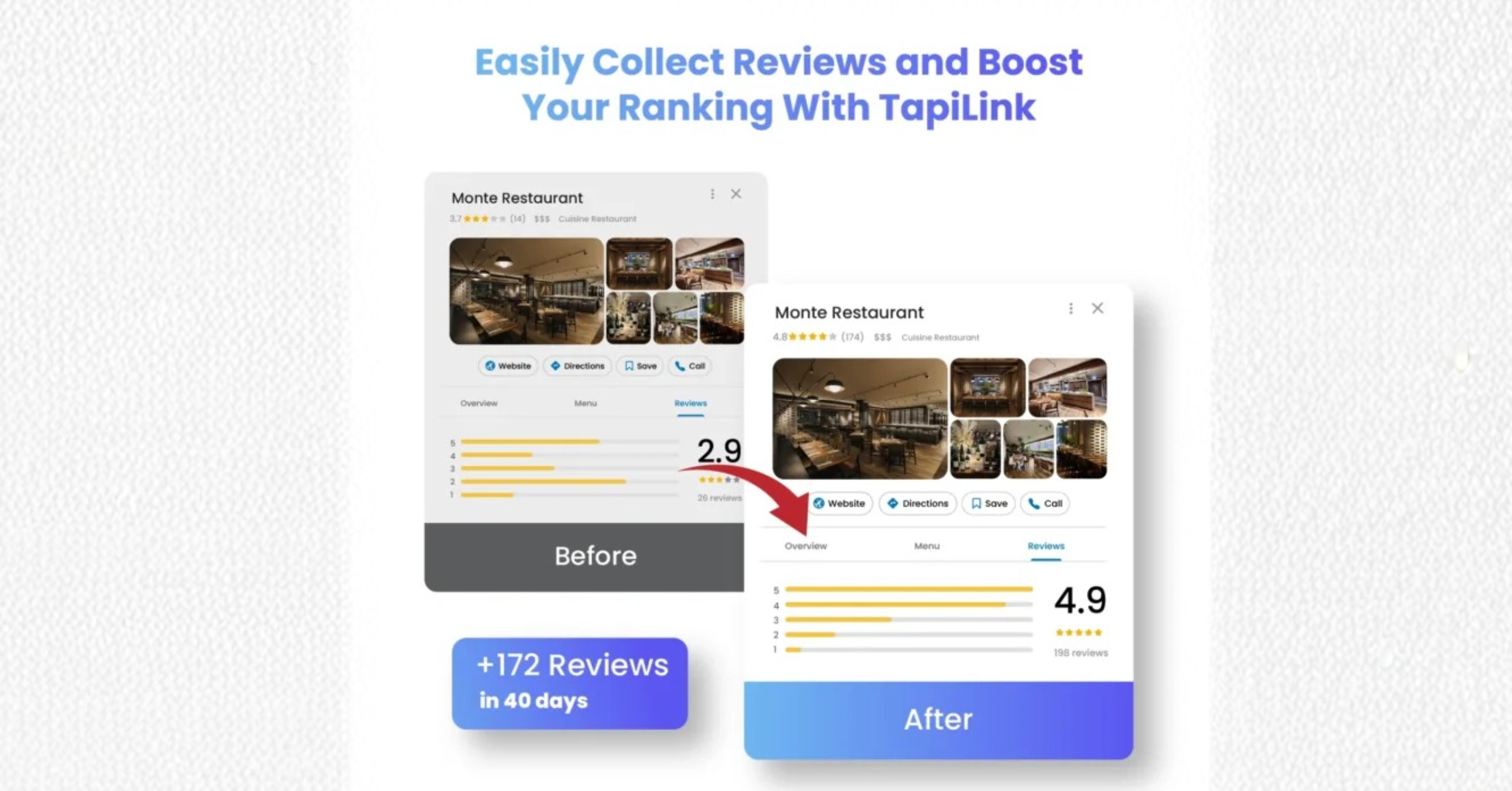
According to Google, businesses that actively request reviews through their Google Business Profile are more likely to build trust and improve local visibility. In competitive UK and US markets, even a small increase in review volume can impact local SEO rankings.
In this guide, you will learn the exact five steps to get your Google review link, program your NFC stand, test it properly, place it for maximum visibility, and train staff to ask at the right moment.
What Is a Google Review Stand and How Tap to Review Works
A Google review stand is a small countertop display that lets customers leave a review on your Google Business Profile with a simple tap or scan. Instead of asking people to search for your business manually, the stand connects directly to your review link and opens the review box instantly on their phone.
It works using two technologies:
- NFC technology allows modern smartphones to open a link when tapped against the stand.
- QR codes allow customers to scan with their camera if NFC is unavailable.
When someone taps the stand, their phone launches your Google Maps listing and opens the “Write a review” screen. This is called the tap to review experience. There are no extra steps, no typing your business name, and no confusion.
The link comes directly from your Google Business Profile dashboard. That ensures reviews are posted to the correct listing and location.
This setup reduces friction at the exact moment a customer feels satisfied. And when you remove friction, you increase the likelihood of receiving consistent five star feedback.
Now let’s break down the entire setup in under two minutes.
Quick Setup Overview in Under 2 Minutes
Here is the fast answer if you want the setup summary before diving deeper:
- Get your Google review link from your Google Business Profile dashboard
- Program the NFC stand by writing your review URL to the NFC tag
- Test on iPhone and Android to confirm the review box opens directly
- Place it where customers pause such as checkout counters or reception desks
- Train staff to ask confidently right after a positive service moment
That is the entire process. No advanced tech skills required.
Each step ensures your stand opens the correct review screen, works across devices, and is positioned for maximum visibility.
In the next section, we will walk through the most important step first, getting your direct Google review link correctly from Google Business Profile.
Step 1 Get Your Google Review Link from Google Business Profile
The most common mistake businesses make is linking to their homepage instead of the direct review form. If customers have to search for the review button, many will abandon the process.
Find Your Direct Review Link Inside Google Business Profile
Log in to your Google Business Profile dashboard.
Under the Home section, you will see an option labeled Ask for reviews. Click it. Google automatically generates a short review link that opens the review box directly.
You can copy this link and test it in a private browser window. It should open your Google listing with the review panel visible immediately.
Use the g page Review Link Format
In some cases, your review link will look like this:
https://g.page/yourbusinessname/review
This is the preferred format. It is short, mobile friendly, and designed specifically for review collection.
Make Sure the Link Opens the Review Box Directly
Before moving forward:
- Open the link on your phone
- Confirm it loads your correct location
- Make sure the “Write a review” section appears instantly
If it opens your profile homepage without showing the review box, go back and regenerate the link inside Google Business Profile.
Once you confirm the correct review link is working, you are ready to program it into your NFC stand.
Step 2 Program Your NFC Review Stand with the Correct Link
Now that you have your direct Google review link, the next step is to program it into your NFC stand correctly. This is where many businesses rush and make small errors that later cause tap failures.
Write the Review URL Using NFC Tools
Download an app such as NFC Tools from the App Store or Google Play. It is simple and works well for writing URL links to NFC tags.
Open the app and:
- Select Write
- Choose Add a record
- Select URL or URI
- Paste your Google review link
- Tap Write
- Hold your phone against the NFC chip in the stand
You should see a confirmation message once the tag is written successfully.
Encode the NFC Tag Properly
After writing the link, test it immediately. Tap your phone against the stand and confirm it opens the Google review box directly.
Important checks:
- The correct business location opens
- The review panel appears instantly
- No extra search step is required
Avoid rewriting the tag multiple times unless needed. Most NFC stands are designed for permanent encoding. If you manage multiple locations, double check that you are programming the correct review link for that branch.
Add a QR Code Backup Option
Not all customers use NFC. Some disable it. Some older phones may not support it.
That is why every Google review stand should include a printed QR code that points to the same review link. This ensures:
- Universal device compatibility
- Higher completion rates
- No lost review opportunities
Once your NFC and QR are aligned to the same URL, your stand is technically ready.
Next, we make sure it works perfectly across devices.
Step 3 Test Your Review Stand on iPhone and Android Devices
Testing is not optional. A stand that works on one phone but fails on another will cost you reviews.
Test NFC on iPhone
Modern iPhones have NFC enabled by default.
Tap the top edge of the phone against the NFC area of the stand. A notification should appear at the top of the screen. Tap it, and your Google review page should open instantly.
Confirm:
- The correct business listing loads
- The review box is visible immediately
- The page loads on mobile data, not just WiFi
Test NFC on Android
On Android, NFC may need to be enabled manually.
Go to Settings and search for NFC. Turn it on if it is disabled.
Tap the back of the phone against the stand. The browser should open your Google review page directly.
Fix Common Tap Problems
If something fails, check these quickly:
- NFC is turned on
- The URL was copied correctly
- The NFC tag was written fully
- The customer is tapping the correct area of the phone
Also test your QR code. Scan it with the camera and confirm it opens the same review screen.
Once both devices work perfectly, your setup is technically complete. Now we focus on maximizing visibility.
Step 4 Place Your Google Review Stand for Maximum Visibility
Even a perfectly programmed stand will fail if it sits in the wrong place.
Best Counter and Checkout Locations
The most effective placements are where customers naturally pause:
- Checkout counters
- Reception desks
- Service completion points
- Billing stations
These are moments when customers feel satisfied and are holding their phone.
Placement Tips by Business Type
Different industries have different high conversion zones:
- Restaurants benefit from placing stands near payment terminals
- Salons see strong results at styling mirrors after service
- Clinics can position stands at front desk check out
- Retail shops perform best near the card machine
The key principle is simple. Place it where gratitude is highest.
Where Not to Place the Stand
Avoid:
- Low traffic corners
- High clutter counters
- Areas blocked by products
- Behind glass
Visibility drives action. Position the stand upright, clean, and easy to tap.
Step 5 Train Staff to Ask for Reviews at the Right Moment
Technology opens the review page. People drive the action.
Simple Scripts Staff Can Use
Keep it natural and confident. For example:
“If you were happy with today’s service, you can tap here to leave us a quick Google review.”
Or:
“Your feedback really helps local customers find us. It only takes a few seconds.”
The tone should feel helpful, not pushy.
The Best Timing After Service
The ideal moment is right after:
- A successful service completion
- A compliment from the customer
- Payment confirmation
This is when positive emotion is highest.
Stay Compliant with Google Review Policies
Never offer incentives for reviews. Do not filter customers based on satisfaction. According to Google Business Profile guidelines, businesses should request reviews ethically and without pressure.
Focus on genuine feedback. Authentic reviews build long term trust and improve local visibility.
With your NFC stand programmed, tested, placed correctly, and supported by trained staff, you now have a complete friction free review collection system.
Next, we will cover common problems and quick fixes to ensure your setup continues working smoothly.
Common Problems and Quick Fixes
Tap does not work
Make sure NFC is enabled on the phone. On Android, check Settings and turn NFC on. On iPhone, tap the top edge of the phone to the NFC area of the stand. If nothing happens, reprogram the tag and confirm it was written successfully.
Wrong page opens
This usually means the wrong URL was encoded. Recheck your Google Business Profile review link. Open it in a browser first. Confirm it loads the correct business location and shows the review box instantly before rewriting the NFC tag.
NFC disabled on customer device
Some Android users turn NFC off to save battery. Ask them to enable it in Settings or invite them to scan the QR code instead. Always keep QR as a backup.
Internet redirect issues
Public WiFi networks sometimes redirect to a login page. Test your stand using mobile data. If WiFi blocks the review link, customers may abandon the process.
Multiple location errors
If you manage several Google Business Profile listings, double check that each stand is programmed with the correct branch review link. A mismatch sends reviews to the wrong location.
Fix these quickly, test again, and keep your review system running smoothly.
Frequently Asked Questions
1. Do Customers Need An App To Use A Google Review Stand?
No. Customers do not need to download any app. When they tap the NFC stand or scan the QR code, their phone automatically opens the Google review page in the browser or Google Maps app. The only requirement is that they are signed into a Google account to post a review.
2. Will A Google Review Stand Work On All Smartphones?
Most modern iPhone and Android devices support NFC. However, some Android users may have NFC turned off in settings. That is why every review stand should also include a QR code backup. The QR option ensures compatibility across all devices.
3. Is It Allowed To Ask Customers For Google Reviews?
Yes. Google encourages businesses to request reviews from customers, as long as the process is fair and honest. You should not offer incentives, filter negative feedback, or pressure customers. Always request reviews ethically through your Google Business Profile link.
4. Can I Use One Google Review Stand For Multiple Locations?
No. Each physical location should have its own stand programmed with its specific Google Business Profile review link. Using the wrong link can send reviews to the incorrect branch, which affects local SEO accuracy.
5. How Many Reviews Can I Expect After Installing A Review Stand?
Results vary based on foot traffic and staff engagement. Businesses that place the stand at checkout and train staff to ask at the right moment often see a noticeable increase in weekly reviews. Consistency and visibility are the key drivers of long term review growth.
Conclusion
Setting up your Google review stand the right way can transform how customers leave feedback. When you connect the correct Google Business Profile review link, program the NFC tag properly, test it on both iPhone and Android, and place it where customers naturally pause, you remove unnecessary steps. That simple tap to review experience reduces friction, increases review volume, and strengthens your local SEO visibility. Follow the five steps in this guide and you turn happy customer moments into consistent five star growth.
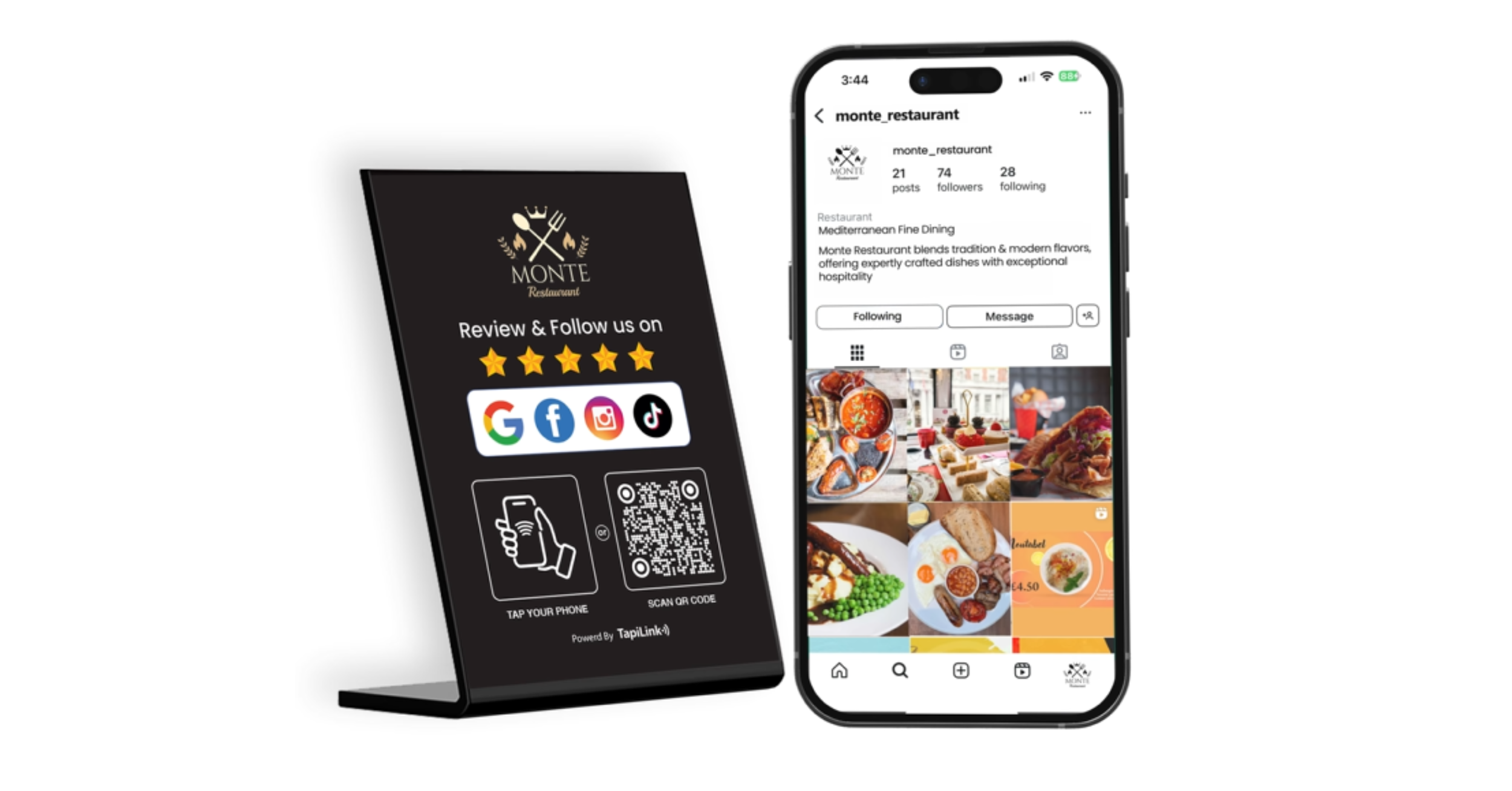
At Tapilink, we design our Google review stands to make this process seamless. Our NFC and QR enabled stands are built for reliability, fast setup, and real world performance in retail stores, salons, clinics, restaurants, and service businesses. We focus on simple activation, clean design, and maximum compatibility so your customers can leave a review in seconds. When you use Tapilink, you are not just placing a stand on a counter. You are installing a smart review growth system that works every day.
Ready to revolutionize your networking approach? Explore TapiLink's range of premium NFC business cards and join the thousands of professionals who've already made the smart choice.