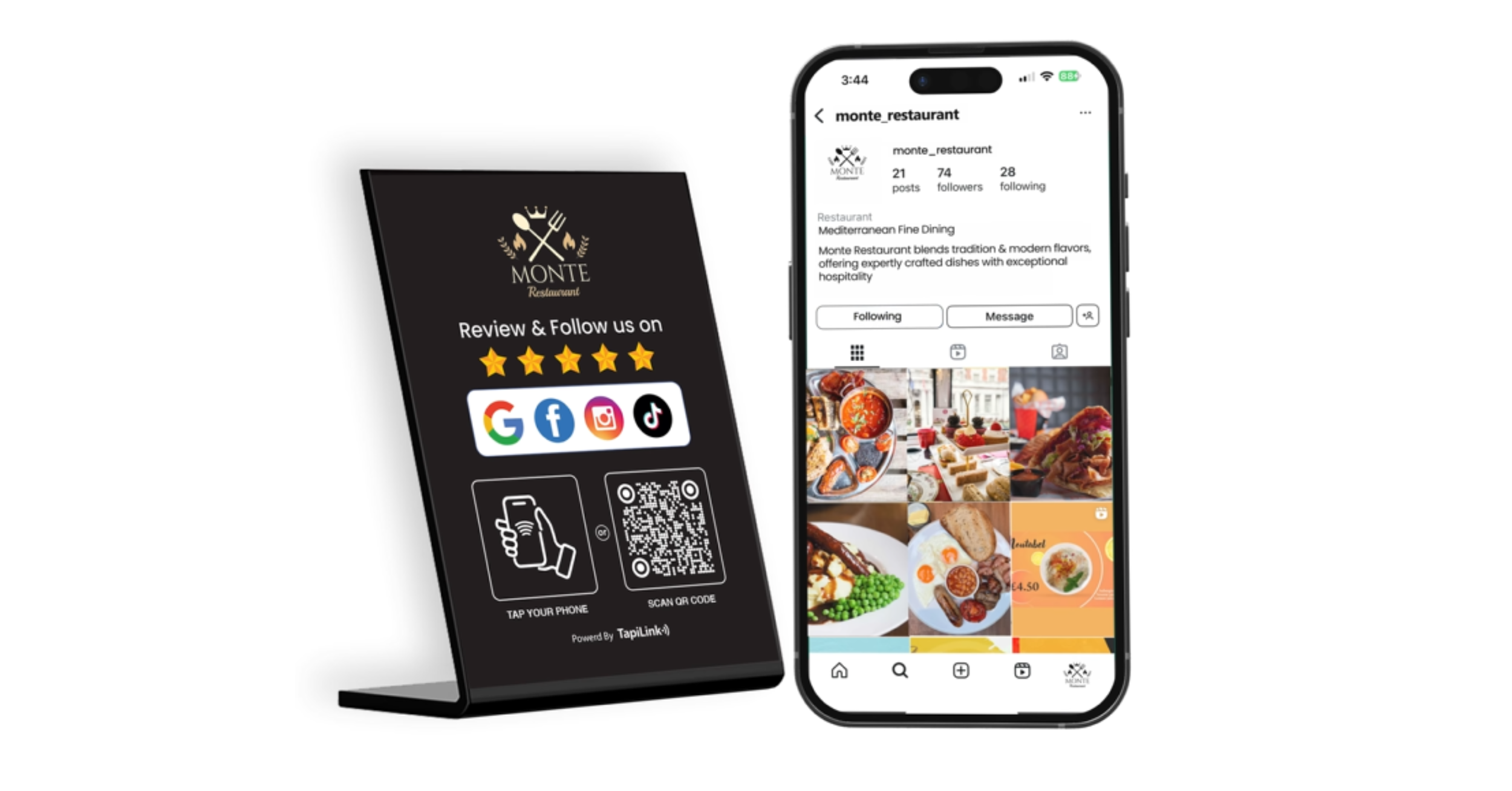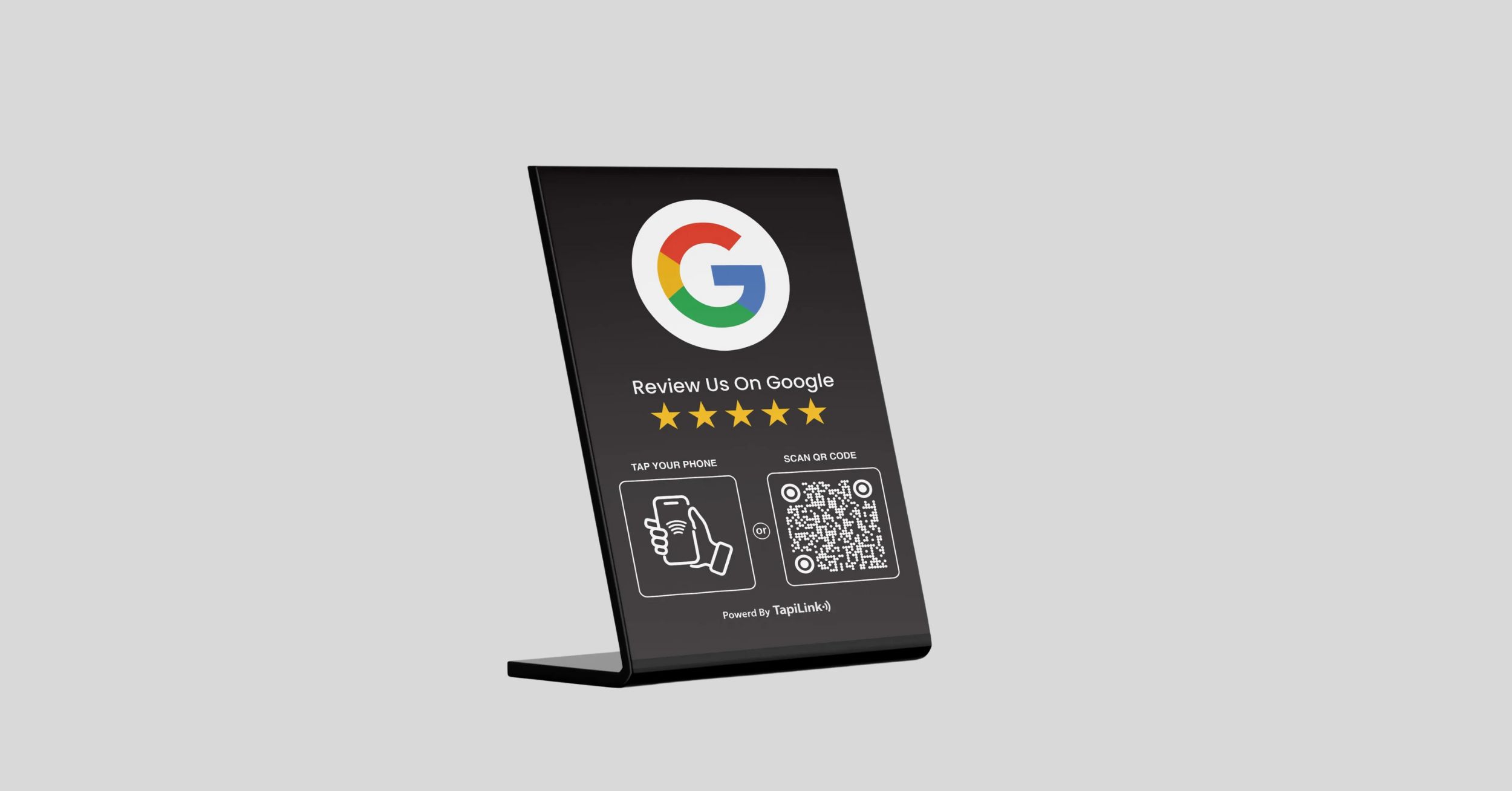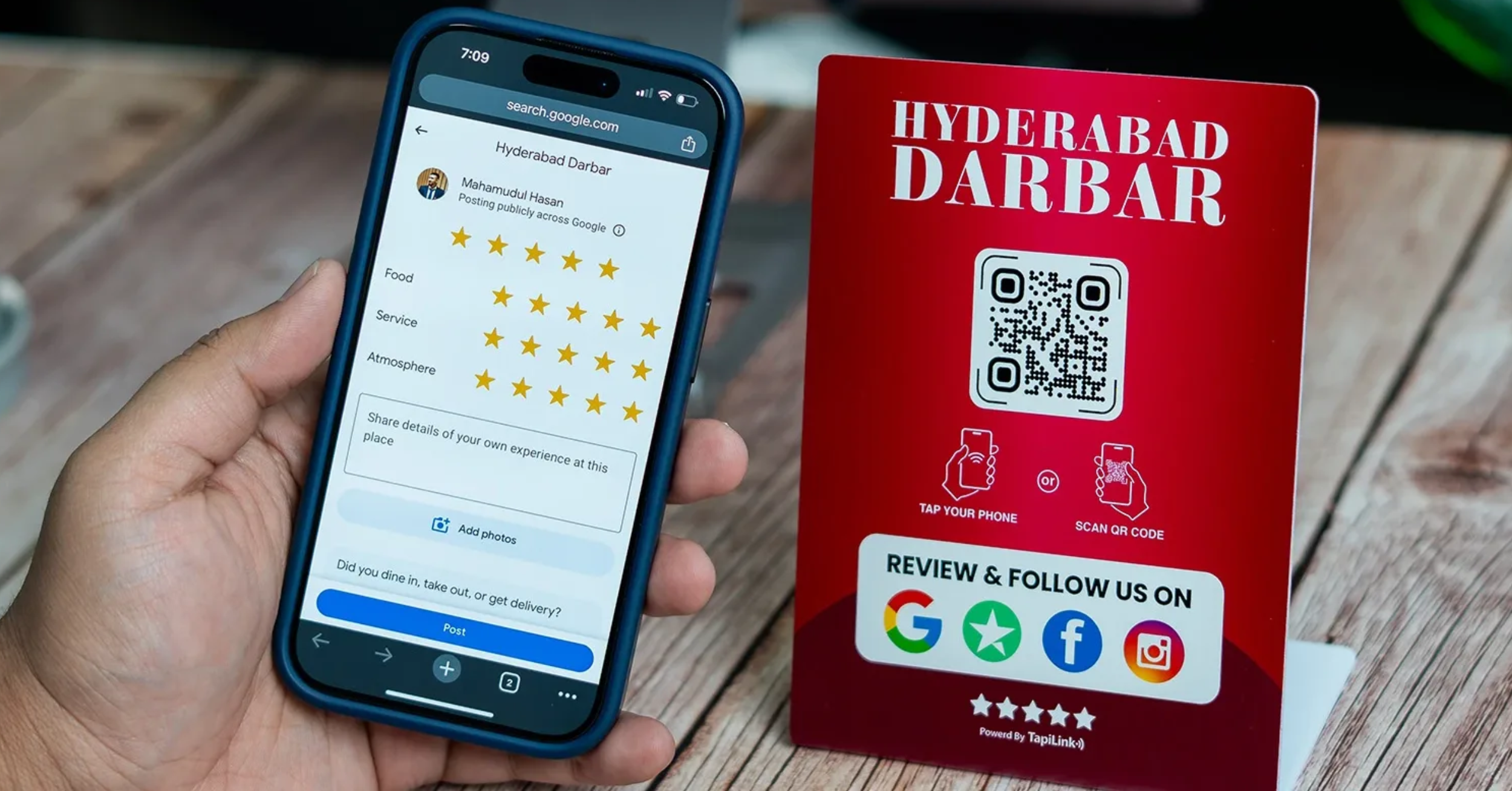
If Google reviews are paused, check whether your Business Profile has a review restriction before replacing cards or QR signs. Pause review requests for the affected location. Cover or remove its review displays until customers can leave reviews again.
Imagine a customer scans the sign at your checkout. The correct business appears, but the customer cannot leave a review. If the link still reaches the right profile, replacing the card will not remove a restriction set by Google.
First, find out whether Google paused reviews, a single review is delayed or the link opens the wrong listing. Each problem needs a different response. This guide explains what to check, what staff can say and when to put your signs back.
Why Does Google Pause New Reviews?
Google can temporarily pause new reviews to protect a listing from suspicious activity. It can also restrict a Business Profile after finding a policy violation. A pause alone does not tell you which situation applies.
Google’s Maps protection update describes what can happen after a sudden spike in spam reviews. Google may remove fake content, pause new contributions and alert the owner. Customers may also see a banner explaining the pause.
A policy restriction is another possibility. Google’s Business Profile restriction guidance explains that it may temporarily stop new ratings or reviews after a fake engagement violation. Check the notice associated with your listing before deciding what to do.
Check Whether Google or the Card Is Causing the Problem
Test the affected listing directly, then test the card. This helps you distinguish a problem with Google reviews from a problem with the link. You can run these checks without submitting a test review.
- Open the business in Google Maps. Confirm the name and address match the location where the card is used.
- Look for a review notice. Check the public listing and the email account connected to your Business Profile.
- Open the review link directly. Check whether the correct review form is available to an eligible, signed-in user.
- Test the QR code and NFC tap separately. Confirm both routes open the intended business.
- Compare the results. Note whether the form is unavailable everywhere or only when you use one card.
If the direct link works but the physical card fails, investigate the card or its destination. Follow our guide to fixing a Google review card that isn’t working. If every route reaches the correct listing and Google confirms a pause, focus on the restriction.
One missing review does not necessarily mean Google paused all reviews. Google’s guide to missing or delayed reviews explains that review checks can take several days. Check whether other customers can still open the form before taking down your displays.
What Should You Do With Review Cards and QR Signs?
Temporarily remove review cards from the affected counter or stop handing them out. Cover the review instruction on fixed signage if removing the display is impractical. Keep any unrelated information visible, such as opening hours or service instructions.
Check other places where customers might receive the same request:
- Reception desks, tables and checkout counters.
- Receipts, invoices and takeaway inserts.
- Scheduled emails, texts and aftercare messages.
- Website buttons and review links in email signatures.
- Staff scripts and printed handouts.
For multiple locations, match each sign to its destination before removing it. A pause affecting one branch does not tell you whether another branch is affected. Check each listing separately and pause requests where customers cannot review.
Keep the original TapiLink Google review cards if they still point to the correct listing. Store them together and label them by location. This makes it easier to test and return each card when reviews resume.
What Should Staff Say to Customers?
Give staff one short explanation they can use when a customer asks. Keep it factual and avoid guessing why Google paused reviews. If the customer wants help, offer a direct route to your team.
“Google reviews are temporarily unavailable for this location. If you’d like to share feedback today, you can speak to our team or email us directly.”
Use private feedback to understand and resolve concerns while public reviews are unavailable. When reviews resume, make any public invitation neutral. Google’s Maps content policy prohibits incentives for reviews and selectively asking for positive reviews.
Follow the Instructions in Google’s Notice
Save the notice, its date and the affected location. Keep a screenshot of the public message if one appears. This gives you a record if you need to ask Google about the restriction.
If Google identifies a policy restriction and you believe it applied it incorrectly, follow the official appeal instructions. Provide the requested information and explain what you observed. Google says it will review the profile and any additional context you submit.
If the notice describes a protective pause after suspicious activity, follow the instructions in that alert. Avoid assuming that a policy appeal applies to every pause. Keep review requests on hold while you check the profile’s status.
When Can You Put Your QR Signs Back?
Restore your signs once the affected listing can accept new reviews again. Start with the direct review link. Then test each card and QR sign to confirm it opens the correct location and review form.
Use this restart checklist:
- Check the latest notice or status for the affected location.
- Open the direct review link on a phone.
- Scan each QR sign and tap each NFC card you plan to reuse.
- Return working cards to their usual positions.
- Turn scheduled review requests back on for that location.
- Remind staff to invite honest feedback without pressure.
Resume your usual requests after completed visits or jobs. Avoid asking everyone who visited during the pause to post at once. A simple request at the end of each genuine customer interaction is easier for staff to manage.
Keep Working Cards Ready for When Reviews Resume
If Google paused new reviews, focus on the listing before changing your cards or signs. Set aside displays for the affected location, brief staff and follow the instructions Google provides. Test the original cards before returning them to the counter.
If a card still opens the wrong listing after reviews resume, treat that as a separate issue. Check the destination before ordering a replacement. Contact TapiLink if you need help checking where your card’s tap or QR code leads.
Frequently Asked Questions
Question: Why does my Google review QR code open the business but not the review form?
Answer: The code may point to the main listing rather than the review form. Google may also have paused new reviews for that location. Test the direct review link and check the listing for a notice.
Question: Will a new Google review card fix paused reviews?
Answer: No. A replacement card can fix a physical or linking problem, but it cannot remove a restriction from your Business Profile. Keep the original card if its link still reaches the correct listing.
Question: How long will Google reviews stay paused?
Answer: Check Google’s notice for details about your listing. The timing depends on the type of pause or restriction. Confirm that the review form is available before restarting requests.
Question: Can I ask customers to review another branch while mine is paused?
Answer: Only invite customers to review a location they actually visited or used. Sending someone to another branch would misrepresent where their experience happened. Offer a direct feedback channel for the affected location instead.
Question: Do I need to print new QR signs when reviews resume?
Answer: Usually, you can reuse a sign if its QR code still opens the intended review form. Scan the printed sign before displaying it again. Replace it if the code is damaged or points to an outdated destination.
Ready to revolutionize your networking approach? Explore TapiLink's range of premium NFC business cards and join the thousands of professionals who've already made the smart choice.