Google review card not working? Start by testing the QR code, checking the phone’s NFC settings and opening the destination manually. These checks separate card-reading problems from broken links, Google Account sign-in requirements and reviews that Google delays after customers submit them.
A failed tap does not automatically mean you need another card. Sometimes, the phone detects the card, but the customer misses the notification.
Google’s guidance, checked in October 2026, confirms that review moderation can take a few days. A missing review alone therefore does not prove a hardware fault.
This guide helps shop owners, salon teams, hospitality businesses and service providers identify where the process stops. It draws on Google, Apple and Samsung documentation, with a practical checklist you can follow before contacting support or replacing your card.
Google Review Card Not Working? Start Here
Identify the last step that worked before changing anything. A phone failing to detect your card needs different troubleshooting from a review awaiting publication.
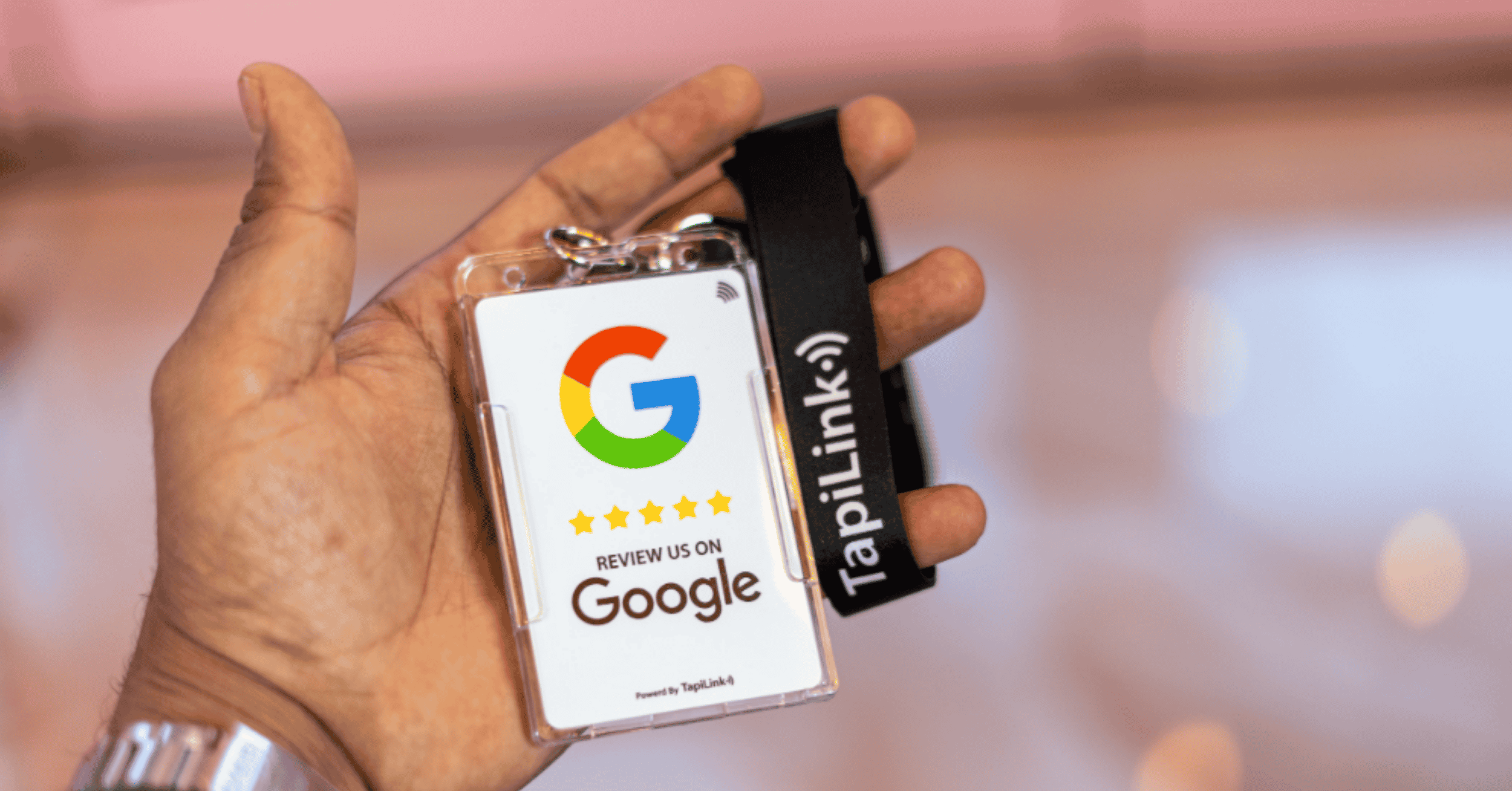
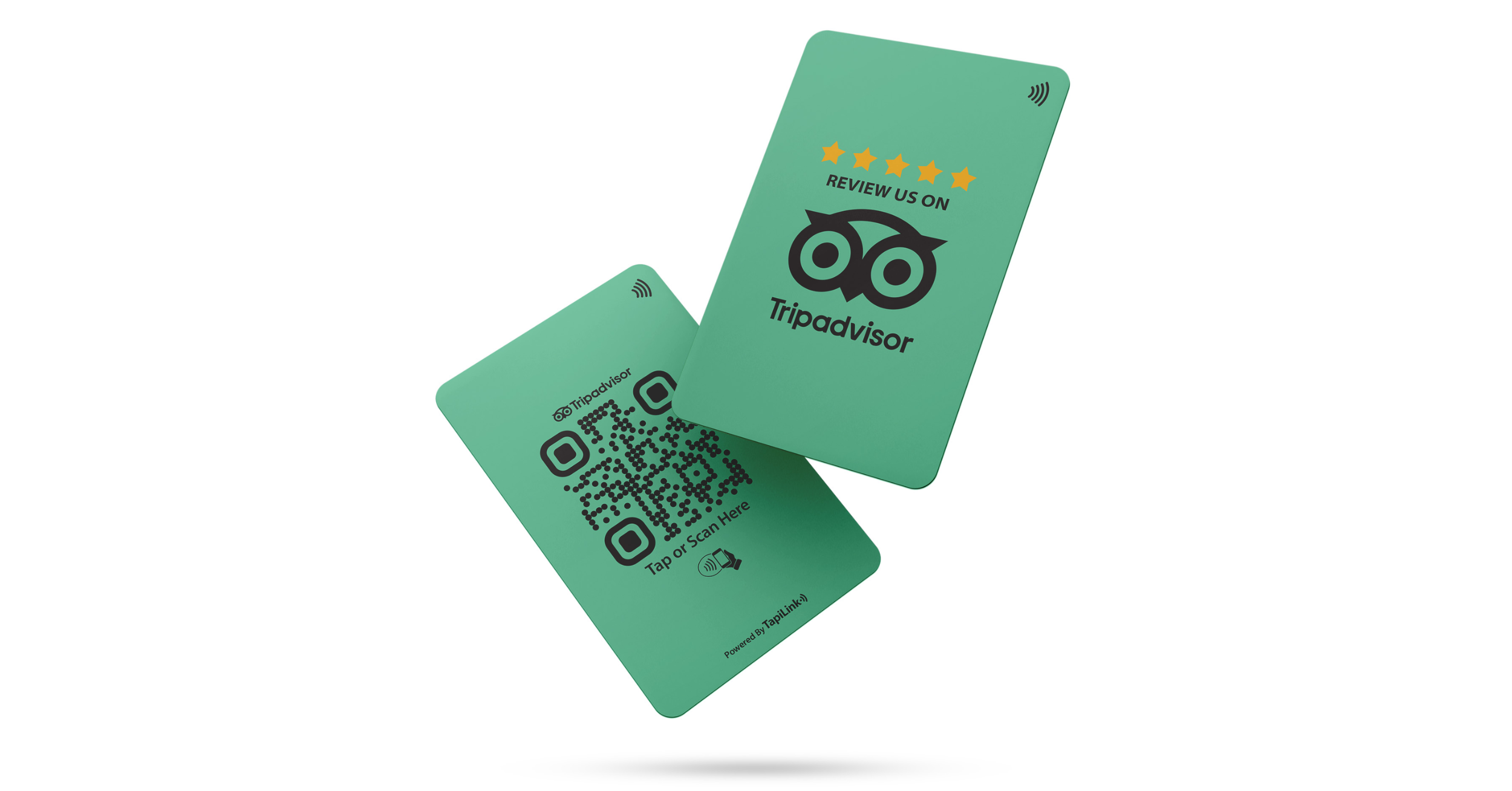
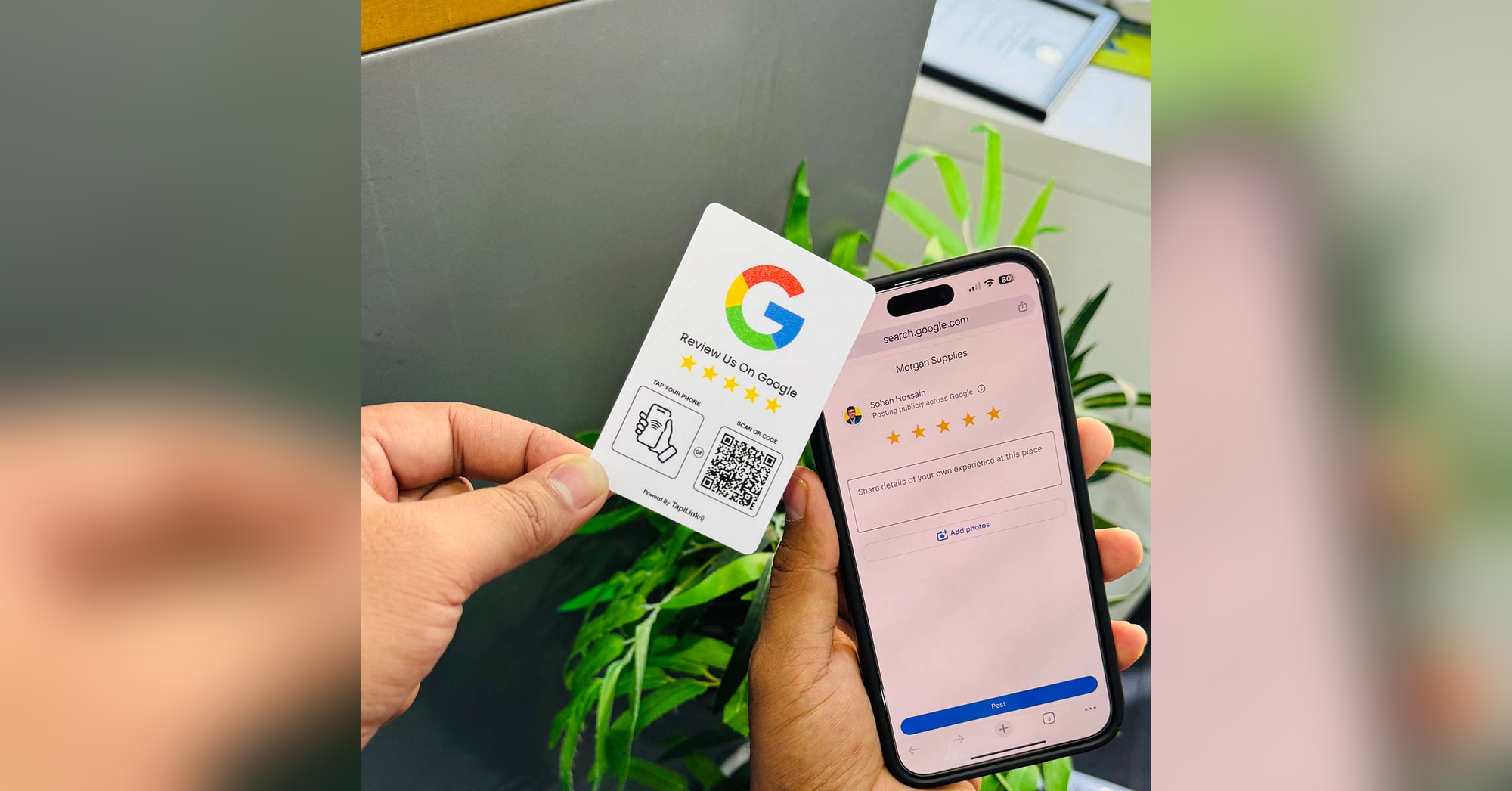
A Google review card is a physical shortcut that opens a review destination through NFC, a QR code, or both.
Match your problem to one of these situations:
- Nothing happens when tapping: Check NFC compatibility, settings, positioning and accessories.
- QR works, but tapping fails: Investigate the NFC reading path.
- The wrong business opens: Check the stored destination and branch details.
- A notification appears, but nothing loads: Check the connection, browser and link.
- Google requests sign-in: Let the customer access their own Google Account.
- Submitted feedback stays invisible: Investigate Google’s review processing.
Keep these stages separate. Replacing a readable card will not solve a customer’s account problem or make Google publish delayed feedback.
1. Check NFC Settings and Positioning
If tapping produces no response, check whether the phone supports NFC and whether its reader is available. Then adjust positioning.
For Android phones:
- Open Settings and search for “NFC”.
- Enable NFC if the device supports it.
- Unlock the phone.
- Hold the card near the phone’s NFC antenna.
- Pause briefly instead of repeatedly tapping.
Antenna positions vary between devices. Check the handset manufacturer’s instructions if you cannot find the reading area.
For iPhones, hold the phone’s upper edge near the card and watch for a notification. Tap that notification to continue.
Apple’s background tag-reading documentation confirms support on iPhone XS and later. Background reading can be unavailable while the camera or Apple Pay is active. Close those features before retrying.
If the customer cannot conveniently use NFC, offer the printed QR code instead. This gives them another route without prolonging checkout.
2. Remove Cases and Check Placement
Remove accessories before deciding the NFC chip has failed. A phone case or attached wallet may interfere with communication.
In its September 2026 guidance, Samsung explains NFC interference from accessories containing magnets, cards or metal. Test the phone without these accessories before making other changes.
Next, lift the review card away from its display surface and try again. This comparison helps establish whether its installed position contributes to the problem.
Change one condition at a time. Otherwise, you cannot tell which adjustment helped.
If tapping works while holding the card, review its placement before replacing it. Keep the tap area visible and accessible.
For a fixed reception display, TapiLink’s NFC review stands offer another format to consider.
3. Check the Review QR Code
If the QR code will not scan, inspect the printed code before changing its destination. Detection and loading are separate problems.
Clean the surface gently and check for scratches, stickers or reflections covering the pattern. Then try another phone’s camera.
Work through these checks:
- Keep the entire code inside the camera frame.
- Move slightly closer, then farther away.
- Improve lighting without creating glare.
- Keep the blank border around the code unobstructed.
- Watch for a link notification.
If the camera recognises the code but the destination fails, investigate the link next.
NFC and QR codes can contain different destinations. Never assume that updating one automatically changes the other.
For example, the NFC chip might open your current review page while an older printed QR code opens another destination.
4. Check the Google Review Link
If the card opens another business or an error page, verify the destination. A readable card can still contain an incorrect link.
Open your Google Business Profile and locate its review-request sharing option. Copy the current link and test it directly.
Then check:
- Does the correct business name appear?
- Does the address match your branch?
- Can customers reach the review option?
- Does NFC open the same destination?
- Does the printed QR code match?
For businesses with several locations, repeat these checks for every card.
If the direct Google link works but the card’s link fails, investigate any redirect between them. Your supplier may need to update its destination.
A writable NFC tag may allow rewriting. A locked tag requires another supported update method or replacement.
Our Google review card activation guide explains the initial programming process.
5. Check Sign-In and Internet
If the correct page opens but the customer cannot continue, check their connection and account status. The NFC reader has already completed its task.
Google’s review collection guidance confirms that customers must sign into a Google Account. They can use an account registered with a non-Gmail email address. Google also prohibits rewards exchanged for reviews.
Let customers enter their own credentials privately. Staff should never request passwords or submit feedback for them.
If the page stalls, try another available connection. Alternatively, open the destination in the phone’s normal browser.
For guest WiFi, complete any network sign-in screen first. Then reopen the review link.
Reading the NFC tag and loading Google’s website are different operations. A successful tap does not establish that the internet connection works.
6. Separate Missing Reviews From Card Faults
If someone submits feedback but it does not appear publicly, investigate Google’s publishing process. Reprogramming the card will not control moderation.
Google’s missing or delayed reviews guidance explains that checks can delay publication for a few days. Google may also remove policy-violating reviews or temporarily restrict contributions.
Ask the customer to confirm they completed submission. Avoid repeatedly requesting duplicate reviews while investigating.
Also, avoid discounts, gifts or loyalty points in exchange for feedback. Invite honest reviews without requiring a particular rating.
Keep this distinction clear: a tap, an opened review form and a published review represent three different outcomes.
Your card provides access to the review process. Google controls what happens after submission.
7. Run a Repeatable Card Test
Use the same sequence whenever your Google review card stops working. Record the results so support can understand the fault.
Follow this checklist:
- Open the direct link: Confirm the correct business and review option appear.
- Test a compatible iPhone: Record whether a notification appears and which destination opens.
- Test an NFC-enabled Android: Record the same details.
- Scan the QR code: Check detection and destination separately.
- Lift the card: Retest away from its usual display surface.
- Remove phone accessories: Repeat the tap without the case or attached wallet.
- Compare connections: Try another available internet connection if loading fails.
QR success alongside NFC failure narrows investigation towards the tap-reading path. It does not prove the chip is broken.
Send your findings through TapiLink support, including phone models and screenshots of errors. Exclude passwords and customer information.
Frequently Asked Questions
Question: Why does QR work but NFC fail?
Answer: The QR code and NFC chip use different reading methods. Check NFC compatibility, settings, antenna positioning and accessories first. Then compare results on another compatible phone.
Question: Do customers need a special app?
Answer: Customers generally do not need a supplier’s app to open a review URL through compatible NFC reading or QR scanning. However, Google requires account sign-in before they submit feedback.
Question: Can I change my review card’s link?
Answer: That depends on the setup. A managed redirect may support destination changes. A writable chip may allow rewriting, while a locked chip cannot simply be overwritten.
Question: Does tapping automatically post a review?
Answer: No. Tapping opens a destination. The customer must choose to leave feedback and complete Google’s submission process.
Question: Will replacing the card restore missing reviews?
Answer: No. Replacement addresses a physical card problem. Google controls moderation and publication, so investigate missing feedback separately.
Get Your Review Card Working Again
Start with the symptom, then test the phone, NFC connection, QR code and destination separately. If submission succeeds, investigate Google’s processing before replacing the card.
Need help choosing a tap-and-scan format? Explore TapiLink’s QR and NFC review cards and select a product that suits your customer workflow.
Ready to revolutionize your networking approach? Explore TapiLink's range of premium NFC business cards and join the thousands of professionals who've already made the smart choice.