If customers, guests, or visitors often ask for your WiFi password, a QR code can make the process much easier. Instead of spelling out a long password, writing it on paper, or repeating it all day, you can let people scan a code and connect instantly. That is why many business owners want to know how to create a QR code for WiFi password sharing.
A WiFi QR code is especially useful for places where people expect internet access. Cafes, restaurants, salons, clinics, hotels, Airbnb properties, offices, and waiting rooms can all use it to create a better guest experience. It saves staff time and removes the small frustration of customers typing the wrong password.
But creating the QR code is only the first step.
If the code is too small, badly printed, placed in the wrong location, or connected to the wrong network, people may still struggle to use it. For customer-facing businesses, the way you display the QR code matters just as much as the code itself.
In this blog, we'll explain what a WiFi QR code is, how to create one, how to test it, where to display it, and how TapiLink's NFC and QR WiFi Access Stand can make guest WiFi access look more professional.
What Is a WiFi QR Code?
A WiFi QR code is a scannable code that stores your WiFi network details.
Instead of asking someone to type the network name and password manually, you can let them scan the code with their phone. The phone reads the WiFi details inside the QR code and helps the user connect to the network more easily.
A WiFi QR code usually includes three main details:
- The WiFi network name, also called the SSID
- The WiFi password
- The security type, such as WPA or WPA2
For a customer or guest, this makes the process much simpler. They do not need to ask a staff member for the password. They do not need to type a long mix of letters, numbers, and symbols. They just scan and follow the connection prompt on their phone.
For a business, this can reduce repeated questions and create a smoother first impression.
This is why WiFi QR codes are useful in cafes, restaurants, salons, hotels, Airbnb properties, offices, clinics, coworking spaces, and reception areas. Anywhere guests regularly ask for WiFi, a QR code can make the experience easier.
The important thing is to display it properly. A QR code hidden on a small piece of paper may work technically, but it will not look professional or be easy for customers to notice.
What You Need Before Creating a WiFi QR Code
Before you create a WiFi QR code, you need the correct network details.
This part sounds simple, but small mistakes here can stop the QR code from working. If the network name is typed incorrectly, the phone may not recognise it. If the password has one wrong capital letter, symbol, or space, the connection will fail.
You will usually need:
- WiFi network name, also called SSID
- WiFi password
- Security type, such as WPA, WPA2, or WPA3
- A guest WiFi network if customers or visitors will use it
- A clear place where the QR code will be displayed
For businesses, use a guest WiFi network instead of your private staff or admin network. A guest network keeps customer access separate from your main business systems and gives you more control over visitor access.
This matters for cafes, restaurants, hotels, salons, clinics, offices, coworking spaces, and Airbnb properties. You want guests to connect easily, but you also want the setup to stay organised.
Also think about where the QR code will go before you create it. A QR code for a reception desk may need a different size from one printed on a small card, table stand, hotel room display, or welcome pack.
The goal is not just to create the code. The goal is to make it easy for real people to scan and connect without asking for help.
How to Create a QR Code for WiFi Password
Creating a QR code for WiFi password sharing is simpler than most people expect. The main thing is to use a WiFi QR code generator, not a normal website URL QR code generator.
A WiFi QR code needs to store network information, so the generator should ask for your WiFi name, password, and security type.
Step 1: Choose a WiFi QR Code Generator
Start by choosing a QR code generator that has a specific WiFi option.
Do not use a basic URL QR code field unless you are linking to a WiFi instruction page. For direct WiFi sharing, the generator needs to create a WiFi-format QR code.
Look for fields such as network name, password, encryption or security type, and hidden network option if needed.
Step 2: Enter Your WiFi Network Name
Next, enter your WiFi network name exactly as it appears.
This is also called the SSID. If your network name uses capital letters, spaces, numbers, or symbols, copy it carefully. Even a small difference can cause problems.
For example, "CafeGuestWiFi" and "Cafe Guest WiFi" are treated as two completely different network names. One wrong character and the connection fails.
Step 3: Add the WiFi Password
Enter the WiFi password exactly.
Check capital letters, numbers, special characters, and spaces. If the password is long, copy and paste it from your router settings or password manager if possible.
Do not guess. If the password is wrong, the QR code may still scan, but customers will not connect successfully.
Step 4: Select the Correct Security Type
Most modern networks use WPA, WPA2, or WPA3 security. Choose the option that matches your router setup.
If you are not sure, check your router settings or WiFi configuration page. Choosing the wrong security type can stop the code from working correctly, even if the network name and password are right.
Step 5: Generate and Download the QR Code
Once the details are entered, generate the QR code and download it in a clear format.
If you plan to print it, use a high-quality file. A blurry or low-resolution QR code may not scan well, especially if printed small or placed on a busy design.
Keep the design simple. The code should be clear, high contrast, and easy for any phone camera to read cleanly.
Step 6: Test Before Printing or Displaying
Do not print or display the QR code before testing it.
Scan it with your own phone first. Then test it on another phone if possible. If your customers use both iPhone and Android, test both.
The QR code should open the WiFi connection prompt and connect to the correct network. If it does not work during testing, fix the issue before placing it in front of customers.
How to Test Your WiFi QR Code Properly
Testing is one of the most important steps.
A WiFi QR code may look fine on your screen, but that does not always mean it will work in real life. Print quality, size, distance, lighting, and phone camera quality can all affect scanning.
Start by scanning the code directly from your screen. If it works there, print a test version and scan the printed copy.
Then check these things:
- Does the phone recognise it as a WiFi QR code?
- Does it show the correct network name?
- Does it connect without asking the user to type the password manually?
- Does it work on more than one phone?
- Does it scan from the distance customers will use?
- Does it still scan under normal lighting conditions?
- Is the QR code large enough?
- Is there enough contrast between the code and the background?
If the QR code will be used on a counter, table, reception desk, hotel room display, or waiting area, test it from that exact position. This helps you see what your customers will actually experience.
A code that scans from 10 centimetres away may not work from across a table. Testing protects you from a common business problem: putting a QR code in front of customers, then still having them ask staff for the WiFi password.
Where Should You Display a WiFi QR Code?
A WiFi QR code should be placed where customers naturally look for internet access.
Do not hide it in a corner, behind the counter, or at the bottom of a busy poster. If people cannot see it easily, they will still ask for the password.
Good places to display a WiFi QR code include:
- Cafe counter or tables
- Restaurant dining areas
- Hotel room desk or reception
- Airbnb welcome area
- Salon reception desk
- Clinic or dental waiting room
- Office reception or meeting rooms
- Coworking space shared desks
- Event registration desk
- Guest house welcome pack
The best location depends on how customers use your space. In a cafe, the counter or tables work best. In a hotel, the room desk or welcome card is better. In a salon or clinic, the waiting area is the most useful place.
A clear instruction also helps. Use simple wording such as:
- "Scan to connect to WiFi"
- "Tap or scan for guest WiFi"
- "Scan here for WiFi access"
This tells people exactly what the code does without any confusion.
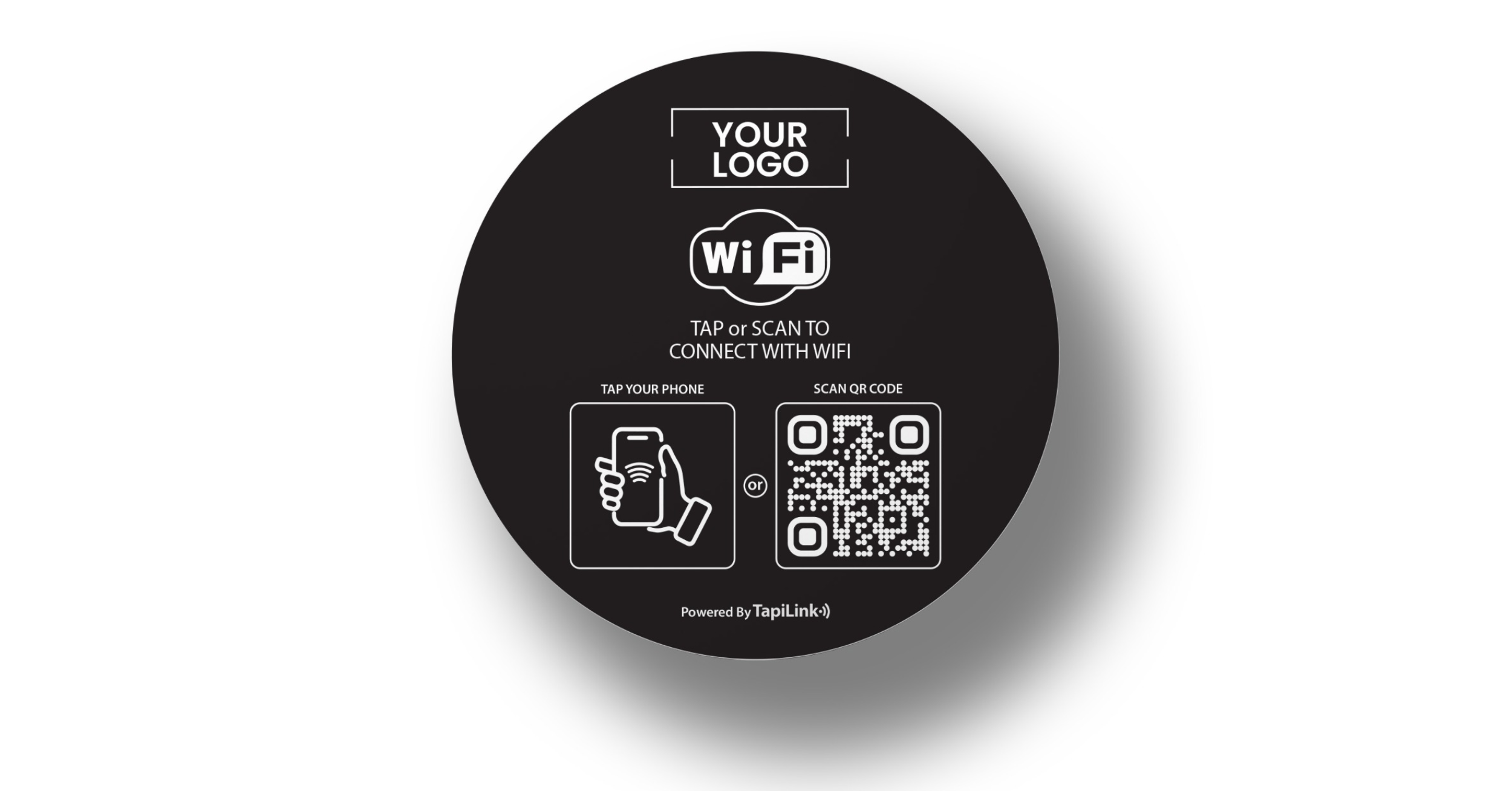
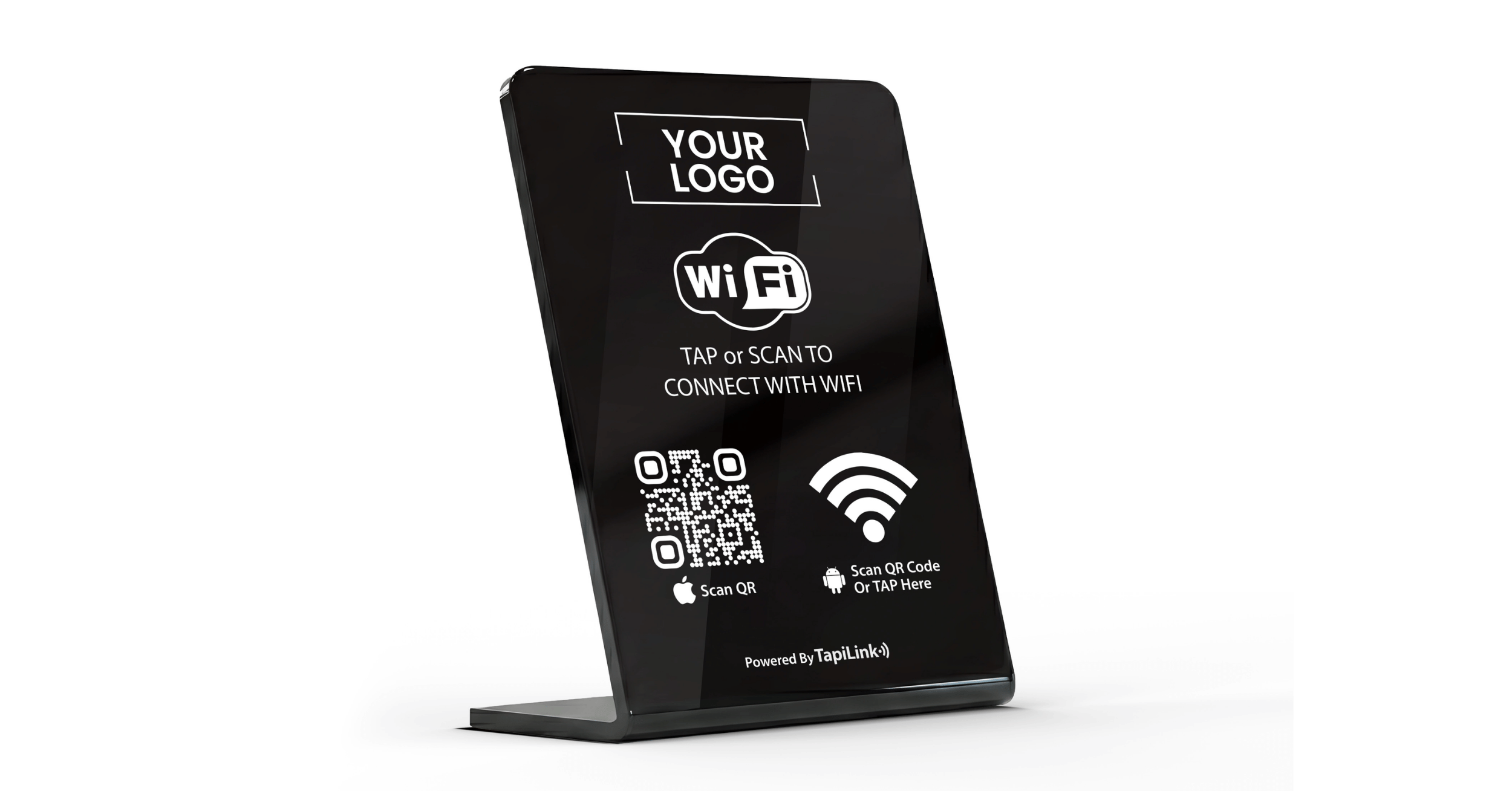
For a cleaner setup, businesses can use an NFC and QR WiFi Access Stand instead of a loose printed paper sign. It gives customers a clear place to tap or scan and makes the WiFi sharing experience look more professional.
Why a WiFi Access Stand Is Better Than a Paper Printout
A paper WiFi sign can work, but it is not always the best option for a customer-facing business.
Paper gets damaged, stained, folded, moved, or ignored. It looks temporary, especially in places where presentation matters. If printed too small or placed badly, customers may not notice it at all.
A proper WiFi access stand solves most of these problems.
It gives the QR code a fixed place. It looks cleaner on a counter, table, reception desk, hotel room, or waiting area. It makes the instruction easier to understand because customers can see the stand is there specifically for WiFi access.
Another advantage is choice. A WiFi QR code stand with NFC and QR gives guests two ways to connect. They can tap a compatible phone or scan the QR code. That makes the experience easier for more people, regardless of their phone model or preference.
The QR code does the technical work. The stand makes it visible, professional, and easier to use. For businesses, that small difference matters.
How TapiLink's NFC and QR WiFi Access Stand Helps Businesses
Creating a WiFi QR code is useful, but displaying it in a way customers can actually notice and use is what makes it work in practice.
Our NFC and QR WiFi Access Stand gives customers two simple options: tap with a compatible phone or scan the QR code to access the WiFi details instantly.
Tap or Scan Access for Every Customer
The stand uses both NFC and QR code, so customers do not need to type the WiFi password manually. It works on iOS and Android, making it accessible for all customers regardless of their phone model.
This is helpful in cafes, restaurants, salons, clinics, hotels, Airbnb properties, offices, and waiting areas where guests regularly ask for WiFi.
More Professional Than a Paper Sign
A printed paper WiFi sign looks temporary, gets damaged easily, and is often missed by customers. Our WiFi access stand looks clean and purposeful on a counter, table, reception desk, or hotel room desk.
At 114mm x 154mm, it is visible without taking up too much space.
Free Design Support and Easy Setup
You do not need to design it yourself. After you place the order, our team will design the mockup and send it to you for approval. Once you approve it, we print and ship it to you.
Setup is simple: after purchase, you receive account details by email, sign in to the dashboard, customise your WiFi details, and the stand is ready to use.
No Monthly Subscription
You buy the product once and get free lifetime access to the essential features. There is an optional plan only if you want teams management.
The stand starts from £25.00, with PVC Standard and Premium Acrylic options available.
Bulk Options for Multiple Locations
Bulk pricing is available for restaurants with multiple tables, hotels with several rooms, or businesses with more than one counter or reception area. For customer-facing businesses, this turns WiFi sharing from a repeated staff question into a simple tap-or-scan experience.
Common Mistakes When Creating a WiFi QR Code
Creating a WiFi QR code is simple, but easy mistakes can stop people from using it properly.
Getting the Network Details Wrong
Using the wrong WiFi name. Your WiFi network name must be typed exactly as it appears. Capital letters, spaces, numbers, and symbols all matter. Even one small difference stops the connection from working.
Entering the wrong password. WiFi passwords are often long and case-sensitive. One wrong capital letter, missing symbol, or extra space makes the QR code fail. Copy the password directly from your router settings or password manager. Do not rely on memory.
Choosing the wrong security type. The security type must match your WiFi setup. Many networks use WPA or WPA2, while some newer routers use WPA3. Check your router settings if you are not sure.
Getting the Display Wrong
Making the QR code too small. A tiny QR code looks neat but scans poorly. Customers should not need to lean in, zoom, or try multiple times. For business use, make the QR code large enough to scan comfortably from a normal distance.
Using poor contrast. Black on white works best. A light grey code on a white background, or a dark code on a dark background, looks stylish but scans badly. Keep the design simple so any phone camera reads it cleanly.
Placing it where customers cannot see it. A WiFi QR code only helps if people notice it. Display it where the need happens: tables, counters, reception desks, hotel rooms, waiting areas, or welcome packs.
Getting the Process Wrong
Not testing before printing. Do not send the QR code to print before testing it. Scan it from your phone, then test a printed version. Test on both iPhone and Android if possible.
Sharing the wrong network. Use a guest WiFi network for customers, not your private staff or admin network. A QR code makes access easier, so make sure it points to the right network.
Is It Safe to Share WiFi with a QR Code?
A WiFi QR code is convenient, but it needs careful handling.
The code contains the information needed to connect to your network. Anyone who can scan it may access that WiFi network. For this reason, use a separate guest WiFi network. A guest network lets customers connect to the internet without accessing your main business systems.
Use a strong password. Even though guests are not typing it manually, the password still matters. Avoid simple passwords like business names, phone numbers, or common words.
If you change the WiFi password, update the QR code too. An old code with an old password helps no one. This is especially important if the code is printed in multiple locations.
A safe WiFi QR code setup looks like this:
- Use a guest network, not the private staff WiFi
- Use a strong password
- Display the code only where guests should access it
- Update the code whenever the password changes
- Test the code after any network update
The goal is simple: make guest WiFi easy without exposing the wrong network.
Best Businesses for WiFi QR Codes
A WiFi QR code can be useful anywhere people regularly ask for internet access.
Hospitality and Food Businesses
Cafes and coffee shops. Customers often sit with laptops, phones, or tablets. A QR code at the counter or on tables helps customers connect without interrupting staff. A WiFi access stand sits on the counter so customers can tap or scan without asking.
Restaurants. Useful for guests who want to check messages, browse menus, or share photos while dining. Place it on tables, at the bar, or near the entrance. The code should be easy to notice but should not make the table look cluttered.
Hotels and guest houses. Place WiFi QR codes in rooms, at reception, inside welcome folders, or near desks. Guests usually want WiFi soon after arrival. A clear QR code helps them connect without calling reception.
Airbnb and short-stay rentals. WiFi access is one of the first things guests look for. A QR code in the welcome area, near the TV, or on the desk avoids guests messaging the host just to ask for the password.
Service and Professional Businesses
Salons and clinics. Customers may wait before an appointment. A QR code at reception or in the waiting area gives them easy access without asking staff. This keeps the front desk experience smoother.
Offices and coworking spaces. A QR code in meeting rooms, reception areas, or shared desks makes visitor access easier for clients, freelancers, contractors, or interview candidates. A guest network is especially important here.
Events and Temporary Spaces
Events and meeting rooms. Instead of announcing the password or writing it on a whiteboard, place a clear code near the entrance or on the meeting table. People connect quickly and focus on the session.
Final Checklist Before You Display Your WiFi QR Code
Before placing your WiFi QR code in front of customers, test the full experience. Use it the way a real guest will use it.
- Check the WiFi network name is correct
- Check the password is correct
- Choose the right security type
- Use a guest WiFi network for customers
- Generate the QR code in a clear, high-quality format
- Make sure the QR code is large enough to scan comfortably
- Use strong contrast so any phone camera reads it cleanly
- Scan it from your own phone first
- Test it on another phone if possible
- Test on both iPhone and Android
- Print a test version before final printing
- Scan the printed version from the distance customers will use
- Place it where people can see it clearly
- Add a clear instruction such as "Scan to connect to WiFi"
- Replace the QR code if the password changes
- Keep the display clean and professional
The final test is simple: can a customer connect without asking anyone for help? If yes, your WiFi QR code is doing its job.
Frequently Asked Questions
Question: Can I create a QR code for my WiFi password?
Answer: Yes. You can create a QR code for your WiFi password by using a WiFi QR code generator. You normally need to enter your WiFi network name, password, and security type. Once generated, people can scan the QR code with their phone and connect more easily without typing the password manually.
Question: Can customers connect to WiFi by scanning a QR code?
Answer: Yes. Many modern smartphones can scan a WiFi QR code and recognise the network details. After scanning, the phone may show a prompt to join the network. This makes it easier for customers, guests, or visitors to connect without asking staff for the password.
Question: Should I use a guest WiFi network for customers?
Answer: Yes. If you are sharing WiFi with customers or visitors, it is better to use a separate guest WiFi network. This keeps customer access separate from your private staff or admin network. It also gives your business a cleaner setup for guest internet access.
Question: Where should I place a WiFi QR code in my business?
Answer: Place the WiFi QR code where customers naturally need it. Good places include cafe counters, restaurant tables, hotel rooms, Airbnb welcome areas, salon receptions, clinic waiting rooms, office receptions, coworking desks, and meeting rooms. The code should be easy to see, easy to scan, and close to where people usually ask for WiFi.
Question: Is a WiFi QR code stand better than printing the code on paper?
Answer: For a business, yes. A printed paper QR code can work, but it may look temporary, get damaged, or be ignored. A WiFi QR code stand looks more professional and is easier for customers to notice. If the stand includes both NFC and QR, guests can either tap or scan to access the WiFi details.
Conclusion
Creating a QR code for WiFi password sharing is one of the simplest ways to improve the guest experience in any customer-facing business.
You only need the correct WiFi network name, password, and security type. Once the QR code is created, customers scan it and connect without typing a long password. But the code itself is only part of the experience.
For businesses, display matters. If the code is too small, hard to scan, badly placed, or printed on a loose piece of paper, customers will still ask staff for help. Use a guest WiFi network, test the QR code before printing, and place it where customers naturally look.
If you want a more professional way to share guest WiFi, our NFC and QR WiFi Access Stand gives customers two simple options: tap or scan. It is a cleaner choice for cafes, restaurants, hotels, Airbnb properties, salons, clinics, offices, and any business that wants to make WiFi access easier for guests.
Ready to revolutionize your networking approach? Explore TapiLink's range of premium NFC business cards and join the thousands of professionals who've already made the smart choice.