Guests and customers do not always want to type a long WiFi password manually. In cafes, restaurants, salons, hotels, Airbnb properties, offices, and waiting areas, people often ask for the WiFi details as soon as they arrive. If you are searching for how to make wifi nfc tag, the goal is probably simple: you want visitors to access guest WiFi faster without asking staff or typing the password again and again.
A WiFi NFC tag can make that process easier. A customer can tap a compatible phone near the tag and open the WiFi access flow more quickly. For business use, however, NFC should not be the only option because some customers may prefer scanning a QR code instead of tapping.
That is why a tap-and-scan setup is usually more practical. NFC gives people a quick tap option, while QR code backup gives them a familiar scan option. In this guide, you will learn what a WiFi NFC tag is, what you need before making one, how to set it up, where to place it, and when a ready-made NFC and QR WiFi tag is better than a DIY sticker.
What Is a WiFi NFC Tag?
A WiFi NFC tag is a small NFC-enabled tag that helps people access WiFi details when they tap it with a compatible phone. NFC means near-field communication, which works when the phone is held close to the tag. For guest WiFi sharing, the tag can be programmed to open a WiFi access action or direct the user to a WiFi connection flow.
The main benefit is convenience for both the customer and the business. Customers do not need to type a long password, and staff do not need to repeat the WiFi details throughout the day. This is useful in places where guests regularly ask for WiFi, such as cafes, restaurants, salons, hotels, Airbnb properties, clinics, offices, and waiting rooms.
A WiFi NFC tag is different from a QR code. With NFC, the user taps the tag with their phone. With QR, the user scans a code using the camera. Both methods can help people access WiFi, but they work best together because not every customer uses their phone in the same way.
What You Need Before Making a WiFi NFC Tag
Before you make a WiFi NFC tag, you need the correct details and the right type of tag. The setup is not complicated, but a small mistake can stop the tag from working properly. If the WiFi name is wrong, the password has one missing symbol, or the tag is not tested, customers may still need to ask for help.
You will usually need a writable NFC tag, a compatible phone, an NFC writing app, your WiFi network name, your WiFi password, and the correct security type. The WiFi network name is also called the SSID. For business use, you should also have a guest WiFi network instead of sharing your staff or admin network.
A guest WiFi network keeps visitor access separate from your internal business systems. This is important for cafes, restaurants, salons, hotels, Airbnb hosts, offices, and other customer-facing spaces. You should also think about where the tag will be placed, because a hidden tag will not reduce customer questions.
How to Make WiFi NFC Tag Step by Step
The basic answer to how to make wifi nfc tag is that you need to write WiFi access details or a WiFi-related action to a writable NFC tag. The exact process can vary depending on your phone, NFC writing app, and tag type. Still, the general steps are similar for most setups.
Step 1: Choose the right NFC tag
Start with a writable NFC tag that suits the place where it will be used. For personal use, a simple NFC sticker may be enough. For a business, presentation matters more because customers will see and use the tag.
A loose sticker may work technically, but it may not look professional on a counter, table, hotel room desk, or reception area. If the tag will be customer-facing, think about durability, visibility, and branding. The tag should be easy to reach and clearly connected to WiFi access.
Step 2: Install an NFC writing app
Next, install an NFC writing app on a compatible phone. Different apps have different layouts, but most allow you to choose the type of action you want to write to the tag. Look for a WiFi option or a custom action that supports your WiFi sharing setup.
Follow the app instructions carefully before writing the tag. Do not rush this part, because one wrong setting can make the final tap experience confusing. If the app gives you a preview of the data before writing, check it before continuing.
Step 3: Add your WiFi details
Enter your WiFi details exactly as they appear. This usually includes the network name, password, and security type. Check capital letters, spaces, numbers, and symbols before writing anything to the NFC tag.
For customer-facing businesses, use guest WiFi details instead of private staff WiFi. This keeps the setup safer and more organised. It also means you can change guest access later without affecting internal business systems.
Step 4: Write the data to the NFC tag
Once the details are ready, hold your phone close to the NFC tag and follow the app’s writing process. The app should confirm when the tag has been written successfully. Keep the phone steady until the process is complete, because moving it too early can cause the write to fail.
After writing, label the tag clearly so customers know what it does. A tag without instructions may be ignored, even if it works perfectly. Simple wording such as “Tap for WiFi” or “Tap or scan for guest WiFi” helps people understand the action quickly.
Step 5: Test the tag before using it
Testing is essential before placing the tag in front of guests. Tap it with a compatible phone and check whether it opens the right WiFi access flow. Then test it with another phone if possible, because customers will use different devices.
Do not only test the tag once while sitting at your desk. Test it from the same position where customers will use it, such as a counter, table, reception desk, hotel room, or waiting area. If the tag also includes QR backup, scan the QR code as well.
Does a WiFi NFC Tag Work on iPhone and Android?
A WiFi NFC tag can work differently depending on the phone model, operating system, settings, and how the tag has been programmed. Android phones are often more flexible with NFC tag writing and actions. iPhones can read many NFC tags, but the exact user experience may vary depending on the setup.
That is why you should avoid promising that every customer will tap once and connect in exactly the same way. A safer approach is to treat NFC as a helpful access method, not the only access method. For a business, the goal is not just to make the tag work on your own phone; the goal is to make WiFi access easy for many different customers.
This is where QR backup becomes important. Some people may not know where to tap, some may have NFC switched off, and some may simply prefer scanning. If your setup gives both tap and scan options, fewer guests will need help from staff.
Why QR Backup Still Matters
NFC is quick when the customer is close to the tag and the tap works smoothly. It feels modern and simple in places like counters, tables, hotel rooms, salons, and reception desks. However, NFC alone is not always the best experience for every guest.
A QR code backup gives customers another route. If they do not want to tap, cannot find the NFC reader on their phone, or are using a device where NFC is not convenient, they can scan instead. This makes the setup more accessible for mixed customer groups.
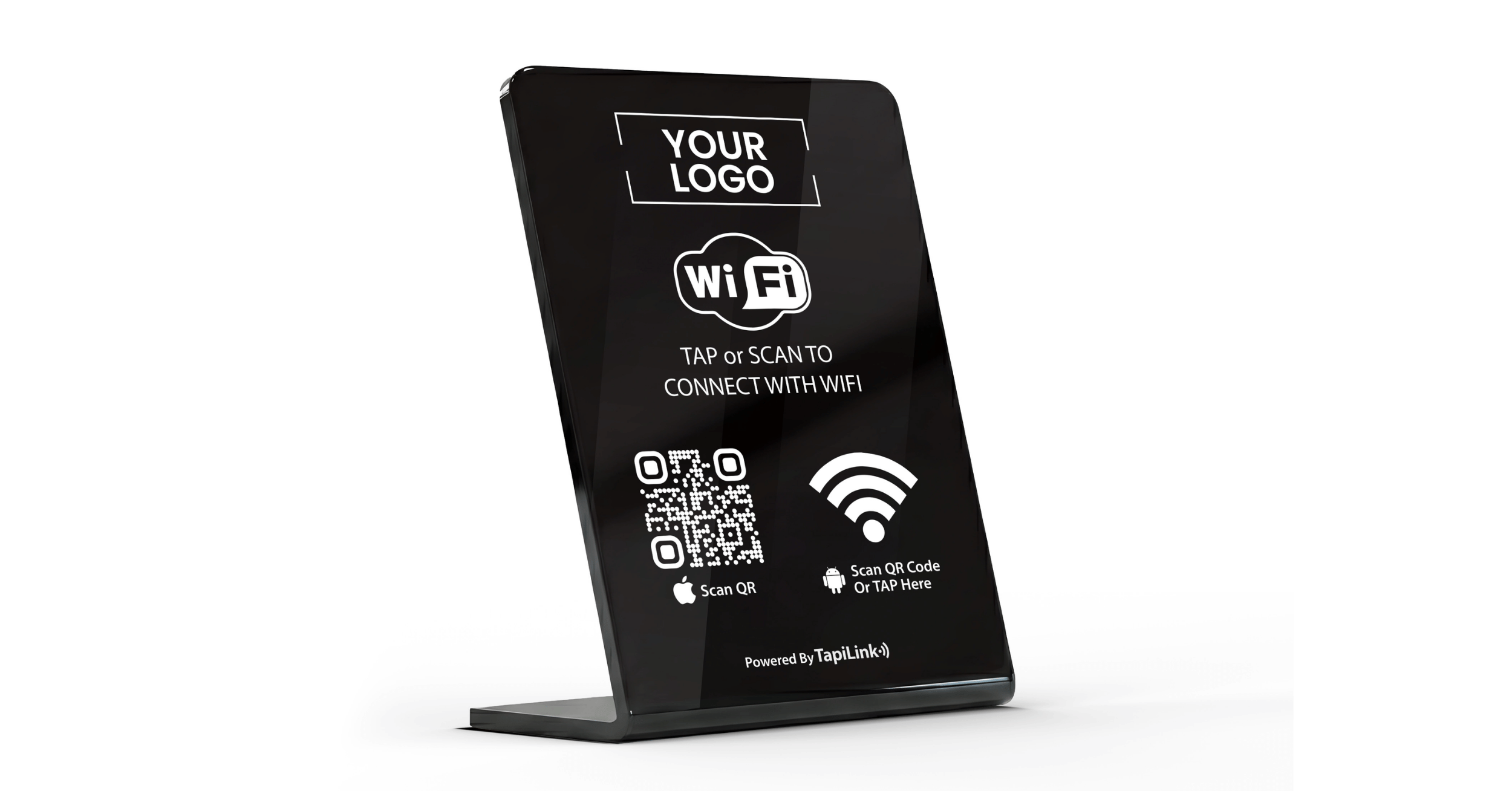
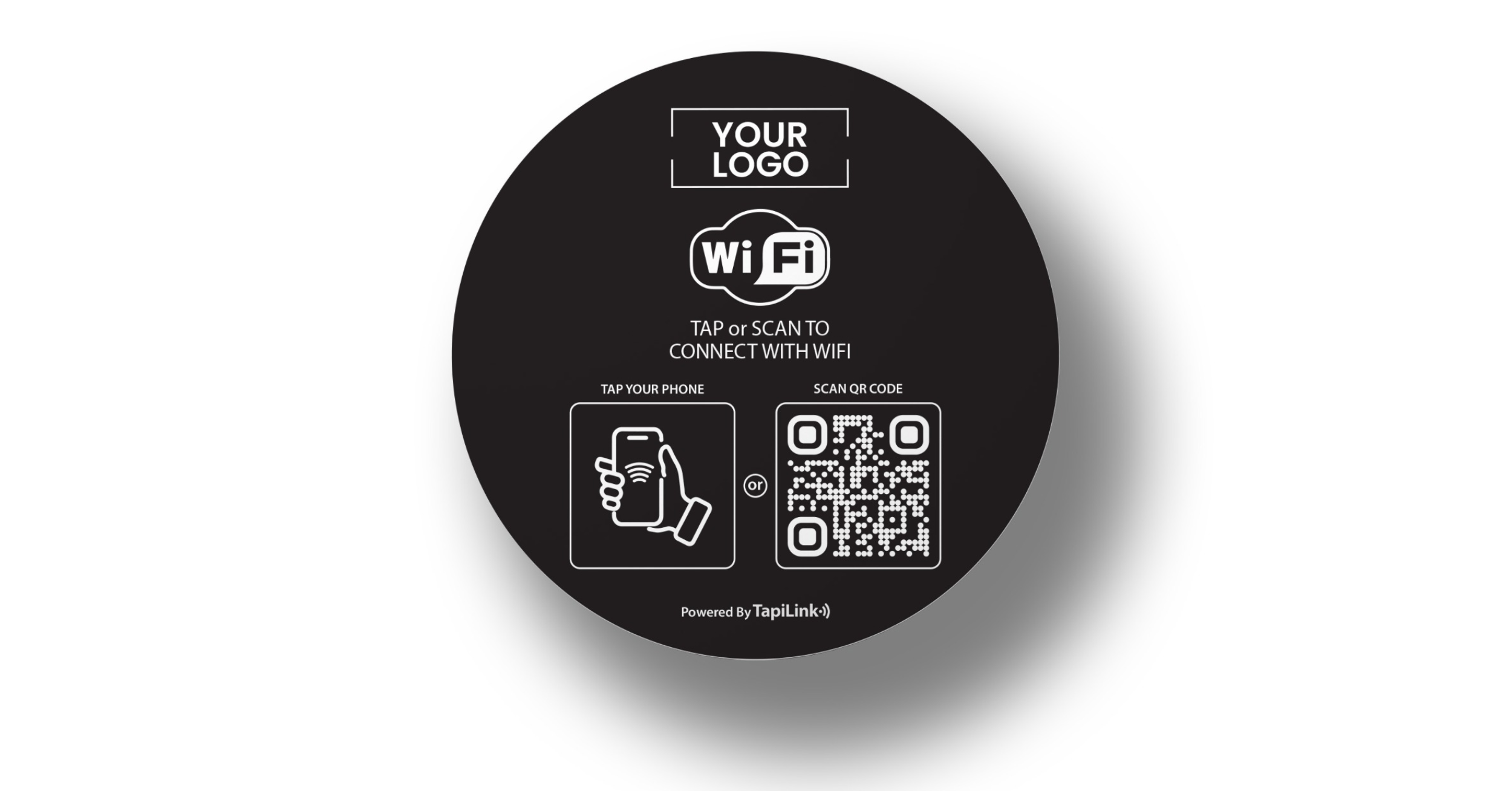
Instead of relying on NFC only, a wifi nfc tag with QR backup gives guests two ways to access WiFi: tap or scan. This is especially useful for customer-facing businesses where staff do not want to explain the WiFi process repeatedly. NFC creates the quick tap moment, while QR keeps the experience familiar.
Where Should You Place a WiFi NFC Tag?
A WiFi NFC tag only helps if customers can see it and reach it. If the tag is hidden behind the counter, placed too low, or not clearly labelled, people may still ask staff for the password. Placement is part of the customer experience, not just a design choice.
For cafes, place the tag near the till, on tables, or beside the collection area. For restaurants, place it on tables, at the bar, or in waiting areas. For hotels and guest houses, place it on the room desk, at reception, or inside a welcome folder.
For Airbnb properties, place it near the entrance, on the desk, beside the TV, or in the guest welcome area. For salons, clinics, and waiting rooms, place it at reception or near the seating area. For offices and coworking spaces, place it in reception, meeting rooms, shared desks, or visitor areas.
Clear wording also matters. Use simple instructions such as “Tap or scan for WiFi”, “Tap here for guest WiFi”, or “Guest WiFi access”. Customers should understand what to do within a second.
DIY WiFi NFC Tag vs Ready-Made WiFi NFC Tag
You can make a WiFi NFC tag yourself, especially if you are testing the idea or using it at home. A DIY tag can be enough when appearance does not matter much, you only need one tag, and you are comfortable using NFC writing apps. It is a good way to understand how the technology works.
Business use is different because the tag becomes part of the customer experience. A plain DIY sticker may work, but it may look unfinished in a cafe, salon, hotel room, office reception, or Airbnb welcome area. If customers will see it every day, the display should look intentional.
For customer-facing spaces, a ready-made nfc tag for wifi is usually cleaner than a plain DIY sticker. It can be easier to notice, easier to explain, and better suited for repeated guest use. It also makes more sense if you need several tags for tables, rooms, counters, branches, or visitor areas.
How TapiLink’s NFC and QR WiFi Access Tag Helps Businesses
TapiLink’s WiFi access tag is designed for businesses that want a simple way to share guest WiFi without making customers type the password manually. It gives guests two access options: NFC tap and QR scan. This makes it more practical than relying on NFC only.
The tag is useful in cafes, restaurants, salons, hotels, Airbnb properties, clinics, offices, coworking spaces, waiting rooms, and reception areas. Instead of telling every customer the password, you can place the tag where they naturally look for WiFi access. Guests can tap or scan, and staff can avoid repeating the same information all day.
A dedicated WiFi tag also looks more professional than a loose sticker or handwritten WiFi note. Businesses that want different tap-and-scan WiFi sharing products can explore TapiLink’s NFC and QR WiFi products. It supports a cleaner guest WiFi experience for customer-facing spaces.
Common Mistakes to Avoid
One common mistake is using staff WiFi instead of guest WiFi. Customers should not normally connect to your private staff, admin, or internal business network. A guest WiFi network keeps visitor access separate and makes the setup easier to manage.
Another mistake is entering the wrong WiFi details. The network name, password, and security type must be correct before you write the tag. One wrong letter, missing symbol, extra space, or incorrect security setting can stop the tag from working properly.
A third mistake is assuming NFC works the same for everyone. Different phones can behave differently, and some customers may prefer scanning. This is why QR backup is important for business use.
Poor placement can also reduce the value of the tag. If customers cannot see it, reach it, or understand what it does, they will still ask for the password. Place it where the need happens and add a simple instruction such as “Tap or scan for WiFi”.
Conclusion
Now that you know how to make wifi nfc tag, the basic setup is clear. You need a writable NFC tag, a compatible phone, an NFC writing app, and the correct WiFi details. Once the tag is written and tested, it can make guest WiFi access easier by reducing the need to type a long password manually.
For customer-facing businesses, NFC alone is not always enough. Different customers use different phones, and not everyone knows where to tap. A tap-and-scan setup is more practical because NFC gives a quick touch experience, while QR gives guests a familiar backup option.
If you want a cleaner setup for your cafe, restaurant, salon, hotel, Airbnb property, office, clinic, or waiting area, use TapiLink’s wifi nfc tag or explore TapiLink’s WiFi Porter collection for guest WiFi sharing.
Frequently Asked Questions
Question: Can I make an NFC tag for WiFi?
Answer: Yes. You can make a WiFi NFC tag using a writable NFC tag, a compatible phone, an NFC writing app, and your WiFi details. If you are learning how to make wifi nfc tag, the main details you need are your network name, password, and security type.
Question: What do I need to make a WiFi NFC tag?
Answer: You need a writable NFC tag, a phone that can write NFC tags, an NFC writing app, your WiFi network name, your WiFi password, and the correct security type. For business use, it is better to use a guest WiFi network instead of your private staff or admin network. You should also test the tag before placing it in front of customers.
Answer: Question: Does a WiFi NFC tag work on iPhone?
A WiFi NFC tag can work on iPhone depending on the iPhone model, iOS version, settings, and how the tag has been programmed. The experience may not be the same for every user. For customer-facing businesses, QR backup is useful because some iPhone users may prefer scanning instead of tapping.
Question: Does a WiFi NFC tag work on Android?
Answer: Many Android phones support NFC reading, and some also support NFC writing depending on the device and settings. The exact experience can vary, so testing is important before placing the tag in front of customers. If the tag also has a QR code, Android users can scan instead of tapping.
Question: Is NFC or QR better for guest WiFi?
Answer: NFC is quick when a customer can tap smoothly. QR is easier for people who prefer scanning or whose phone does not respond well to NFC. For businesses, the best option is usually both because a tap-and-scan setup gives guests more choice.
Ready to revolutionize your networking approach? Explore TapiLink's range of premium NFC business cards and join the thousands of professionals who've already made the smart choice.