Having a digital business card is useful only when people can access it easily. That sounds obvious, but it is where many professionals lose the advantage. They create a smart card, set up a profile, add their links, and then only use it in one way. Maybe they tap it at networking events. Maybe they put the link in one email signature. Maybe they share it when someone asks.
That is too limited. A digital business card can work in more places than a paper card ever could. You can share it face to face, by QR code, through email, on LinkedIn, in WhatsApp, during video calls, at events, on printed material, and across a whole team.
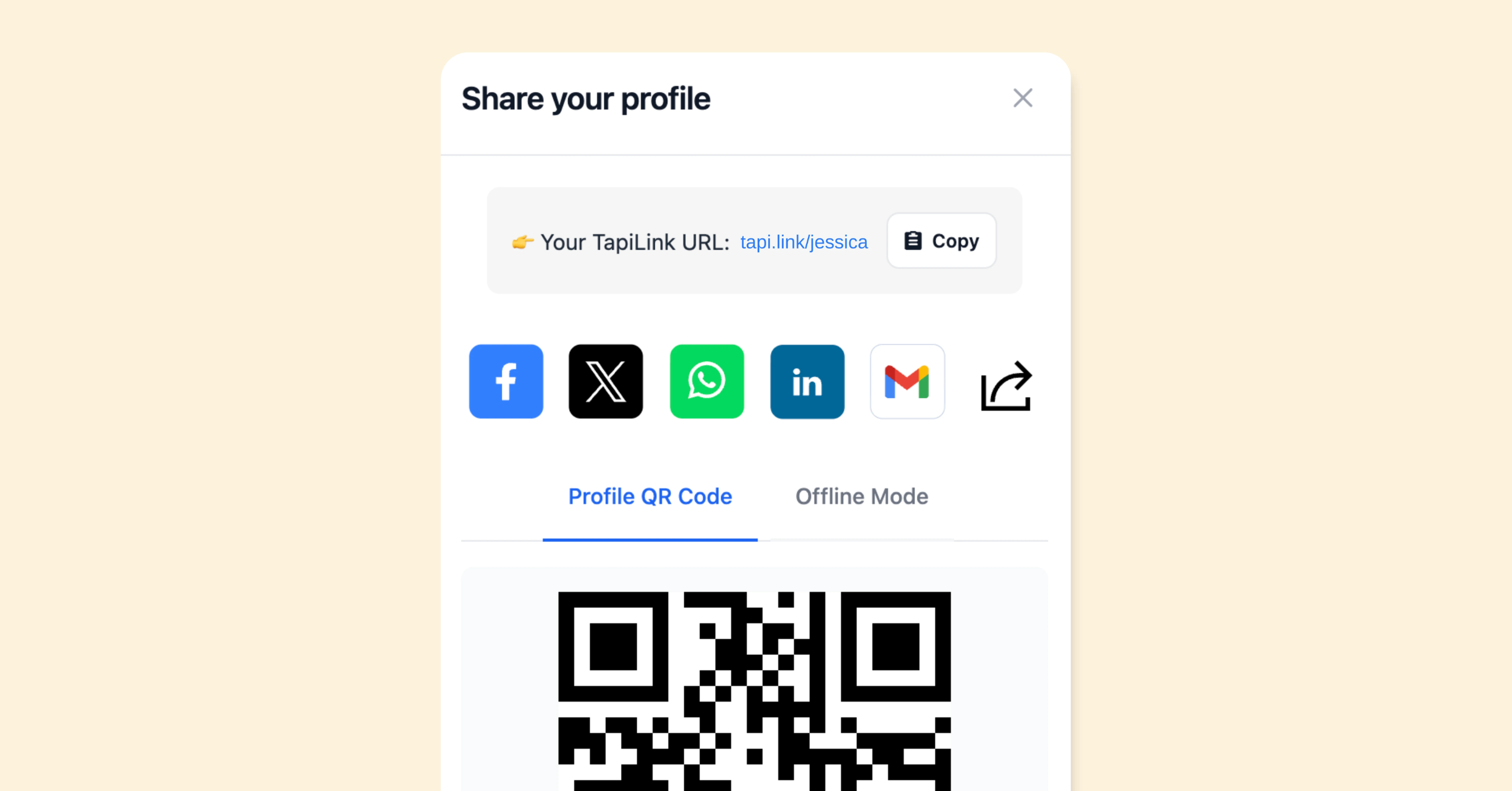
A digital business card is a smart contact profile that can be shared by NFC tap, QR code, link, wallet pass, email, message, or other digital channels. It lets someone open your details on their phone and save your contact information, visit your website, connect with you, or take the next step.
The best sharing method depends on where the conversation happens.
If you are meeting someone in person, NFC tap sharing feels natural. If you are speaking at an event, a QR code on your final slide may work better. If you send dozens of emails a day, your email signature can quietly share your card again and again.
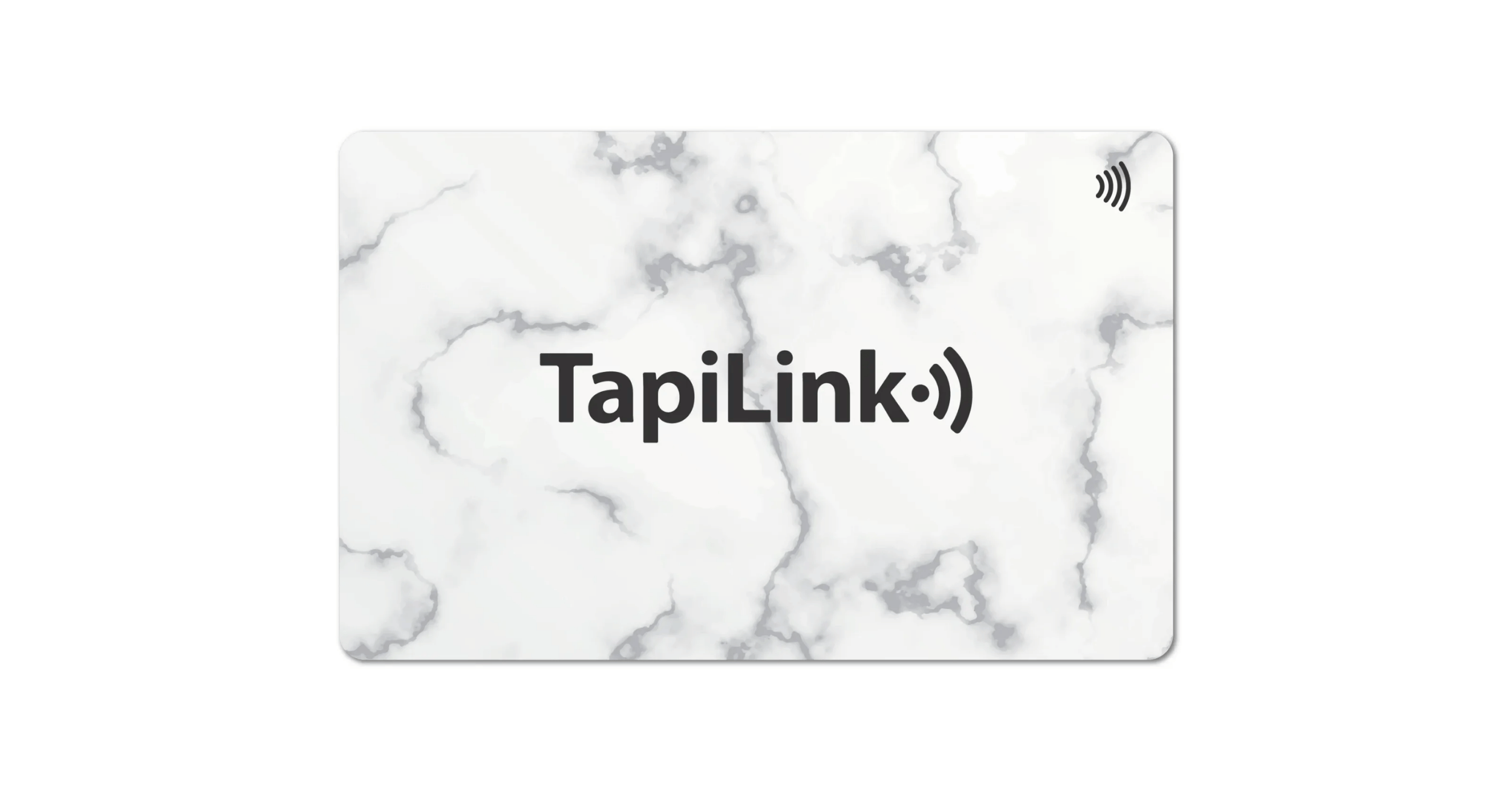
At TapiLink, we help UK professionals and businesses create digital business cards with NFC tap sharing, QR code backup, custom branding, and editable profiles. The card is only one part of the system. How you share it matters just as much.
In this guide, we’ll cover 10 smart ways to share your digital business card, when to use each method, and how to avoid the small mistakes that stop people from saving your details.
1. Tap Your NFC Business Card in Person
This is the most natural way to share a digital business card.
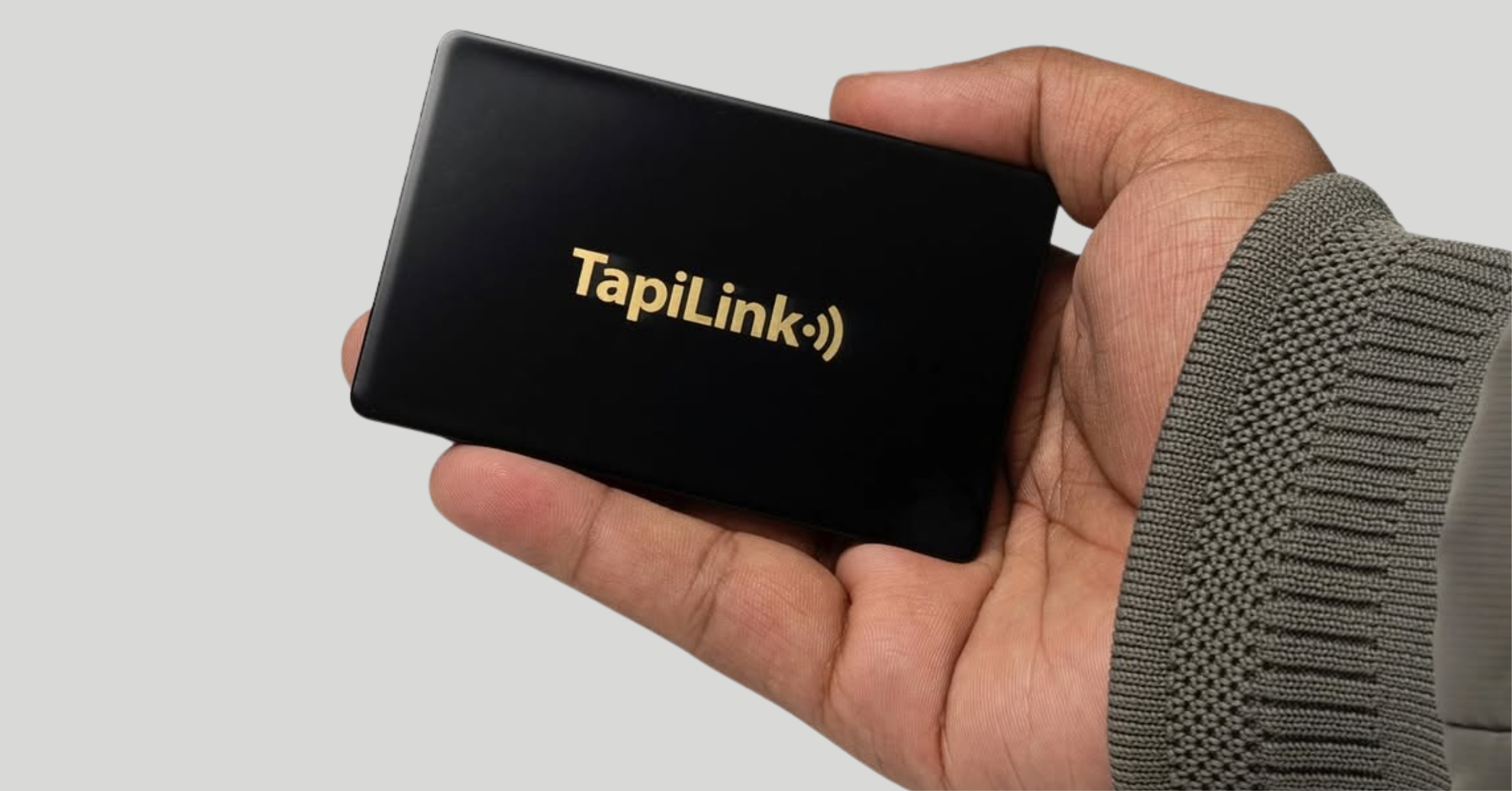
You meet someone. The conversation is going well. Instead of handing over a paper card and hoping they keep it, you let them tap your NFC business card with their phone.
Your profile opens while you are still standing there.
That timing matters. The person can save your contact details, open your website, connect on LinkedIn, or message you before the conversation fades.
When this works best
NFC tap sharing works well in face-to-face situations where the other person is already engaged.
Use it at networking events, client meetings, trade shows, property viewings, consultations, business lunches, and local meetups.
It is especially useful when you want the exchange to feel quick and professional. No spelling out your email. No asking them to search your name. No hoping they remember you later.
One tap keeps the moment alive.
How to do it properly
Do not make the tap feel awkward.
Before using your card at an event, test it on more than one phone. Check that the profile opens quickly. Make sure your main button is clear. If your profile is slow, crowded, or confusing, the tap loses its impact.
Keep your card easy to explain.
A simple line works best:
“Tap this and my contact details will open.”
That is enough.
Mistake to avoid
Do not rely on NFC only.
Some people may not know where to tap. Some may prefer scanning. Some phone cases or settings may make the tap less smooth in the moment.
That is why a QR code backup matters. NFC gets attention, but QR keeps the experience easy for everyone.
For professionals who network often, TapiLink Digital Business Cards combine NFC tap sharing with QR code backup, so people have more than one way to open your profile.
2. Let People Scan the QR Code
Not everyone will tap your card.
Some people are more comfortable scanning. Some may not know where the NFC reader is on their phone. Some may have a case, setting, or older device that makes tapping less smooth in the moment.
That is why a QR code is not just a backup. It is part of a better sharing experience.
When this works best
QR sharing works well when the person is not directly holding your card.
Use it on a phone screen, printed material, event badge, brochure, reception desk, presentation slide, shop counter, or video call background.
It also works well in busy situations. If someone does not want to tap, they can scan instead. No awkward explanation needed.
How to do it properly
Make the QR code easy to see and easy to scan.
Do not place it too close to the edge of a design. Do not make it tiny. Do not put it on a low-contrast background. If the QR code takes effort to scan, people will not keep trying.
Add a short instruction beside it.
Use simple wording like:
“Scan to save my details.” Or: “Scan to view my digital card.”
That small line helps people understand what will happen before they scan.
Mistake to avoid
Do not send people to a messy profile. The QR code only opens the door. The profile still needs to do the work.
If someone scans and sees too many buttons, outdated details, or unclear next steps, the scan is wasted. Keep the profile simple, mobile-friendly, and focused on one main action.
NFC and QR should work together. NFC is great when someone is standing with you. QR is better when they are viewing from a distance, scanning a screen, or using printed material.
3. Add It to Your Email Signature
Your email signature is one of the easiest places to share your digital business card.
You already send emails every day. Quotes, follow-ups, introductions, booking confirmations, support replies, proposals, and quick updates. Each one can carry a simple link to your digital profile.
That means people do not need to search for your number, website, LinkedIn, or booking page later. They can open everything from the email they already have.
When this works best
Digital card links work well in email signatures for sales teams, consultants, recruiters, account managers, customer support teams, estate agents, and business owners.
It is especially useful when someone may need your details after the conversation has moved away from the inbox.
A clean signature link can help them save your contact, book a call, view your services, or connect on LinkedIn without asking you to send details again.
How to do it properly
Keep the wording simple.
Use one short line under your usual signature details. For example:
“Save my contact details”
“View my digital business card”
“Connect with me”
“Book a call”
Do not overload the signature with too many buttons, banners, badges, and links. A busy email signature can look messy, especially on mobile.
The digital card link should feel helpful, not distracting.
Mistake to avoid
Do not send people to a profile with no clear action.
If someone clicks from your email signature, they are probably already considering a next step. Make that step easy.
For a consultant, that may be booking a call. For a recruiter, it may be connecting on LinkedIn. For a sales professional, it may be viewing an offer or requesting a quote.
The link should support the conversation, not send people to a dead end.
4. Share It Through LinkedIn or Social Media Bio
Your digital business card should not only live on the physical card.
If people discover you through LinkedIn, Instagram, TikTok, Facebook, X, or another social platform, your profile link can help turn that attention into a real contact.
Social media gets people interested. Your digital card gives them a cleaner next step.
When this works best
This works well for founders, consultants, recruiters, creators, salon owners, fitness coaches, estate agents, photographers, and local business owners who already get attention online.
Put your digital business card link in your LinkedIn profile, Instagram bio, TikTok bio, Facebook page, or pinned post where it makes sense.
You can also share it in direct messages after a conversation.
For example:
“Great speaking with you. Here’s my digital card with my contact details and booking link.”
That feels more useful than sending five separate links.
How to do it properly
Do not treat your digital card like another messy link page.
Someone coming from social media may already know a little about you. Your profile should help them contact you, book you, view your services, or connect professionally.
Keep the main action clear.
If LinkedIn brings you business, make “Connect on LinkedIn” or “Book a Call” visible. If Instagram brings you salon, clinic, or creative enquiries, make “Book Now”, “View Services”, or “Message on WhatsApp” easy to find.
Mistake to avoid
Do not link from social media to a profile that only sends people back to social media.
That creates a loop.
If someone opens your digital card from Instagram, they probably need a clearer business action, not another Instagram button at the top. Give them your contact details, booking link, website, portfolio, reviews, or enquiry option.
Social media creates interest.
Your digital business card should turn that interest into action.
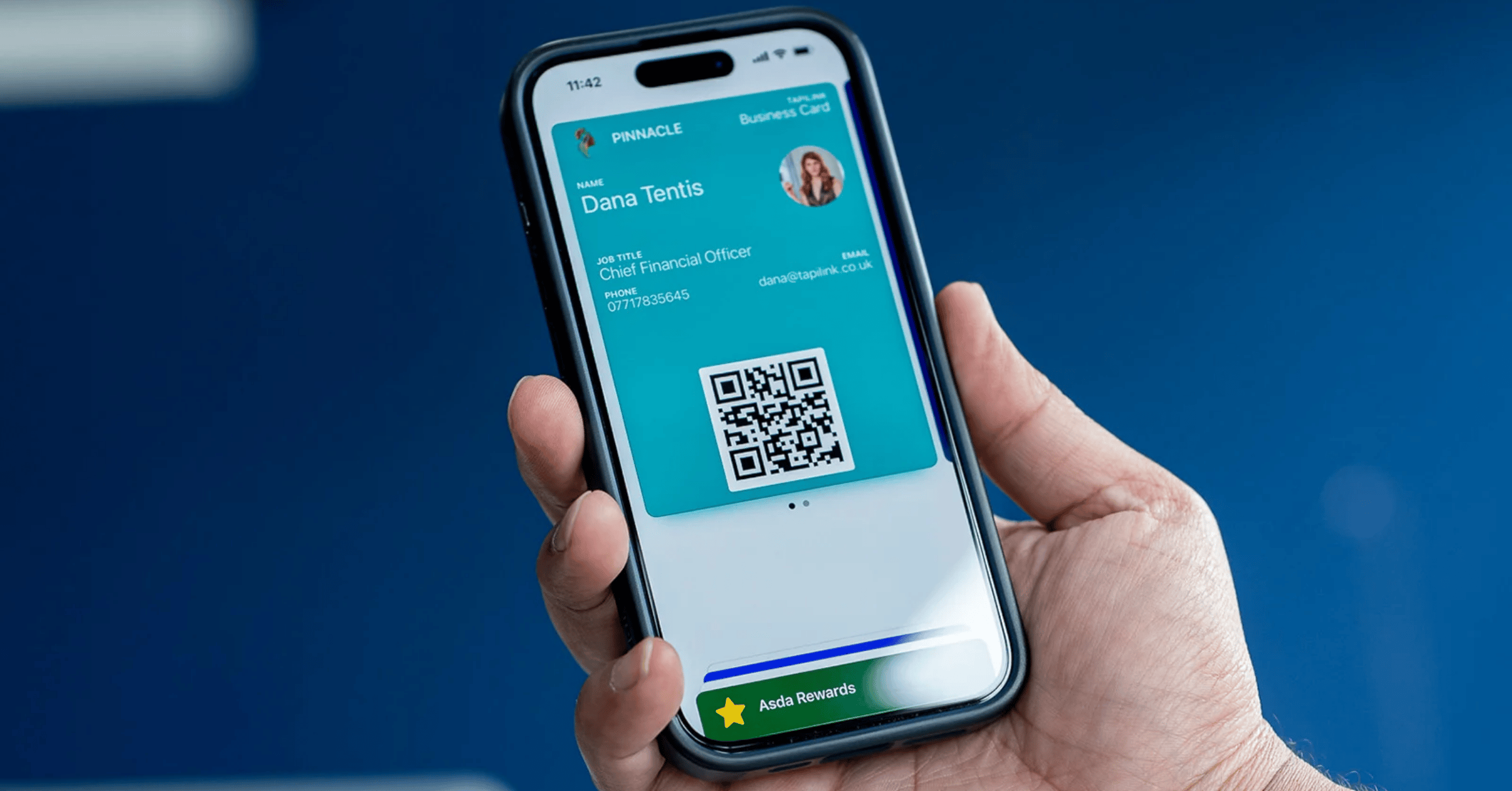
5. Save It to Apple Wallet or Google Wallet
Sometimes you will not have the physical card in your hand.
You may be at a quick meeting, travelling, speaking to someone after an event, or standing in a room where pulling out a card feels less natural. That is where a digital card saved in your phone wallet can help.
It gives you a quick way to open and share your profile without searching through apps, files, or messages.
When this works best
A digital business card wallet option works well when you want fast access from your phone.
Use it at networking events, conferences, client meetings, trade shows, coffee meetings, and unexpected conversations where you did not plan to share your card.
It is also useful as a backup.
If you forget your physical NFC card, your digital profile is still available from your phone.
How to do it properly
Keep the wallet version simple and easy to open.
Before an event, check that the wallet pass opens the right profile and that the QR code or link is still current. If your profile has changed, make sure the wallet version still points people to the correct details.
Do not wait until someone is standing in front of you.
Test it first.
A good wallet setup should let you open your card quickly, show the QR code clearly, and share your details without making the other person wait.
Mistake to avoid
Do not treat wallet sharing as a replacement for every other method.
It is useful, but it works best as one part of your sharing system. NFC is still strong for face-to-face card taps. QR works well for scanning. Email signatures help after written conversations. Wallet sharing is best when you need quick access from your own phone.
Use the method that fits the moment.
6. Send It by Text or WhatsApp
Not every business card exchange happens face to face.
Sometimes someone asks for your details after a call. Sometimes you meet someone at an event and want to follow up later. Sometimes a client asks, “Can you send me your contact info?”
This is where a simple text or WhatsApp message works well.
When this works best
Sharing your digital card by text or WhatsApp is useful for estate agents, consultants, recruiters, salespeople, service businesses, clinic owners, and anyone who handles quick enquiries.
It works especially well after a conversation has already started.
You are not sending a cold link. You are giving the person an easy way to save your details and continue the conversation.
How to do it properly
Add a short message with context.
Do not just paste the link on its own. A blank link can feel lazy or confusing.
Use a message like:
“Great speaking with you earlier. Here’s my digital card with my contact details and booking link.”
Or:
“Here are my details. You can save my contact, visit our website, or message me directly from this profile.”
That feels more personal.
It also tells the person why they should open the link.
Mistake to avoid
Do not send the same message to everyone.
A landlord, job candidate, sales lead, salon client, and business partner may all need different next steps. Adjust the message slightly so it matches the conversation.
If you discussed a booking, mention the booking link. If you discussed a service, mention the service page. If you discussed a follow-up call, mention the call button.
Small context makes the link feel useful.
7. Add It to Your Video Call Background
Video calls are easy to forget after they end.
Someone may like your presentation, ask a question, or show interest in your service, but if they do not have a simple way to contact you, the moment can disappear.
A QR code in your video call background gives people a quiet way to open your digital business card while you are still on screen.
When this works best
This works well for webinars, online workshops, Zoom meetings, Teams calls, virtual networking, training sessions, product demos, and remote consultations.
It is especially useful when you are speaking to more than one person.
Instead of dropping your link into the chat repeatedly, you can place a scannable QR code on the background and mention it at the right moment.
How to do it properly
Keep the background clean.
Put the QR code in a corner where it does not cover your face, name, or presentation area. Make it large enough to scan from a laptop screen. Use good contrast so the code does not blend into the background.
Test it before the call.
Open the meeting preview, scan the code from another phone, and check that the profile loads properly.
A QR code that looks good but does not scan is worse than no QR code.
Mistake to avoid
Do not make the background too busy.
A digital business card QR code should be easy to notice, but it should not make the whole screen look like an advert. Keep your name, role, and QR code simple.
Use one clear CTA beside it, such as:
“Scan to save my details”
Or:
“Scan to book a call”
That is enough.
8. Put the QR Code on Printed Materials
A digital business card does not have to stay digital-only.
You can place the QR code on printed materials so people can open your contact profile from flyers, brochures, posters, menus, packaging, event stands, appointment cards, or property leaflets.
This is where print and digital work together.
When this works best
A QR code on printed materials works well for events, expos, salons, clinics, restaurants, estate agents, hotels, consultants, and local businesses.
For example, an estate agent can place a digital card QR code on a property brochure. A salon owner can add it to appointment cards. A consultant can place it on event handouts. A restaurant owner can use it on counter material if the goal is contact, booking, or business enquiry.
The printed item gets attention.
The QR code opens the action.
How to do it properly
Place the QR code where people can actually scan it.
Do not hide it at the bottom in tiny print. Do not place it on a curved surface where scanning becomes difficult. Do not use a design where the code blends into the background.
Add a short instruction beside it.
Good examples:
“Scan to save my details”
“Scan to book a call”
“Scan to view our services”
“Scan to contact us”
That one line tells people what they get after scanning.
Mistake to avoid
Do not use the same QR destination for every printed material.
A brochure, event flyer, appointment card, and product insert may need different next steps. If the printed piece is about booking, send people to a profile with a booking button. If it is about sales, send them to a quote or contact option. If it is for networking, send them to your personal digital card.
The scan should match the reason they scanned.
9. Share It During Presentations or Events
If you speak at events, run workshops, deliver training, or present to clients, your digital business card should be part of the session.
People may want to contact you while your presentation is still fresh in their mind. Do not make them search your name later and hope they find the right profile.
Give them a clear way to connect before they leave the room.
When this works best
This works well for speakers, trainers, consultants, founders, sales professionals, recruiters, and business owners who present to groups.
Add your digital business card QR code to the final slide of your presentation. You can also place it on event handouts, speaker cards, booth displays, or workshop materials.
The timing matters.
Show it when people are ready to act: after your talk, after a demo, after a workshop exercise, or during the closing questions.
How to do it properly
Keep the slide simple.
Use your name, role, one short CTA, and the QR code. Do not add five different links on the same slide. The QR code should open a profile where people can save your details, book a call, connect on LinkedIn, or view the page you mentioned during the presentation.
Good CTA examples:
“Scan to save my details”
“Scan to book a follow-up call”
“Scan to connect after the session”
If you want leads from the event, make sure the profile supports that goal.
Mistake to avoid
Do not show the QR code for three seconds and move on.
Give people enough time to scan it. Mention what it opens. Tell them why it is useful.
A simple line works:
“If you want the slides, my contact details, or a follow-up call, scan this and everything is there.”
That feels helpful, not pushy.
10. Use It Across Your Team
Digital business cards become even more useful when a whole team uses them properly.
One salesperson using a digital card is helpful. A full sales team using consistent profiles, branded layouts, clear CTAs, and trackable lead capture is much stronger.
That is where team sharing needs a system, not just individual links.
When this works best
This works well for sales teams, recruitment teams, property teams, consultants, field staff, event teams, agencies, and businesses with client-facing employees.
Each team member can have their own profile, but the brand should still feel consistent. Same logo. Similar layout. Clear contact details. The right company links. A sensible main action.
That makes the business look organised.
It also avoids every employee building a different version of the brand.
How to do it properly
Set a standard profile structure for the team.
For example:
- Name and role
- Company logo
- Phone and email
- Main company website
- One main action button
- Optional booking or lead capture link
If your team collects enquiries at events, exhibitions, or face-to-face meetings, AI lead capture can help turn those interactions into cleaner follow-up data instead of relying on memory or manual notes.
For businesses managing multiple staff profiles, TapiLink’s TapiLink for Teams can help keep digital business cards more consistent across departments, roles, and client-facing teams.
Mistake to avoid
Do not let every team member create their own profile with random links and wording.
That creates a messy brand experience.
One person sends people to LinkedIn. Another sends people to a homepage. Another uses an old logo. Another has no CTA at all.
The card may still work technically, but the business looks inconsistent.
For teams, the goal is simple: make every profile personal enough to feel human, but consistent enough to feel professional.
Which Sharing Method Should You Use First?
You do not need to use every sharing method on day one.
Start with the method that matches how you already meet people. A sales professional at events needs a different setup from a consultant who gets most enquiries by email. A recruiter may need LinkedIn and calendar links. A salon owner may care more about QR codes, WhatsApp, and booking links.
The best method is the one your audience will actually use.
If you meet people face to face, start with NFC and QR
For in-person networking, your first setup should be NFC cards with QR backup.
NFC makes the exchange feel quick and modern. QR keeps it simple for people who prefer scanning. Together, they cover most real-world situations: events, meetings, viewings, consultations, trade shows, and local networking.
This is the strongest starting point for people who meet prospects, clients, partners, or referrals in person.
If you send many emails, use your signature
If most of your conversations happen by email, start with email signatures.
A simple “View my digital business card” or “Save my contact details” link can make every email more useful. This works well for consultants, recruiters, sales teams, account managers, estate agents, and support teams.
The key is to keep the signature clean.
One useful link is better than a crowded footer full of buttons.
If you work on social media, use bio links and DMs
If people find you through LinkedIn, Instagram, TikTok, Facebook, or another platform, add your digital card link to your profile bio or about section.
This works well for creators, personal brands, recruiters, coaches, beauty businesses, photographers, estate agents, and local service providers.
Your digital card should not send people back into a loop of social links. It should give them a better next step: book, call, message, view services, or save your details.
If you attend events, use QR codes on slides and printed material
For events, presentations, expos, and workshops, a QR code can do a lot of work.
Put it on your final slide, handouts, booth material, flyers, brochures, badges, or display stands. Make sure the code is large enough to scan and give it a clear instruction.
Use wording like:
“Scan to connect”
“Scan to save my details”
“Scan to book a follow-up call”
That small instruction can make a big difference.
If you manage a team, standardise the profile layout
For teams, the biggest win is consistency.
Everyone should not be building their own profile in a different style. Keep the same logo, brand colours, contact layout, company links, and main action button across the team.
Then adjust the personal details for each person.
If your team meets leads at events, exhibitions, sales meetings, or client visits, AI lead capture can also help turn those conversations into better follow-up opportunities.
Common Mistakes When Sharing a Digital Business Card
A digital business card should make sharing easier.
But the wrong setup can still create friction. Most mistakes are small: too many links, unclear buttons, broken QR codes, old details, or sending the card with no context.
Small mistakes are enough to lose the follow-up.
Sharing a profile with too many links
More links do not always make your profile better.
If someone opens your card and sees twenty options, they may not choose any of them. Keep the profile focused on the action that matters most.
For most people, that means contact details, website, LinkedIn, WhatsApp or email, and one main CTA such as “Book a Call”, “Save Contact”, “View Services”, or “Request a Quote”.
Forgetting to test the QR code
A QR code should be tested before it goes anywhere.
Scan it from a phone. Try it from a printed version. Check it from a laptop screen if you plan to use it in a presentation or video call background.
Do not assume it works because it looks right.
If people cannot scan it quickly, they will not keep trying.
Sending the link without context
A bare link can feel random.
If you send your digital card by WhatsApp, text, email, or LinkedIn message, add one short sentence explaining why you are sending it.
For example:
“Great speaking with you earlier. Here’s my digital card with my contact details and booking link.”
That feels human.
It also gives the person a reason to open it.
Using an outdated profile
An outdated digital profile is worse than an outdated paper card because it feels like it should have been easy to fix.
Check your phone number, email, website, booking link, social links, job title, and main CTA regularly.
Update it before events, meetings, launches, and campaigns.
A digital business card should move with your business.
Making the CTA unclear
Your profile needs direction.
If the person opens your card, what should they do next?
Save your contact? Book a call? Request a quote? Connect on LinkedIn? View your portfolio? Message you on WhatsApp?
Pick one primary action and make it obvious.
Everything else should support that action.
Final Checklist Before You Share
Before you start sharing your digital business card properly, test the full experience.
Do not only look at the profile on your own phone. Use it the way another person will use it. Tap the card, scan the QR code, click the email signature link, open the wallet pass, and check the page on mobile data.
Use this checklist before events, launches, meetings, or team rollouts:
- Test the NFC tap. Make sure the profile opens quickly on more than one modern smartphone.
- Scan the QR code. Check it from the card, printed material, slide, or screen where you plan to use it.
- Check your phone number. Tap it from the profile and make sure it starts a call correctly.
- Check your email address. A small typo can cost you a real enquiry.
- Open your website link. Send people to the most useful page, not always the homepage.
- Check your main action button. The next step should be clear within seconds.
- Review your photo or logo. It should look sharp, current, and professional on mobile.
- Check the wallet version. If you use a digital business card wallet, make sure it opens the correct profile.
- Test your email signature. If you use digital card links in email signatures, check how they look on desktop and mobile.
- Check link labels. Use clear wording like “Book a Call”, “Save Contact”, “Message on WhatsApp”, or “View Services”.
- Remove old links. Expired offers, old PDFs, outdated portfolios, and broken social profiles should not stay there.
- Check the mobile layout. Most people will open your card on a phone, so mobile view matters most.
- Update before important events. Do this before exhibitions, networking events, client meetings, workshops, and presentations.
A digital card should feel easy from the other person’s side.
That is the real test.
Frequently Asked Questions
Question: What is the easiest way to share a digital business card?
Answer: The easiest way is usually NFC tap sharing when you are meeting someone in person. The other person taps your card with their phone, and your profile opens instantly. A QR code is the best backup because some people prefer scanning. For online conversations, a simple link in your email signature, WhatsApp message, or LinkedIn profile can work better.
Question: Can I share a digital business card without an NFC card?
Answer: Yes. A digital business card can also be shared through a link, QR code, email signature, text message, WhatsApp, social media bio, wallet pass, presentation slide, or printed material. NFC is useful for face-to-face sharing, but it is not the only option. The best setup gives people more than one way to open your profile. That way, the card works in person and online.
Question: Should I use QR code or NFC to share my digital business card?
Answer: Use both if you can. NFC is fast and works well when someone is standing with you. QR code sharing is useful when someone prefers scanning, when the profile is shown on a screen, or when the code is placed on printed material. NFC feels smooth in conversation. QR gives people a second route when tapping is not convenient.
Question: Can I share a digital business card by email?
Answer: Yes. One of the easiest ways is to add your digital business card link to your email signature. This works well for sales teams, consultants, recruiters, account managers, support teams, estate agents, and business owners. Keep the wording simple, such as “Save my contact details” or “View my digital business card”. The link should open a clean profile with a clear next step.
Question: How do teams share digital business cards consistently?
Answer: Teams should use a standard profile layout across all staff. Keep the same logo, brand colours, core company links, and contact structure, then personalise the name, role, phone number, email, and direct links for each team member. This helps the business look more organised and professional. It also makes it easier for sales teams, recruiters, consultants, and client-facing staff to share details in the same branded way.
Conclusion
A digital business card gives you more ways to connect than a paper card ever could.
You can tap it in person. Show a QR code. Add it to your email signature. Share it through LinkedIn. Save it in your wallet. Send it by WhatsApp. Place it on slides, flyers, brochures, event material, and team profiles.
The best method depends on where the conversation happens.
If you meet people face to face, start with NFC and QR. If you send a lot of emails, add your digital card to your signature. If you speak at events, use a QR code on your final slide. If you manage a team, keep every profile consistent and easy to follow up from.
What matters most is the experience after someone opens your card.
The profile should be clear. The links should work. The main action should be obvious. And your details should stay current.
TapiLink helps UK professionals and teams create digital business cards with NFC tap sharing, QR code backup, wallet sharing, email signature options, custom branding, lead capture tools, and editable profiles.
Ready to share your details in more places, with less friction?
Explore our Digital Business Cards and choose a smarter way to connect.
Ready to revolutionize your networking approach? Explore TapiLink's range of premium NFC business cards and join the thousands of professionals who've already made the smart choice.