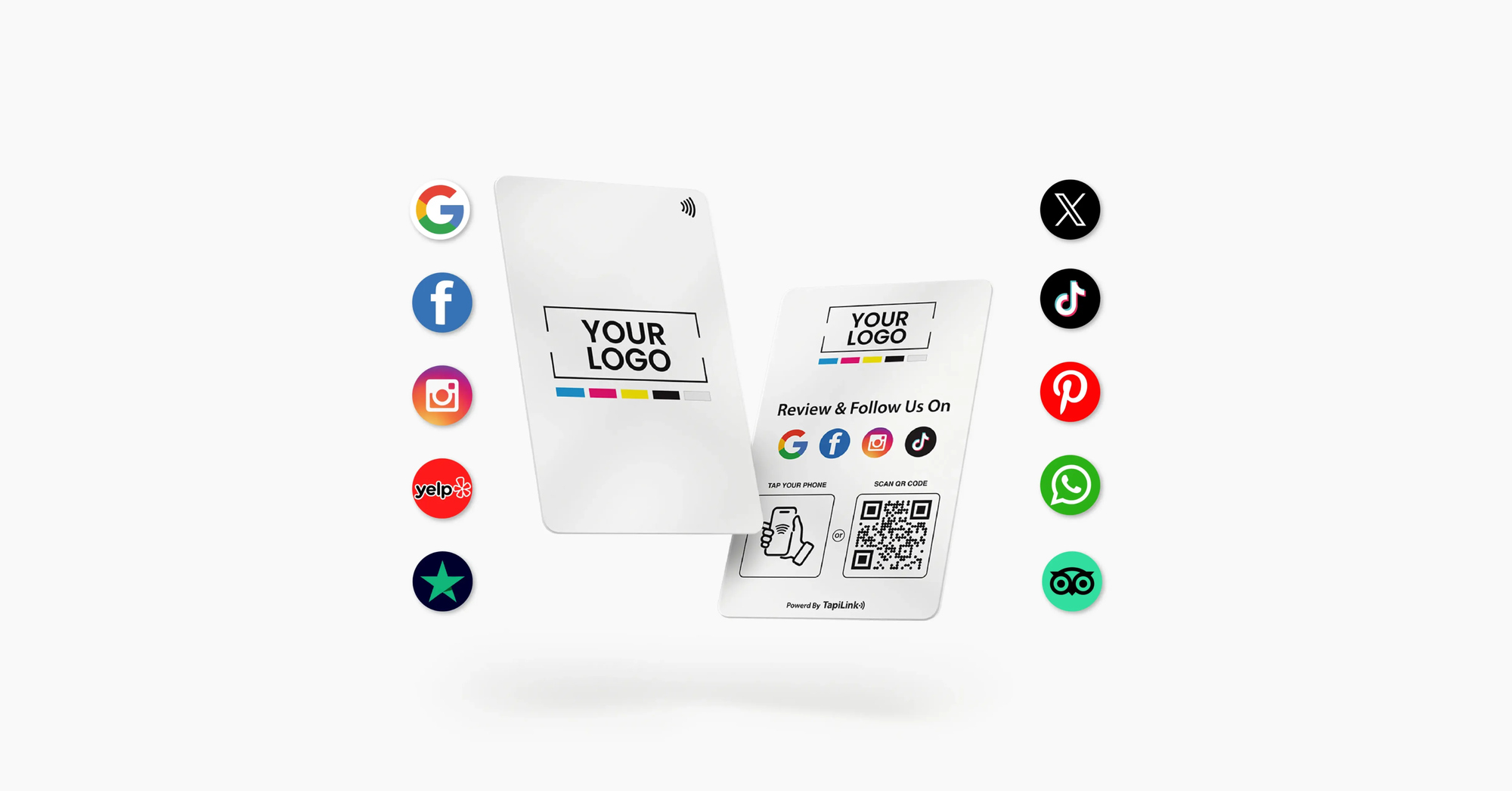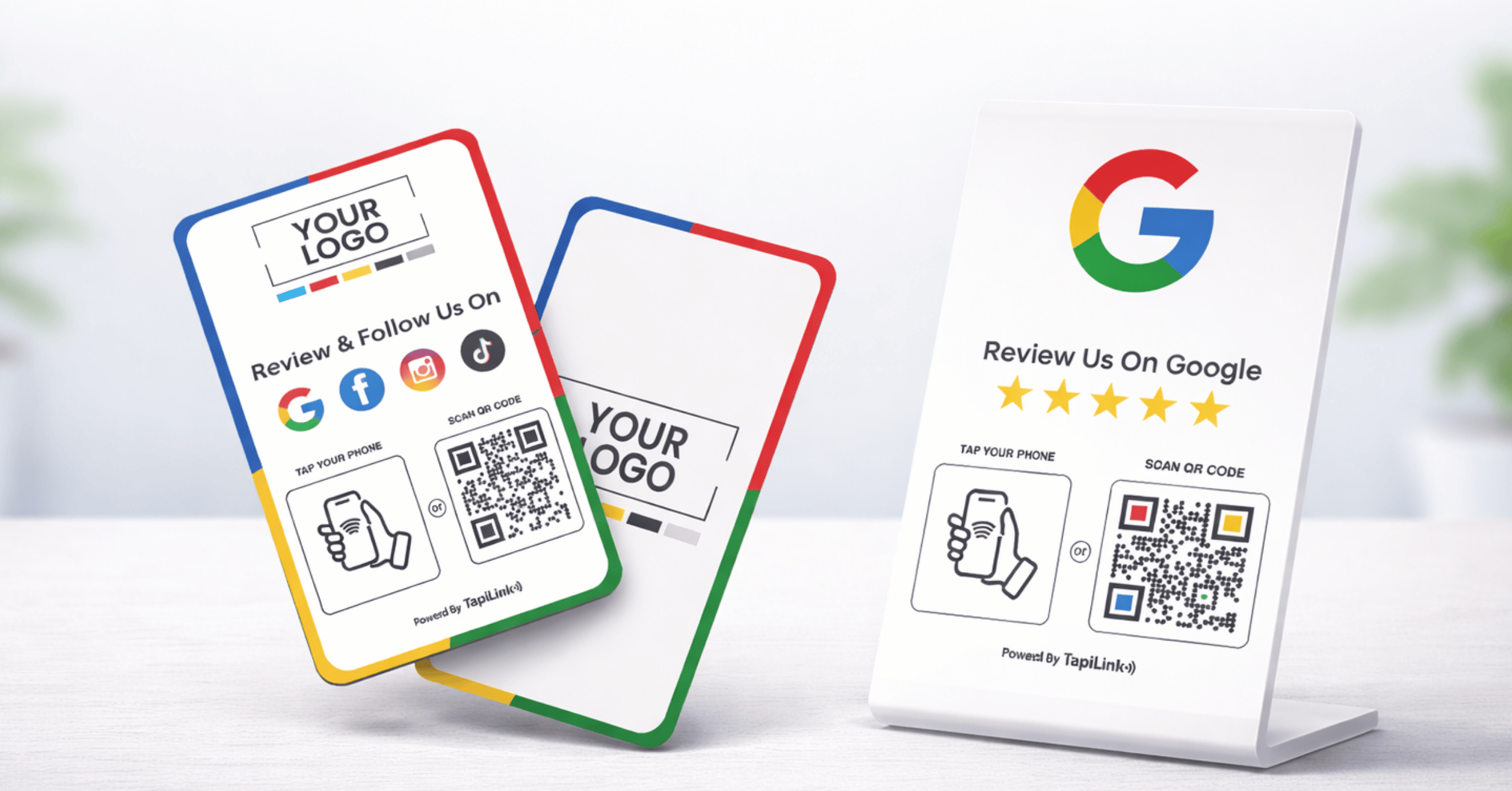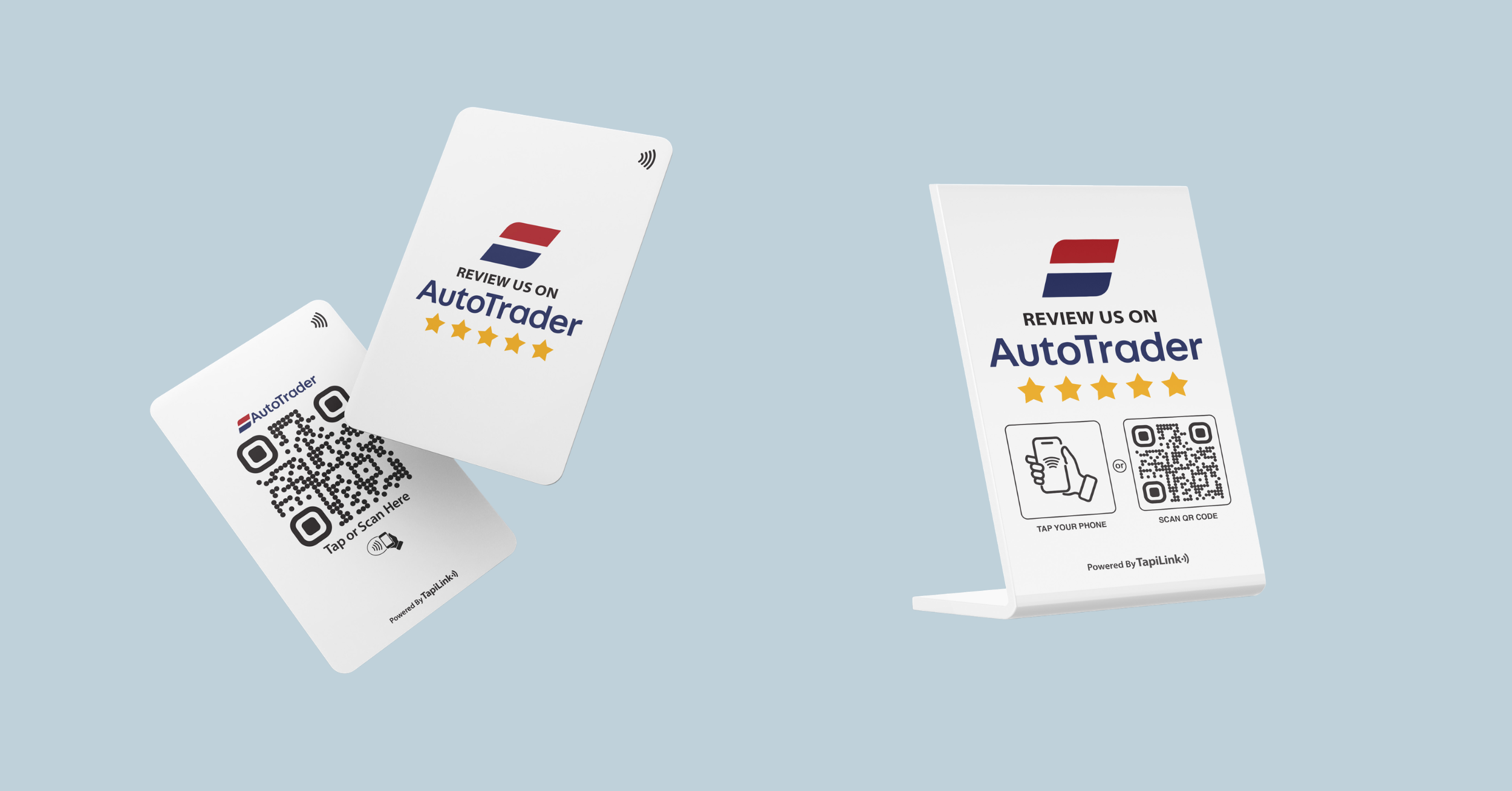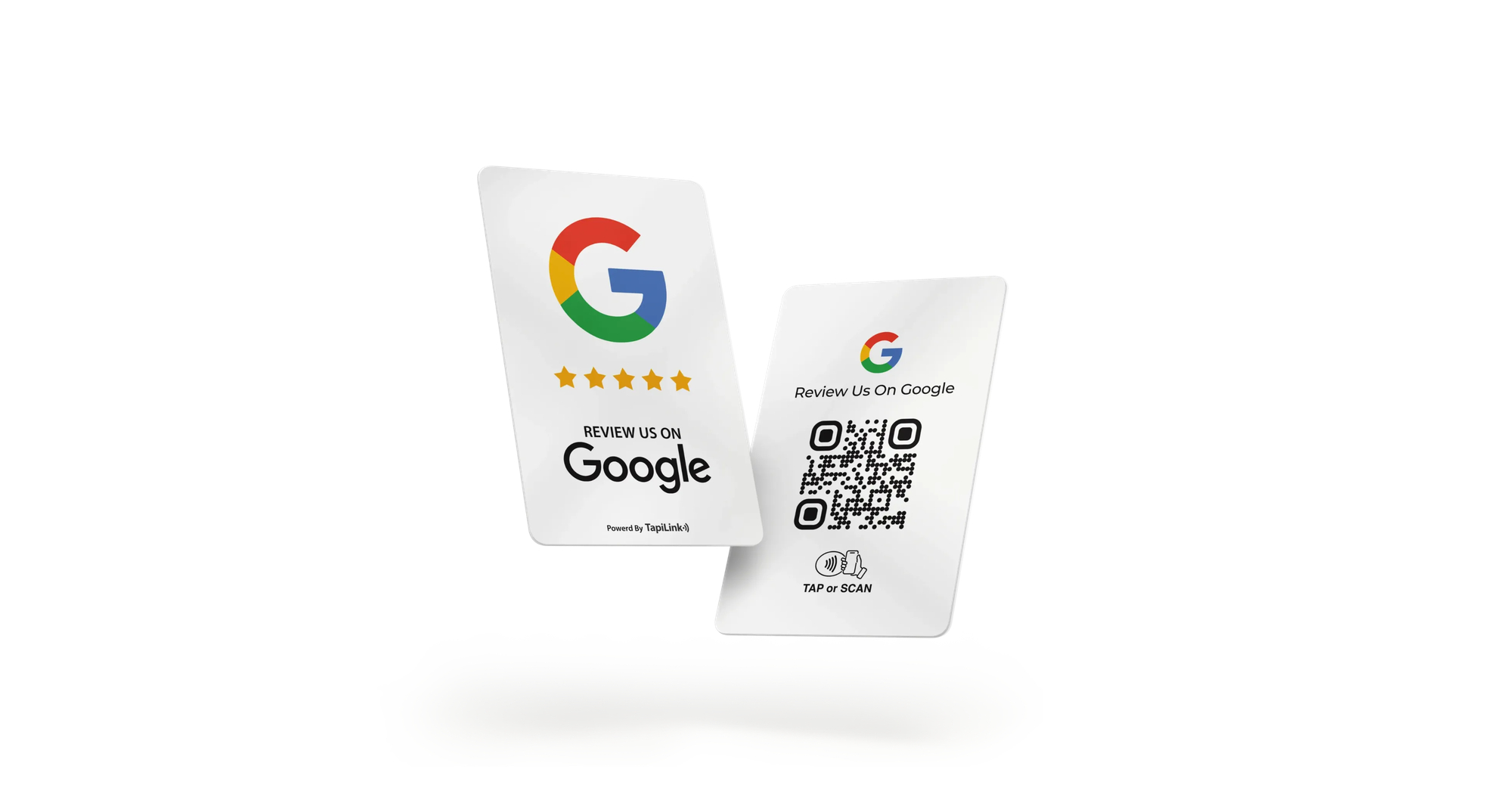
Google review cards for Black Friday give shoppers a simple route to your Google review page through tapping or scanning. Prepare the correct link, test each card and brief your staff before trading starts. Keep feedback optional and separate from discounts, payments and queue management.
Black Friday brings practical challenges beyond putting a card on the counter. Temporary displays can hide it, staff may change tills, and customers often want to leave quickly. Your review process needs to fit around those moments.
A clear routine helps everyone understand what to offer and when to step back. It also makes faults easier to spot during shift changes. The aim is convenient access to honest feedback.
This checklist covers preparation, placement, staff wording and end-of-day checks. Use it for a single shop or adapt it across branches. Keep customer service at the centre throughout.
Prepare Google Review Cards for Black Friday
Prepare your review cards before the first busy trading period. Check the destination and physical condition of every item. Assign someone to resolve faults before staff start offering them.
Google’s review-link instructions explain how to obtain your Business Profile’s review-request link. Open the correct profile and select “Read reviews”, then “Get more reviews”. Save the link against your store’s details.
Work through this opening checklist:
- Confirm the business name and branch.
- Open the review link directly.
- Test NFC tapping with a compatible phone.
- Scan the printed QR code separately.
- Confirm both routes reach the intended profile.
- Inspect the code for damage or obstruction.
- Place the card where staff will use it.
For the basic installation process, follow our Google review stand setup guide. Add these trading-day checks afterwards. Preparation should happen before customers reach the till.
Keep Reviews Separate From Discounts
Black Friday discounts must not depend on customers posting reviews. The same applies to gifts, loyalty rewards and competition entries. Keep promotional offers and review invitations visibly separate.
Google’s review content policy prohibits incentives exchanged for reviews and selectively soliciting positive feedback. Invite genuine experiences without requesting a particular rating. Do not ask staff to approach only customers they expect to praise the store.
Avoid wording such as:
- “Leave a review to unlock your discount.”
- “Show us five stars for a free gift.”
- “Only happy customers should scan this.”
- “Change your review and receive a voucher.”
A normal sale offer can remain available independently. Explain its terms through your usual promotion signage. Place the optional review request elsewhere so customers understand the distinction.
Place Cards Around the Checkout Workflow
Choose a position customers can see without disrupting payment or packing. Keep review signage distinct from the payment terminal. Staff should be able to explain its purpose immediately.
TapiLink’s NFC review stands offer a fixed display format for customer-facing areas. Consider a clear section beside the completed-purchase area. Keep the QR code accessible from a comfortable position.
Before opening, check that the display does not:
- Block the payment terminal.
- Obstruct receipts or shopping bags.
- Sit behind promotional stock.
- Reflect strong light across the QR code.
- Require customers to reach across staff.
- Suggest that reviewing completes their payment.
A handheld card suits a different workflow. Staff can offer it briefly when the conversation allows. Return it to its designated place afterwards.
Brief Permanent and Seasonal Staff
Give every customer-facing colleague the same short briefing. Include temporary staff and anyone covering another till. A shared routine prevents conflicting explanations.
Explain these five points:
- What the card opens.
- Which branch it belongs to.
- How customers can tap or scan.
- How to invite feedback neutrally.
- Who handles technical problems.
Demonstrate the process using a staff device before trading starts. Show where the notification or link appears. Do not submit a practice review.
Let customers operate their own phones throughout. Staff should not request account passwords or write feedback for them. If someone needs extensive help, explain the option to return later.
Use Short, Neutral Review Request Scripts
Keep your invitation brief and connected to the completed interaction. Explain the card without making the customer feel assessed. One polite offer is enough.
After a Purchase
Use this simple invitation when the transaction ends. Keep your tone natural rather than reciting a sales pitch. Continue helping with bags or receipts as usual.
“Thank you for shopping with us. If you’d like to share your experience, you can tap or scan here.”
When Someone Asks About Feedback
Explain the destination and leave the decision with them. Avoid suggesting what they should write. Give them space to describe their own experience.
“This opens our Google review page. You’re welcome to leave honest feedback whenever convenient.”
When a Customer Declines
Accept the answer immediately and finish the interaction warmly. Do not repeat the request through another staff member. Customers should receive the same service whether they review or not.
Keep the Queue Moving During Peak Periods
Do not make reviewing an extra checkout requirement. Offer access when practical and let customers continue with their day. Service quality matters more than completing a request script.
During quieter moments, a brief explanation may fit naturally. During a queue surge, a visible display can remain available without extra conversation. Apply this consistently rather than selecting shoppers by expected sentiment.
Google also lists receipts as a place to share review links or QR codes. If your receipt system supports this, test the printed code beforehand. Keep the destination specific to the correct store.
Handle complaints through your normal customer-service process. Do not use a satisfaction question to decide who receives the Google review link. Access to public feedback should not depend on a positive answer.
Run a Quick Shift Handover Check
Recheck the display whenever tills or staff responsibilities change. Cards can move during cleaning, restocking or promotional setup. A short handover helps catch those changes.
Use this reusable shift checklist:
- Card or stand present at its assigned location.
- Correct branch label visible.
- NFC and QR still open the intended destination.
- Code unobstructed by stock or stickers.
- Review wording separate from discount signage.
- Fault-reporting contact known to incoming staff.
If something fails, remove the affected item until someone checks it. Keep a verified alternative available where practical. Staff should prioritise serving customers rather than troubleshooting during a queue.
For product-specific help, send the fault details to TapiLink support. Include the item, phone model and destination problem. Exclude customer credentials and private information.
Review Results After the Shopping Rush
Assess the process alongside the feedback customers actually leave. Do not treat every tap as a completed review. Opening a page, submitting feedback and publication are separate stages.
Record:
- New published reviews during the chosen period.
- Recurring comments about queues, stock or service.
- Missing or damaged displays.
- Problems reported by staff.
- Available engagement data from your setup.
- Changes worth making before the next event.
Avoid ranking employees solely by five-star review counts. That can encourage unhelpful pressure. Focus on clear invitations, accurate links and attentive service.
Customer comments can reveal operational priorities beyond marketing. Look for repeated experiences rather than reacting to one isolated remark. Use those findings when planning your next busy shopping period.
Make Feedback Easy Without Adding Pressure
Google review cards for Black Friday work best within a prepared retail routine. Test the links, make the display visible and give staff neutral wording. Keep discounts and customer service independent of reviewing.
Explore TapiLink’s QR and NFC review cards to choose a format that fits your checkout. Prepare the customer journey before the shopping rush. Then let genuine feedback follow naturally.
Frequently Asked Questions
Question: Can we offer a Black Friday discount for a review?
Answer: No, Google prohibits incentives exchanged for reviews. Keep your sale offer independent of feedback. Customers should not need to review to receive the advertised promotion.
Question: Should staff request five-star reviews?
Answer: Ask for honest feedback without specifying a rating. Avoid selecting only customers expected to respond positively. Let each customer describe their actual experience.
Question: Should customers review before leaving the till?
Answer: Reviewing should remain optional. Let customers move away or return later if they prefer. Never delay payment completion, receipts or assistance while waiting.
Question: Can every checkout use the same review link?
Answer: Yes, checkout points within the same branch can use its review link. Different branches need the appropriate location destination. Test every physical card and QR code separately.
Question: Will a review card guarantee more reviews?
Answer: No, a card provides access rather than guaranteeing participation. Customers decide whether to submit feedback. Google also controls review processing and publication.
Ready to revolutionize your networking approach? Explore TapiLink's range of premium NFC business cards and join the thousands of professionals who've already made the smart choice.