Google review cards for multiple locations should direct customers to the Google Business Profile for the branch they actually visited. Give each branch its own review destination. Label every card and test both NFC and QR before putting it into use.
The design can stay consistent across your business. The destination needs to match the location. Otherwise, customers may leave feedback about one branch on another branch’s profile.
This matters for salon groups, restaurant businesses, retailers and other operators with several eligible locations. A shared brand does not make every customer experience interchangeable. Clear routing helps keep feedback relevant to the place that provided the service.
This guide explains how to organise branch links, choose suitable displays and train staff. It also includes a practical checking system. You can use it when opening another branch or replacing existing cards.
Why Each Branch Needs the Right Link
A review link directs customers to a particular Business Profile. Using another branch’s link can put feedback against the wrong location. Identical branding does not change that destination.
Imagine a customer visiting your Manchester salon. At checkout, they scan a card linked to your Leeds branch. Their feedback may then describe a Manchester appointment on the Leeds profile.
Avoid solving this by creating unnecessary profiles. Google’s business representation guidelines explain eligibility and accurate representation. Organise your cards around legitimate profiles that reflect your actual business locations.
For a card that opens the review form directly, use the relevant branch’s review link. A location-selection page creates a different journey. It asks customers to identify their branch before continuing.
Start With a Branch Register
Create one record for every location before ordering or programming cards. This becomes your reference for artwork, delivery and testing. It also helps new managers understand the setup.
Record:
- Branch name and internal location code.
- Full address.
- Correct Google Business Profile.
- Review-request link.
- Assigned card or stand identifiers.
- Branch manager.
- Last successful test date.
Use simple identifiers, such as “MAN-01” or “LEEDS-02”. Add them discreetly to the reverse of each card. Keep the customer-facing design focused on clear review instructions.
Multiple cards within the same branch can share one review destination. Different branches should use their corresponding destinations. Record the assignment before sending products to each team.
Get a Review Link for Each Location
Copy the review-request link from the correct Business Profile rather than relying on a general business search. Check the address before saving it. Repeat the process separately for every branch.
Google’s review-link instructions explain where to find the sharing option. Open the relevant profile and select “Read reviews”, then “Get more reviews”. Copy the link into your branch register.
Follow this sequence:
- Select the branch you want to manage.
- Confirm its business name and address.
- Open the review-request sharing option.
- Copy the review link.
- Open it on another device.
- Confirm the intended review destination.
- Save it against the correct branch code.
Check the location identity rather than expecting every device to show an identical screen. Google Account status can affect the journey. A signed-out customer may need to sign in before reviewing.
Choose Cards and Stands by Workflow
Choose the product around how customers finish their visit. A handheld card suits personal handovers. A stand suits a visible checkout or reception point.
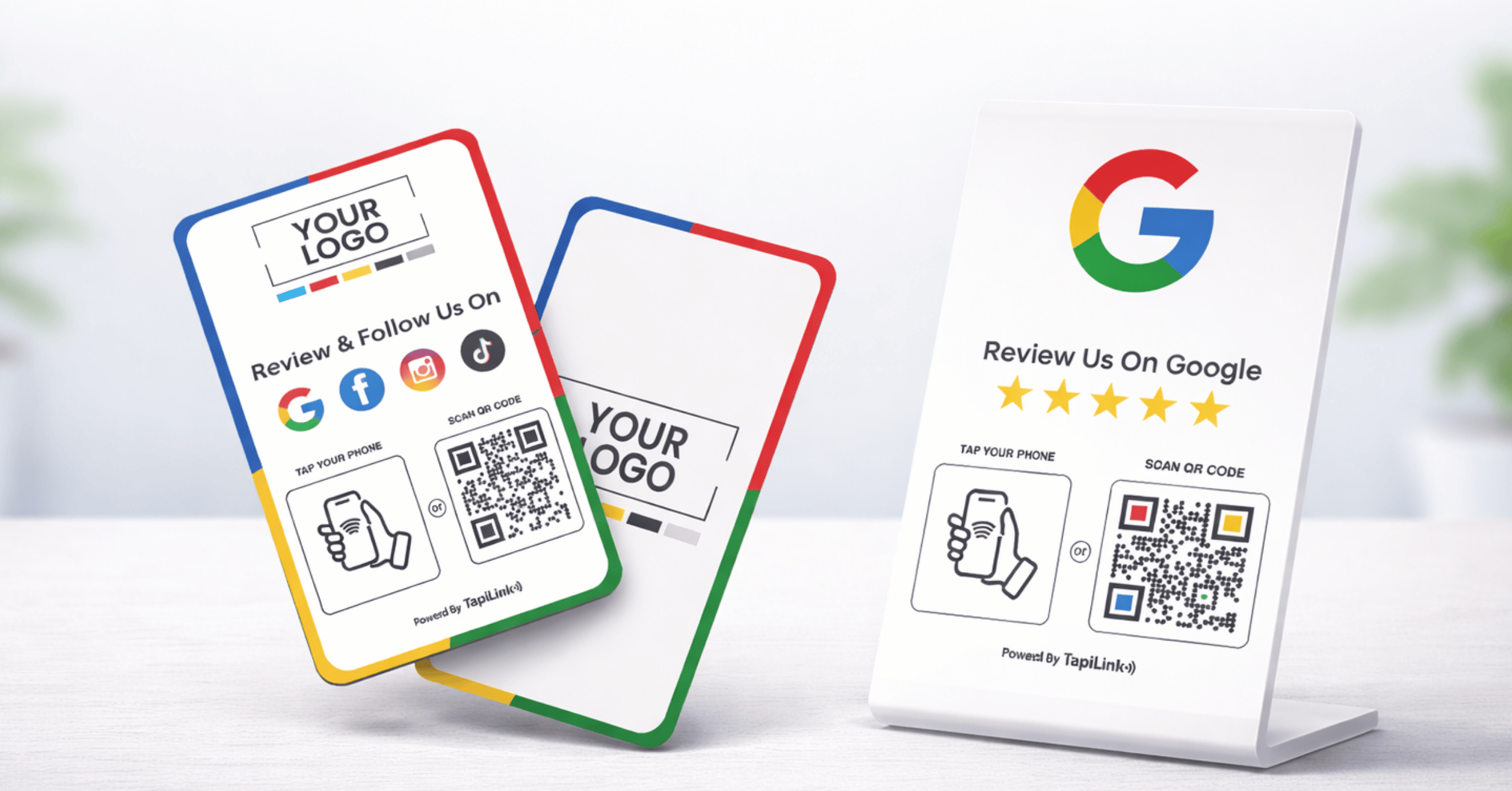
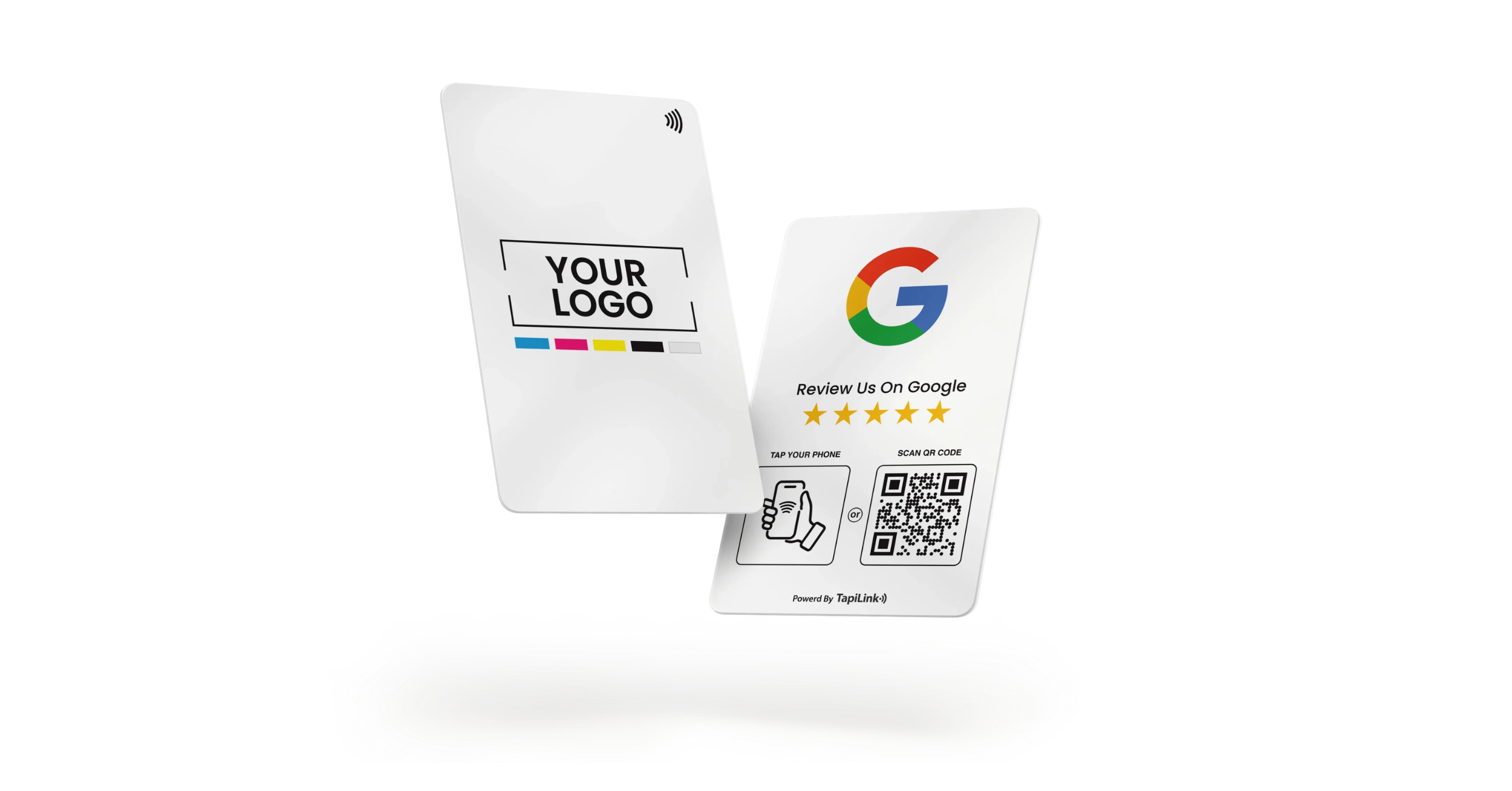
TapiLink’s QR and NFC review cards offer tap-and-scan access with custom branding. They can support a consistent appearance across branches. Assign the correct destination to each item before deployment.
For fixed customer touchpoints, consider NFC review stands at reception or checkout. Keep them within comfortable reach. Avoid positions where customers must interrupt staff to use them.
Use the same visual identity across the group, with a readable branch label. This helps staff recognise misplaced items. Consistency should make the system easier to operate.
Label and Test Every Review Card
Test each physical item rather than assuming one successful sample proves the whole order works. NFC and QR can contain different destinations. Check both routes against your branch register.
For every card or stand:
- Read its branch label.
- Tap it with a compatible NFC phone.
- Confirm the correct location opens.
- Scan the printed QR code.
- Confirm the same intended branch appears.
- Test from its planned display position.
- Record the result and tester’s name.
Our Google review stand setup guide explains the basic installation process. Add the branch-matching checks above for a multi-site rollout. These checks are especially useful when the artwork looks identical.
An Illustrative Branch Check
Suppose a café group orders three cards for each of four branches. That creates twelve physical items to verify. Every item needs both its NFC and QR destination checked.
This produces twenty-four destination checks before deployment. Record each result against the item identifier. This example is a planning calculation, rather than a TapiLink test result.
Give Every Branch a Consistent Workflow
Give staff one simple process for inviting feedback. Explain when to offer the card and how to identify its branch. Make participation optional for customers.
A neutral invitation works well:
“Thank you for visiting. If you’d like to share your experience, you can tap or scan here.”
Ask staff to:
- Offer the same opportunity without selecting only satisfied customers.
- Avoid requesting a particular star rating.
- Let customers use their own phones privately.
- Offer QR scanning when tapping is inconvenient.
- Report incorrect links or damaged cards.
- Accept a polite decline.
Google’s review content policy prohibits incentives and selectively soliciting positive reviews. Avoid discounts, gifts or rating-based requests. Keep staff targets focused on a fair process rather than five-star outcomes.
Measure Multi-Location Google Reviews Fairly
Assess each branch using its own customer activity and review history. Raw totals alone can create misleading comparisons. A busy city-centre branch may serve far more customers than a smaller site.
Track:
- New published reviews during a defined period.
- Approximate customer visits or completed transactions.
- Recurring service themes.
- Response consistency.
- Card availability and test results.
- Engagement data, where your setup supports it.
For illustration, twenty reviews from one thousand visits equals two reviews per hundred visits. Ten reviews from two hundred visits equals five per hundred. These figures describe overall review activity, not verified card conversion.
Customers may discover the profile through several channels. A tap does not prove a review was submitted or published. Avoid attributing every new review to the card without supporting evidence.
Keep Your Branch Review System Current
Recheck your setup after replacements, location changes or profile updates. A new manager should know where the branch register lives. Give each location responsibility for reporting problems.
Include these maintenance checks:
- Confirm the intended profile still opens.
- Check NFC and QR separately.
- Inspect the printed code for damage.
- Verify the card belongs at that branch.
- Remove items with incorrect destinations.
- Update the register after changes.
Do not assume every card supports remote destination updates. The available method depends on its configuration. Ask TapiLink support about your review-card setup before rewriting or replacing an item.
Give Every Location a Clear Review Route
Google review cards for multiple locations work best with accurate links and an organised branch register. Keep the branding consistent and destinations specific. Train staff to invite honest feedback without pressure.
Start by checking one branch’s complete customer journey. Then repeat the process across the remaining locations. This creates a practical foundation for collecting relevant feedback throughout your business.
Frequently Asked Questions
Question: Can all branches use identical card designs?
Answer: Yes, your branding can remain consistent. Add a clear branch label or discreet internal code. Check that each card opens its assigned location.
Question: Can one branch use several review cards?
Answer: Yes, several cards can point to the same branch’s review link. This suits multiple checkout points or customer-facing staff. Record each item so replacements remain easy to manage.
Question: Can one card cover several locations?
Answer: A card can open a page offering location choices, depending on its setup. Customers must then select their branch. For direct review access, a branch-specific destination is simpler.
Question: Do customers need a Google Account?
Answer: Yes, customers must sign into a Google Account to submit a review. A Gmail address is not required. A sign-in screen does not automatically indicate a faulty card.
Question: Do review cards guarantee better local rankings?
Answer: No, review cards cannot guarantee rankings or review publication. They make the review destination easier to access. Results still depend on customer participation, Google’s systems and your wider business presence.
Ready to revolutionize your networking approach? Explore TapiLink's range of premium NFC business cards and join the thousands of professionals who've already made the smart choice.