To program NFC tags, install an NFC writing app such as NFC Tools on your iPhone or Android device, select Write, add a record containing your website URL, contact details or other supported information, and hold your smartphone close to a writable NFC tag until programming is complete. Test the tag before using it or making it permanently read-only.
Near Field Communication (NFC) technology allows businesses and individuals to share information through a simple contactless tap. From opening websites and sharing contact details to connecting customers with Google reviews, NFC tags offer practical applications for everyday life and business.
Programming NFC tags does not require coding knowledge for most common tasks. With a compatible smartphone, a writable NFC chip and the right application, you can create a functional tag in a few simple steps.
This guide explains how to programme NFC tags, stickers, cards and chips on iPhone and Android, choose the correct chip type and troubleshoot common programming issues.
What Is NFC Tag Programming?
NFC tag programming is the process of writing information onto a compatible NFC chip so that a smartphone or NFC reader can access that information when it comes within close range.
Most everyday programmable NFC tags are passive devices, meaning they do not require batteries or charging. They receive power from the electromagnetic field generated by the NFC reader.
Many consumer NFC tags use NFC Data Exchange Format (NDEF), a standard format for storing information such as website addresses, text and supported contact records.
Once programmed, an NFC tag can help users:
- Open a website or online profile.
- Access a Google review page.
- Share contact information.
- Open a booking page or online menu.
- Access Wi-Fi connection information.
- Trigger compatible smartphone automations.
- View product information or marketing campaigns.
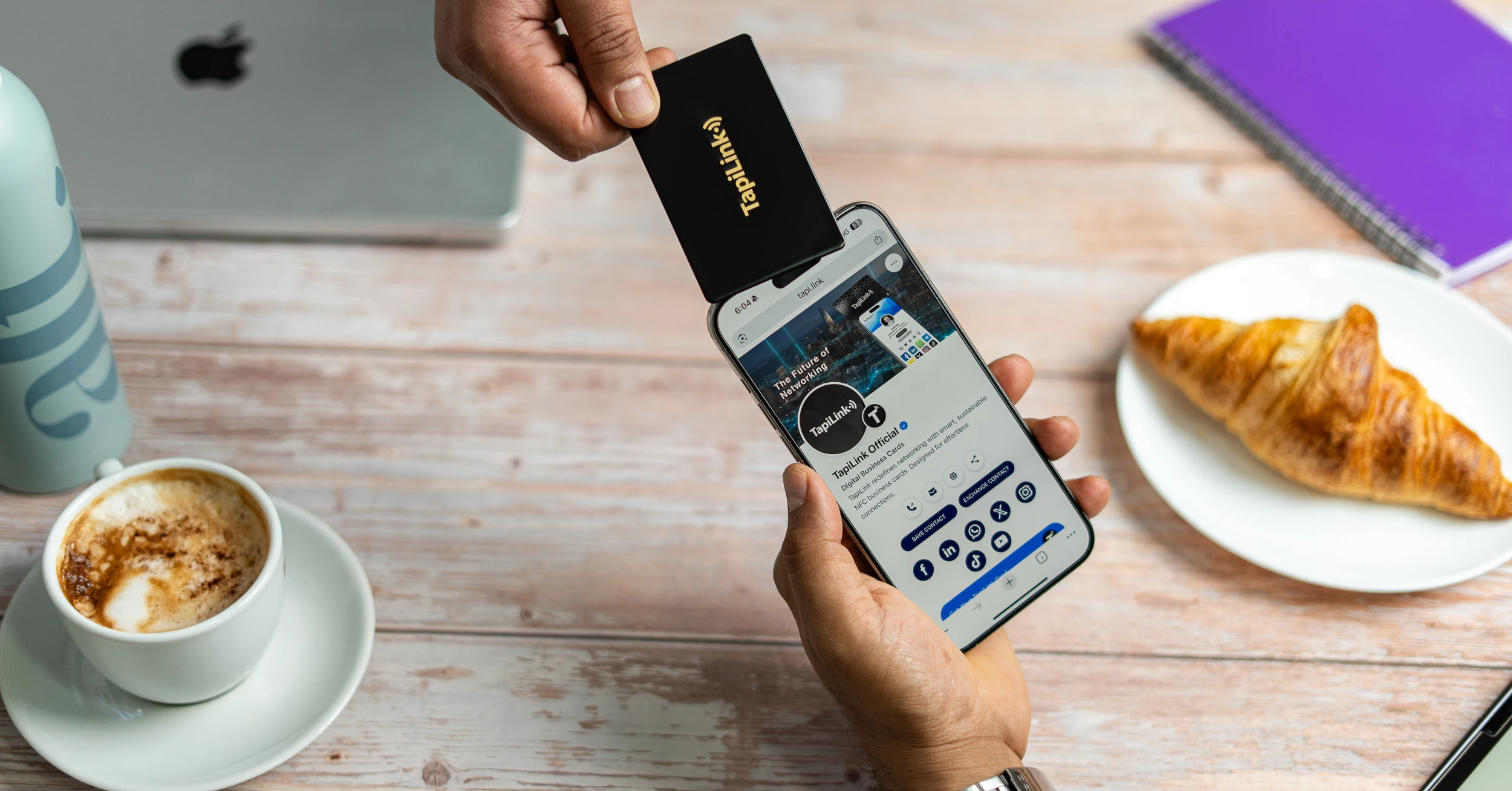
Businesses can also use TapiLink NFC accessories to share digital information without manually programming their own chips.
What Do You Need to Program NFC Tags?
Before setting up NFC tags, make sure you have the appropriate hardware and software.
An NFC-Enabled Smartphone
You need an Android smartphone or iPhone that supports NFC tag writing.
On Android, NFC can usually be enabled through the device's connectivity settings. On compatible iPhones, NFC functionality is managed through iOS and supported applications.
Check your smartphone model and operating system compatibility before purchasing NFC tags.
A Writable NFC Tag
Choose a blank or rewritable NFC tag that supports NDEF records. Common formats include NFC stickers, plastic cards, keyrings and round discs.
Avoid purchasing permanently locked tags if you intend to programme them yourself.
If you are attaching a tag directly to a metal surface, choose an on-metal NFC tag with suitable shielding to reduce interference.
An NFC Tag Writer App
Popular NFC programming applications include:
- NFC Tools for Android and iPhone.
- NXP TagWriter for Android.
These applications allow users to read, write and manage supported NFC records without developing their own software.
Information You Want to Store
Prepare the information you want your NFC tag to contain, such as a website URL, digital business card link, contact details or a supported Wi-Fi configuration.
For information that changes regularly, an editable online profile or managed URL is generally more practical than storing the complete information directly on the chip.
Which NFC Tag Should You Use? NTAG213 vs NTAG215 vs NTAG216
Choosing the correct NFC chip is an important part of NFC programming. Different chips provide different storage capacities, which determine how much information you can write.
Three common programmable NFC chips are NTAG213, NTAG215 and NTAG216, developed by NXP Semiconductors.
NTAG213 – 144 Bytes of User Memory
NTAG213 is a practical option for basic NFC applications, including short website URLs, Google review links and digital business card destinations.
It is commonly used in NFC stickers, cards and promotional tags.
Best for: Website links, simple NFC marketing applications and short digital profile URLs.
NTAG215 – 504 Bytes of User Memory
NTAG215 provides more storage capacity, making it suitable for larger records and applications that require additional information.
Best for: Longer URLs, supported contact records and more detailed NFC applications.
NTAG216 – 888 Bytes of User Memory
NTAG216 offers the largest user memory capacity of these three chips.
It is useful when you need to store larger amounts of text, contact information or multiple supported NDEF records.
Best for: Larger data records and more advanced NFC programming requirements.
Actual available space for your content is slightly lower because NDEF formatting and record structures require additional memory.
For most business applications involving a single website or digital profile link, NTAG213 is often sufficient. Choose NTAG215 or NTAG216 when additional storage is necessary.
How to Program an NFC Tag in 5 Easy Steps
The following method works with compatible Android and iPhone devices using NFC Tools. You do not need Android Studio, Xcode or programming knowledge.
Step 1: Install NFC Tools and Prepare Your Tag
Download the NFC Tools application from your device's official app store.
Open the app and use its Read function to inspect your NFC tag. Check whether the chip is detected, writable and compatible with the information you intend to store.
If the tag already contains information, make sure you are authorised to replace it.
Step 2: Choose the NFC Record Type
Open the Write section of NFC Tools and select Add a record.
Choose the record type that matches your intended application.
Common options include:
- URL or URI for website links.
- Text for simple information.
- Contact information for supported contact-sharing applications.
- Phone number for tap-to-call functionality.
- Wi-Fi information for compatible devices.
For public-facing business applications, a standard HTTPS website URL is generally the most reliable option across different smartphone platforms.
Step 3: Enter the Information You Want to Share
Enter the information into the selected record.
For example, if you want your NFC tag to open your business website, choose the URL/URI record type and enter the complete HTTPS website address.
If you are creating a digital networking tag, enter the URL of your digital business card rather than storing every individual contact detail directly on the chip.
Check the spelling and destination before continuing.
Step 4: Write the Information to Your NFC Tag
Save your record and select Write in NFC Tools.
Hold the NFC tag near your smartphone's NFC antenna until the application confirms that the writing process has finished.
On most Android phones, the NFC antenna is located somewhere on the back of the device. On compatible iPhones, it is generally near the upper edge.
Keep the tag and phone steady during programming to avoid interrupting the writing process.
Step 5: Test Your Programmed NFC Tag
After writing the information, close the writing session and scan the tag again.
Confirm that the stored information is correct and that the intended action works.
For business-facing NFC tags, test the link on both an iPhone and an Android smartphone where possible.
Do not permanently lock the tag until you have verified its functionality and are confident that the stored information will not need to be changed.
How to Program NFC Tags on Android
Android smartphones offer several ways to programme NFC tags, including dedicated writing applications and custom software development.
For most everyday users, an NFC writing app is the easiest method.
- Enable NFC through your Android smartphone's settings.
- Install and open NFC Tools or NXP TagWriter.
- Create the appropriate NFC record.
- Enter your website URL or other supported information.
- Start the writing process and hold the tag against the phone.
- Scan the tag again to confirm that it works.
Android can recognise various NDEF record types. However, the behaviour of individual records depends on the device, installed applications and operating system version.
Some automation applications can also use an NFC scan to trigger personal actions, such as opening a particular application or starting a routine.
How to Program NFC Tags on iPhone
Compatible iPhones support NFC tag writing through applications that use Apple's Core NFC framework.
To programme an NFC tag on an iPhone:
- Install NFC Tools from the App Store.
- Open the Write section and add a record.
- Select URL/URI or another supported record type.
- Enter the information and confirm the record.
- Tap Write to start the NFC writing session.
- Hold your NFC tag near the upper edge of your iPhone.
- Wait for the confirmation and test the programmed tag.
An iPhone XS or newer generally supports background NFC tag reading for compatible URL records. Some older iPhone models support NFC through dedicated applications.
For cross-platform business use, store a single HTTPS URL as the primary record.
When an iPhone reads an NFC tag in the background, it looks for a supported URI record. More specialised record types may require a dedicated application.
How to Set Up NFC Automations Using Apple Shortcuts
Apple's Shortcuts app allows compatible iPhone users to create personal automations triggered by scanning an NFC tag.
Open Shortcuts, create a personal automation, choose NFC as the trigger and scan the tag you want to associate with the automation.
You can then select a supported action, such as opening an application or starting a personal routine.
Unlike writing a public website link onto an NFC chip, this automation is configured on your own iPhone. Other people scanning the same tag will not automatically run your personal automation.
How to Program NFC Stickers and Cards
NFC stickers, business cards, keyrings and round tags generally follow the same programming process when they contain compatible writable chips.
The main difference is their physical design and intended application.
NFC Stickers
NFC stickers are useful for posters, product packaging, menus and everyday personal automations.
Write your intended URL or supported record onto the sticker using an NFC writing application. Test it after attaching it to the intended surface, as nearby metal or electronic equipment may interfere with reading.
NFC Business Cards
A writable NFC business card can store a website link directing recipients to your professional digital profile.
However, supplier-managed NFC business cards may already contain a configured link and should not be manually overwritten.
With TapiLink's digital business cards, users can manage their professional information through a digital profile instead of manually rewriting their NFC chip whenever contact details change.
NFC Round Tags
Round NFC tags are particularly useful for customer-facing displays, retail promotions and branded marketing materials.
The TapiLink QR and NFC Custom Round Tag combines NFC technology with a printed QR code and custom branding. It can direct customers to a website, booking page, digital menu or other configured destination.
Unlike a blank programmable sticker, TapiLink's managed tags allow users to update their digital destinations through an online dashboard.
8 Practical Things You Can Program Into NFC Tags
NFC programming has applications across everyday life, professional networking and business marketing.
1. Open a Website
Select the URL/URI record type in your NFC writing app and enter your website address.
Businesses can use this method on product displays, posters and promotional materials to give customers direct access to relevant information.
2. Share Wi-Fi Information
NFC tags can store Wi-Fi configuration information for compatible smartphones. However, native Wi-Fi record support varies across Android and iPhone devices.
For broader compatibility, consider using a dedicated Wi-Fi QR code or a suitable network access page.
TapiLink's WiFi Porter products provide practical Wi-Fi sharing solutions for cafés, hotels, holiday rentals and offices.
Only share guest network credentials rather than passwords for private business networks.
3. Share a Digital Business Card
Programmable NFC tags for professional networking can direct recipients to a digital profile containing your contact information, website, social media accounts and professional details.
This is particularly useful at conferences, trade shows, meetings and other networking events.
4. Collect Google Reviews
Write your direct Google Business Profile review link onto a compatible NFC tag so customers can access your review page with a tap.
Alternatively, use a dedicated NFC Google Review Card with NFC and QR code functionality.
Follow our guide on how to activate a Google Review NFC card for product-specific setup instructions.
Always invite genuine feedback without offering incentives or requesting a particular rating.
5. Share Phone Numbers and Locations
NFC tags can contain supported telephone links or website addresses that open maps and business locations.
These applications are useful for customer service counters, event venues and businesses that want to provide convenient access to their contact information.
6. Open Menus and Booking Pages
Restaurants, salons, hotels and professional service providers can use NFC tags to share digital menus, appointment booking pages and service information.
TapiLink's QR and NFC Website Plate offers a branded display option for these applications.
7. Improve Retail Marketing
Retailers can connect NFC tags to product information, loyalty programme pages, promotional campaigns and online collections.
A single managed digital link can be updated as products or campaigns change, reducing the need to replace the physical marketing display.
8. Trigger Everyday Smartphone Tasks
Compatible NFC automation applications can associate tags with personal routines, such as opening an application, starting a timer or activating a supported home automation.
Available actions depend on your smartphone, operating system and automation settings.
How to Program an NFC Tag for Payments
An ordinary programmable NFC tag cannot function as a contactless bank card or certified payment terminal. It can, however, open a legitimate online payment page.
For example, a business can create a hosted payment link through an established payment service provider and write that URL to an NFC tag.
To configure this type of payment link:
- Create a payment link through your payment provider.
- Copy the official HTTPS checkout URL.
- Write the URL to a compatible NFC tag.
- Test that the correct business name and payment information appear.
- Allow customers to review and authorise the payment through the provider's secure checkout process.
Never store payment card numbers, banking passwords, private authentication tokens or other confidential financial information on an ordinary NFC tag.
Apple Pay, Google Pay and certified contactless payment systems use dedicated security mechanisms that cannot be replicated simply by writing data onto a standard NFC chip.
Can You Program NFC Tags With Code?
Developers can programme NFC tags through platform-specific frameworks when creating custom applications or business systems.
NFC Programming With Android and Kotlin
Android provides APIs such as NfcAdapter, Ndef, NdefMessage and NdefRecord for working with NFC-compatible devices and records.
A custom application generally needs to detect supported tags, verify available capacity and writing permissions, create the appropriate NDEF message and handle writing errors.
Developers should follow the current Android NFC developer documentation for implementation requirements.
NFC Programming With Swift and Core NFC
Apple provides the Core NFC framework for reading and writing supported NFC tags within iOS applications.
Developers need the appropriate NFC capabilities, usage descriptions and compatible hardware to create an NFC writing application.
Custom development is useful for specialised workflows, but it is unnecessary for most everyday NFC applications. An existing NFC writing app or a managed TapiLink product is generally more practical.
How to Reprogram an NFC Tag
Most standard writable NFC tags can be reprogrammed unless they have been permanently locked or otherwise protected.
To reprogram an NFC tag:
- Open your NFC writing application.
- Read the existing tag information.
- Confirm that the tag remains writable.
- Create a replacement record or use the supported erase function.
- Write the new information onto the chip.
- Test the updated tag.
Permanently read-only NFC tags cannot be rewritten. Password-protected tags may require the correct authorisation before their contents can be changed.
With dashboard-managed products, you may not need to rewrite the physical chip at all. Updating the linked digital profile or destination can change what users see after tapping the tag.
Troubleshooting Common NFC Programming Issues
NFC Tag Is Not Detected
Check that your device supports NFC and that NFC is enabled where applicable.
Move the tag slowly around the smartphone's NFC antenna and remove thick or metallic phone cases if necessary.
NFC Tag Has Insufficient Memory
If your record exceeds the tag's capacity, use a shorter URL or choose a larger-capacity chip such as NTAG215 or NTAG216.
For digital business applications, linking to an online profile is often more efficient than storing large amounts of information directly on the chip.
NFC Tag Cannot Be Rewritten
The tag may be permanently locked, password-protected or incompatible with your writing application.
Check the chip's information using the Read function. If the tag belongs to a managed NFC product, follow the supplier's configuration instructions.
NFC Tag Works on Android but Not iPhone
Check whether the tag contains a supported NDEF URI record.
Some text, contact or automation records may behave differently across operating systems. Using a standard HTTPS website link generally provides better cross-platform compatibility.
NFC Tag Stops Working on a Metal Surface
Metal can interfere with the electromagnetic field required for NFC communication.
Use an on-metal NFC tag designed with suitable shielding, or move the tag away from the metallic surface.
NFC Tag Opens the Wrong Website
Read the existing record and check the stored URL. If the tag uses a managed redirect, verify that the destination is configured correctly.
Update the record or online destination as appropriate and test again.
Why Choose TapiLink Instead of Manually Programming NFC Tags?
Manually programming blank NFC tags is useful for personal projects and simple experiments. However, businesses often need more flexible solutions that combine professional branding, editable digital information and multiple sharing options.
TapiLink offers NFC and QR code products designed for everyday professional networking and customer engagement.
Our products include:
- Customisable NFC digital business cards.
- Google review cards and countertop stands.
- NFC keyrings and phone tags.
- Custom round NFC tags.
- Wi-Fi sharing products.
- NFC website plates.
TapiLink's managed products allow users to update their digital information through an online dashboard without repeatedly programming the physical chip.
Essential features are included with a one-time product purchase, while optional team management plans are available for businesses requiring additional functionality.
Browse the complete range of TapiLink NFC keyrings and tags to find a suitable solution for your personal or business needs.
Conclusion
Programming NFC tags is a straightforward way to connect physical objects with digital information. With a compatible iPhone or Android smartphone, an NFC writing application and the right chip, you can create tags for websites, contact sharing, marketing and everyday tasks.
Choose NTAG213 for basic URL sharing or consider NTAG215 and NTAG216 when additional storage is required. Always test programmed tags before making them permanently read-only.
For businesses that want professional branding, editable links and convenient digital management, TapiLink provides ready-to-use NFC solutions without the need for repeated manual chip programming.
Frequently Asked Questions
How do I program an NFC tag without coding?
Install NFC Tools, choose Write, add a supported record, enter your information and hold the tag near your smartphone until the writing process is complete. Coding is not required for standard URL and text records.
How do I program an NTAG213 NFC tag?
Use a compatible NFC writing application to create an NDEF record and write it onto the NTAG213 chip. Its 144 bytes of user memory make it suitable for short website URLs and basic digital sharing applications.
How do I program an NTAG215 NFC tag?
The process is similar to programming NTAG213. Open your NFC writing application, add the required record and write it onto the tag. NTAG215 provides 504 bytes of user memory for larger records.
Can you reprogram NFC tags?
Yes. Standard writable NFC tags can usually be reprogrammed unless they have been permanently locked or protected. Managed NFC products may allow destination updates through an online dashboard instead.
How do I program an NFC tag to open a website?
Select the URL/URI record type in NFC Tools, enter the full website address and write the record to your NFC tag. Scan the tag again to confirm that it opens the correct website.
Do NFC tags need batteries or charging?
No. Standard passive NFC tags receive the small amount of power they need from the electromagnetic field generated by a compatible smartphone or NFC reader.
Can NFC tags work without an internet connection?
Yes. Reading locally stored NFC information does not normally require internet access. However, opening an online profile, website or payment page requires a suitable internet connection.
How long do NFC tags last?
NFC tag lifespan depends on the chip specification, operating environment and physical condition. Many standard tags are designed to retain information for years and support repeated writing, although exact endurance varies by manufacturer.
Are NFC tags safe for personal information?
NFC tags can safely share public information when used appropriately. Avoid storing confidential credentials, financial information or sensitive personal data on tags that can be read by other people.
Can I program NFC tags for Apple Pay or Google Pay?
A standard writable NFC tag cannot become an Apple Pay or Google Pay payment card. It can open a legitimate hosted payment link where the customer independently completes and authorises the transaction.
Do I need to programme TapiLink NFC products manually?
No. TapiLink's dashboard-managed NFC products are designed to work through their supplied activation and configuration process. You can update supported digital information without manually rewriting the NFC chip.
Ready to revolutionize your networking approach? Explore TapiLink's range of premium NFC business cards and join the thousands of professionals who've already made the smart choice.