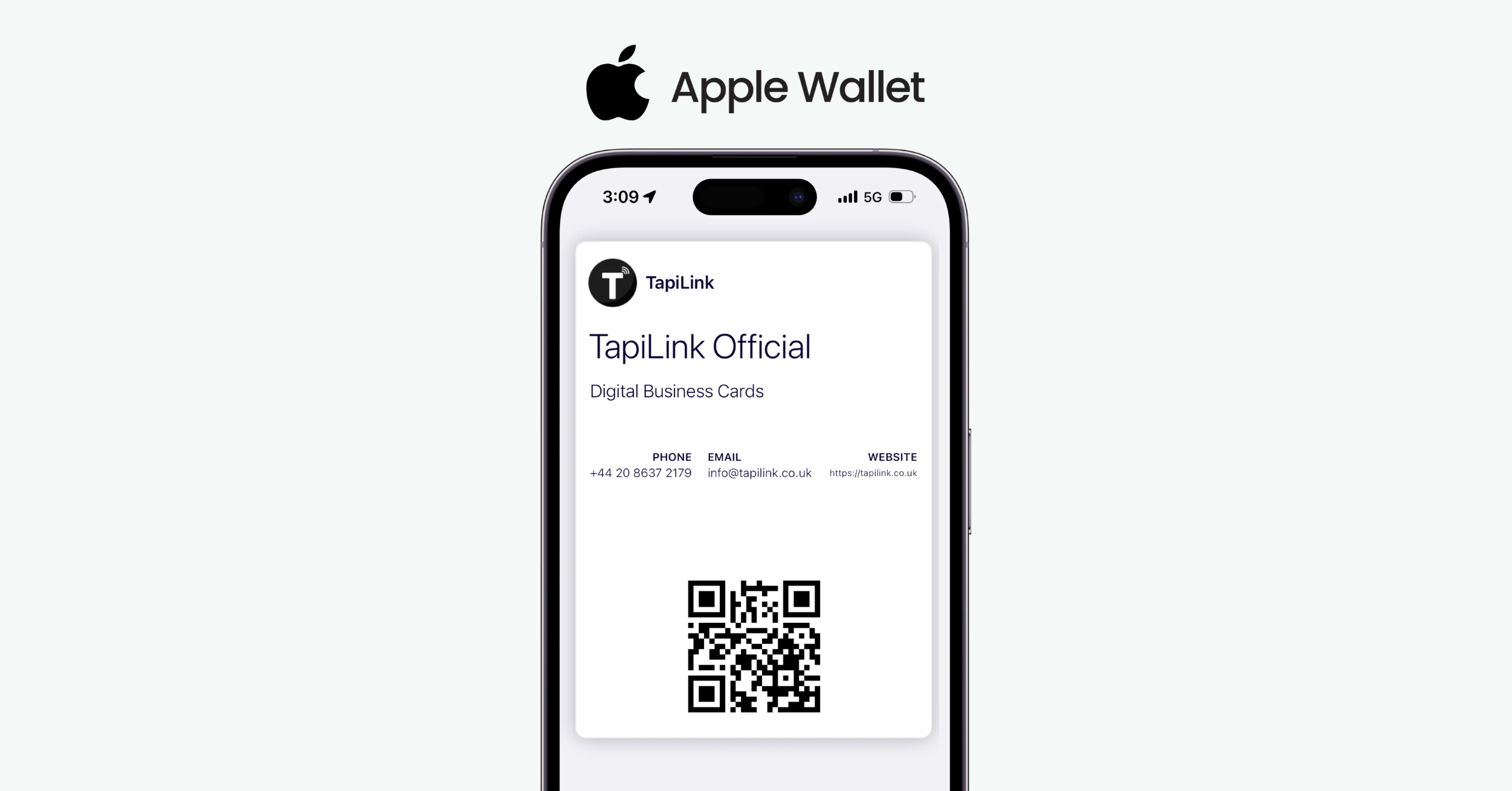
How to make a digital business card for Apple Wallet starts with creating a Wallet-compatible pass file, usually a PKPASS, then adding it to your iPhone using the “Add to Apple Wallet” button. If you have tried uploading a photo of your card and it did not work, you are not alone. Apple Wallet only supports structured pass formats, not images.
Today, more than 1 billion iPhones are active worldwide according to Apple Inc. public reports, which means sharing contact details through Apple Wallet is faster than exchanging paper cards at London trade shows or Manchester client meetings. A digital Wallet business card is a scannable pass stored inside the Wallet app that can include your name, role, phone number, email, website, QR code, and even a direct save-to-contacts option.
In this guide, you will learn the exact 5 steps to create your profile, generate a PKPASS file, add it to Apple Wallet, and test it for reliable sharing. We will also cover NFC tap, QR fallback, and compatibility with iPhone and Apple Watch.
For deeper context on tap technology, see our internal guide on NFC digital business card features.
What Is an Apple Wallet Digital Business Card?
The first time I added a boarding pass to my iPhone, I realised something powerful, Apple Wallet is not just for tickets. Today, Apple Wallet is used globally for boarding passes, event tickets, payment cards, and digital passes. According to Apple Inc., Wallet is built into every modern iPhone, and with more than a billion active iPhones worldwide, that makes it one of the most accessible digital sharing tools available.
An Apple Wallet digital business card is a Wallet pass file stored inside the Wallet app. Instead of handing someone paper, you show a scannable pass on your screen that contains your professional details.
Brief explanation of Apple Wallet
Apple Wallet is a native iOS app that stores digital passes such as tickets, boarding passes, payment cards, and loyalty cards. These passes are structured files, not images. Apple provides the PassKit framework for creating them, documented in Apple Developer resources.
This means your business card must follow Apple’s pass format to work properly.
How Apple Wallet passes .pkpass files work
A Wallet business card is generated as a .pkpass file. This file includes:
• Your name and job title
• Company branding
• A QR code or barcode
• A structured data field
• Secure cryptographic signing
The file is digitally signed before it can be added to Wallet. Once installed, the pass appears inside the Wallet app and can be opened instantly, even from the lock screen.
Apple Support explains that passes are added via app, website link, email attachment, or QR code scan Apple Support.
Difference between Apple Wallet pass QR code card NFC business card
Understanding the differences avoids confusion:
Apple Wallet pass
• Stored inside Wallet
• Uses .pkpass format
• Can include QR code
• Requires iPhone
QR code card
• Printed or digital QR
• Opens web profile in browser
• Works on both iPhone and Android
• Not stored in Wallet automatically
NFC business card
• Uses Near Field Communication
• Opens digital profile with tap
• Works without scanning
• Hardware based physical card
For deeper comparison, see our internal guide on which digital business card is best.
Benefits of using Apple Wallet for contact sharing
From experience at UK conferences and London networking events, Wallet passes offer practical advantages:
• No app download required
• Fast lock screen access
• Professional branded display
• Easy AirDrop or message sharing
• Can include QR fallback for universal access
Wallet passes feel secure and official because they follow Apple’s structured ecosystem.
In short, an Apple Wallet digital business card is a secure pass file stored in your iPhone that displays your contact details and QR code for instant sharing. Now that you understand what it is and how it works, let’s prepare the tools and requirements you need before creating yours.
Requirements Before You Start
Before jumping into the 5 step creation process, make sure you have the essentials ready. This avoids technical frustration later.
iPhone or Apple compatible device
You need an iPhone running a recent version of iOS. Apple Wallet is preinstalled. Apple Watch can also display passes once synced.
Apple Developer Account if building manually
If you plan to create and sign a pass yourself using PassKit, you need an Apple Developer account. Apple requires pass certificates for signing PKPASS files. This is documented in the Apple Developer portal.
Most professionals skip this and use a trusted pass generation tool instead.
Pass creation tool
Popular Wallet pass creation tools include:
• Digital business card platforms with Wallet export
• Pass generators that create PKPASS files
• CRM platforms that support Wallet integration
Choose one that supports editable profiles and QR code integration.
Logo brand colors contact info ready
Prepare:
• High resolution logo
• Brand color hex codes
• Full name and job title
• Direct phone number
• Professional email
• Website or booking link
Wallet passes have limited visual space. Clean branding matters.
QR code or NFC option optional but recommended
While Apple Wallet works great for iPhone users, not everyone uses iOS. Adding:
• A QR code for Android users
• An NFC business card for tap sharing
ensures universal compatibility.
Now that you understand what an Apple Wallet digital business card is and what tools you need, we can move directly into the 5 step creation process.
Step 1 Choose a Pass Creation Method
When I first helped a client in London set up an Apple Wallet business card, the biggest confusion was not design. It was choosing the right creation method. Do you use a no code platform or build it manually with Apple tools? The answer depends on your technical skills and long term goals.
Apple Wallet passes are built using the PassKit framework provided by Apple Developer. That means every Wallet business card must follow Apple’s structured pass format before it can be added to iPhone.
You have two main paths.
Option A Use a Digital Business Card Platform
Most professionals choose a no code digital business card platform that supports Apple Wallet export. These tools automatically generate the required .pkpass file and signing certificate.
Overview of no code platforms
• Create your profile through a web dashboard
• Add branding and contact details
• Click “Add to Apple Wallet”
• Platform handles file signing and compliance
Pros
• Fast setup no technical knowledge required
• Automatic PKPASS generation
• Built in QR code support
• Easy profile updates
• Often includes analytics and CRM integration
Cons
• Limited design customization compared to custom builds
• Some platforms require subscription plans
For most business owners, consultants, and sales teams, this option is faster and more practical.
Option B Create Manually Using Apple PassKit
If you are a developer or building a fully custom solution, you can create the pass directly using Apple’s PassKit framework.
Brief intro to Apple PassKitPassKit allows developers to build, sign, and distribute Wallet passes. Each pass must be digitally signed using certificates issued through an Apple Developer account.
Important considerations
• Requires an active Apple Developer account
• Requires certificate management
• Must follow Apple pass JSON structure
• Needs hosting environment for distribution
This option gives maximum control but is suitable only for developers or companies with in house technical teams.
If you are not comfortable managing certificates and JSON files, a no code platform will save time and prevent errors.
Now that you have selected your method, it is time to design the actual digital business card.
Step 2 Design Your Digital Business Card
A Wallet business card has limited visual space. I have seen people overload it with too much text, which reduces clarity. Keep it clean and intentional.
Add essential identity details
Make sure your pass includes:
• Full name
• Job title
• Company name
• Direct phone number
• Professional email address
• Website or booking link
Keep the hierarchy clear. Your name should stand out first.
Add logo and brand color
Brand consistency builds trust. Use:
• High resolution company logo
• Primary brand color for background or accent
• Strong contrast between text and background
Apple Wallet passes look more credible when they match your website and LinkedIn branding.
Add QR code for scanning
Even though the pass sits inside Apple Wallet, adding a QR code ensures:
• Quick scanning by other devices
• Sharing during presentations
• Backup sharing method
A QR code can open your full digital profile, allowing Android users to access your information too.
Keep design minimal and professional
Best practices include:
• Avoid long paragraphs
• Limit to one primary call to action
• Use clear readable fonts
• Test visibility in bright light
Remember, Wallet is meant for quick display, not detailed reading.
With your design complete, the next step is generating the actual Wallet pass file.
Step 3 Generate the Apple Wallet Pass .pkpass File
Once your profile and layout are ready, your platform or development environment will generate a .pkpass file. This is the official file format Apple Wallet accepts.
How the pass file works
A .pkpass file is a compressed package containing:
• Structured JSON data
• Images and branding assets
• Barcode or QR data
• Cryptographic signature
Apple requires every pass to be digitally signed for security reasons. Unsigned passes will not install.
Add required fields correctly
Apple Wallet organizes content into structured sections:
Primary field: Your full name
Secondary field: Company name
Auxiliary fields
• Phone number
• Email address
• Optional website
These structured fields determine how the information displays inside the Wallet interface.
Add barcode or QR code
Most Wallet business cards use a QR code that links to:
• Your digital profile
• A vCard download
• Booking calendar
Make sure the QR links to a mobile optimized page.
Export the .pkpass file
After configuration:
• Generate the file
• Click “Add to Apple Wallet”
• Or scan QR code to install
• Confirm it appears in Wallet
You now have a functioning Apple Wallet digital business card ready for sharing.
In the next step, we will add the card to your device properly and test it for smooth performance.
Step 4 Test the Card on iPhone
Before you start sharing your Apple Wallet business card at meetings or events, test it carefully. I always recommend doing a full test on your own iPhone and at least one other device. Small errors like broken links or low contrast QR codes can cost real connections.
Send file via AirDrop or email
If you generated a .pkpass file manually or through a platform, send it to your iPhone using:
• AirDrop
• Email attachment
• Direct download link
• QR code scan
When you open the file, iOS should automatically recognize it as a Wallet pass.
Tap Add to Wallet
Once the pass preview opens:
• Tap Add in the top right corner
• Confirm it appears inside Apple Wallet
• Lock your screen and reopen Wallet to check visibility
If the “Add to Wallet” button does not appear, the pass may not be properly signed.
Check layout and functionality
Now test everything carefully.
Layout check
• Is your name clearly visible
• Is the logo sharp and aligned
• Is brand color readable in bright light
Clickable links check
• Tap phone number
• Tap email address
• Tap website link
• Confirm they open correctly
QR scan function check
• Scan the QR code with another phone
• Confirm it opens the correct profile
• Ensure the page is mobile optimized
Testing ensures your digital business card performs professionally in real networking environments.
Step 5 Share Your Digital Business Card
Once installed and tested, your Apple Wallet business card becomes a powerful networking tool. The goal is frictionless sharing.
Share via QR code
Open your Wallet pass and let others scan the QR code. This works great during:
• Trade shows
• Conferences
• Client presentations
QR sharing works across iPhone and Android.
Share via NFC tap
If you also use an NFC card, a simple tap can open your digital profile instantly. This creates a modern and memorable experience.
Share via link
Most Wallet enabled platforms generate a public profile link. You can:
• Send via WhatsApp
• Send via SMS
• Share in LinkedIn messages
Add to email signature
Include your digital card link in your email signature. Every email becomes a networking opportunity.
Add to website contact page
Embed your QR code or Add to Apple Wallet button on your website contact page. This improves professional credibility.
Use at networking events
Instead of handing paper cards, simply:
• Open Wallet
• Let them scan
• Ask them to save your contact
It feels modern, fast, and efficient.
You now have a fully functional Apple Wallet digital business card. In the next section, we will cover common problems and quick fixes to ensure your card works flawlessly every time.
Common Mistakes to Avoid
I have seen perfectly good Apple Wallet business cards fail in real networking situations because of small avoidable mistakes. When you are sharing your contact at a London conference or during a client meeting, there is no second chance for a first impression. Avoid these common errors.
Overloading with information
Apple Wallet passes are not full websites. They are quick reference tools.
Adding too many details such as long descriptions, multiple phone numbers, or excessive links makes the layout cluttered and hard to read. Keep it focused:
• Full name
• Job title
• Company
• One direct phone number
• One email
• One primary call to action
Clarity increases the chance someone actually saves your contact.
Poor logo resolution
A blurry logo instantly reduces credibility. Wallet passes display your branding prominently, so low resolution images stand out.
Best practice:
• Use high resolution PNG or SVG files
• Test visibility on bright screens
• Avoid stretched or distorted logos
Your Wallet pass should look as polished as your website or LinkedIn profile.
Broken links
Nothing damages trust faster than tapping a link that does not work. Before sharing your card:
• Test phone link
• Test email link
• Test website URL
• Test booking calendar
A single broken link can stop a potential lead from reaching you.
Not testing on multiple devices
Your card may look perfect on your iPhone, but what about:
• Another iPhone model
• Apple Watch
• Android device scanning your QR
Always test on at least two devices. Check QR scanning, link redirects, and display formatting.
A digital business card should feel effortless. By avoiding these simple mistakes, you ensure every tap and scan leads to a smooth professional experience.
Conclusion
Creating a digital business card for Apple Wallet is simpler than it first appears. You choose a pass creation method, design a clean and professional profile, generate the .pkpass file, add it to your iPhone, then test and share it confidently. When done correctly, your Wallet pass becomes a fast, secure, and modern way to exchange contact details at meetings, conferences, and networking events. Instead of handing out paper cards that get lost, you provide a scannable and instantly savable connection.
At Tapilink, you can create and manage your digital business card without dealing with developer certificates or complex PassKit setup. Tapilink allows you to generate Apple Wallet compatibility, add QR and NFC sharing, and update your digital business card anytime. With premium card materials, simple customization, and built in analytics, Tapilink turns your business card into a measurable networking asset. Start building your digital business card with Tapilink today and connect with confidence.
Frequently Asked Questions
Can I create an Apple Wallet business card for free?
Yes, you can create a basic Apple Wallet digital business card for free using certain pass generation tools or platforms that offer free plans. However, advanced features such as custom branding, analytics tracking, CRM integration, or NFC support may require a paid plan. If you build it manually using PassKit, you will need an Apple Developer account, which has an annual fee.
Do I need coding knowledge?
No, coding knowledge is not required if you use a no code digital business card platform that supports Apple Wallet export. These tools handle the .pkpass file generation and signing automatically. Coding is only necessary if you choose to build the Wallet pass manually using Apple PassKit and manage certificates yourself.
Can Android users access it?
Yes, Android users can still access your digital business card if you include a QR code or public profile link on the Wallet pass. While the Apple Wallet pass itself only installs on iPhone, the QR code can open your digital profile in any browser. For universal sharing, combining Apple Wallet with QR or NFC is the best approach.
Is it better than NFC business cards?
Apple Wallet and NFC business cards serve different purposes. A Wallet pass is ideal for iPhone users and quick on screen sharing. An NFC business card allows instant tap sharing without opening Wallet first. The most effective strategy is using both together, so your digital business card works across all devices and situations.
How do I update my Apple Wallet card?
If you use a digital business card platform, simply update your profile in the dashboard. Many platforms allow dynamic updates that refresh automatically. If you created the pass manually, you will need to regenerate and reissue the updated .pkpass file. Always test changes on your iPhone after updating to ensure links and contact details work correctly.
Ready to revolutionize your networking approach? Explore TapiLink's range of premium NFC business cards and join the thousands of professionals who've already made the smart choice.