The Google review stand vs multi-link stand choice comes down to what customers need after paying. Choose a dedicated Google review stand when reviews are your main goal, or a multi-link stand when customers also need booking, website or social links.
Both TapiLink options let customers tap a compatible phone or scan a QR code. The difference appears on the next screen: one opens your Google review destination, while the other presents a menu. Google allows businesses to share review links and QR codes for honest feedback. Customers need to sign in to a Google Account to post a review.
This guide is for UK shop owners, café managers, salon teams and anyone choosing signage for a busy till. You’ll get examples for different counters, a setup checklist and a simple way to judge whether your choice works.
Google Review Stand vs Multi-Link Stand
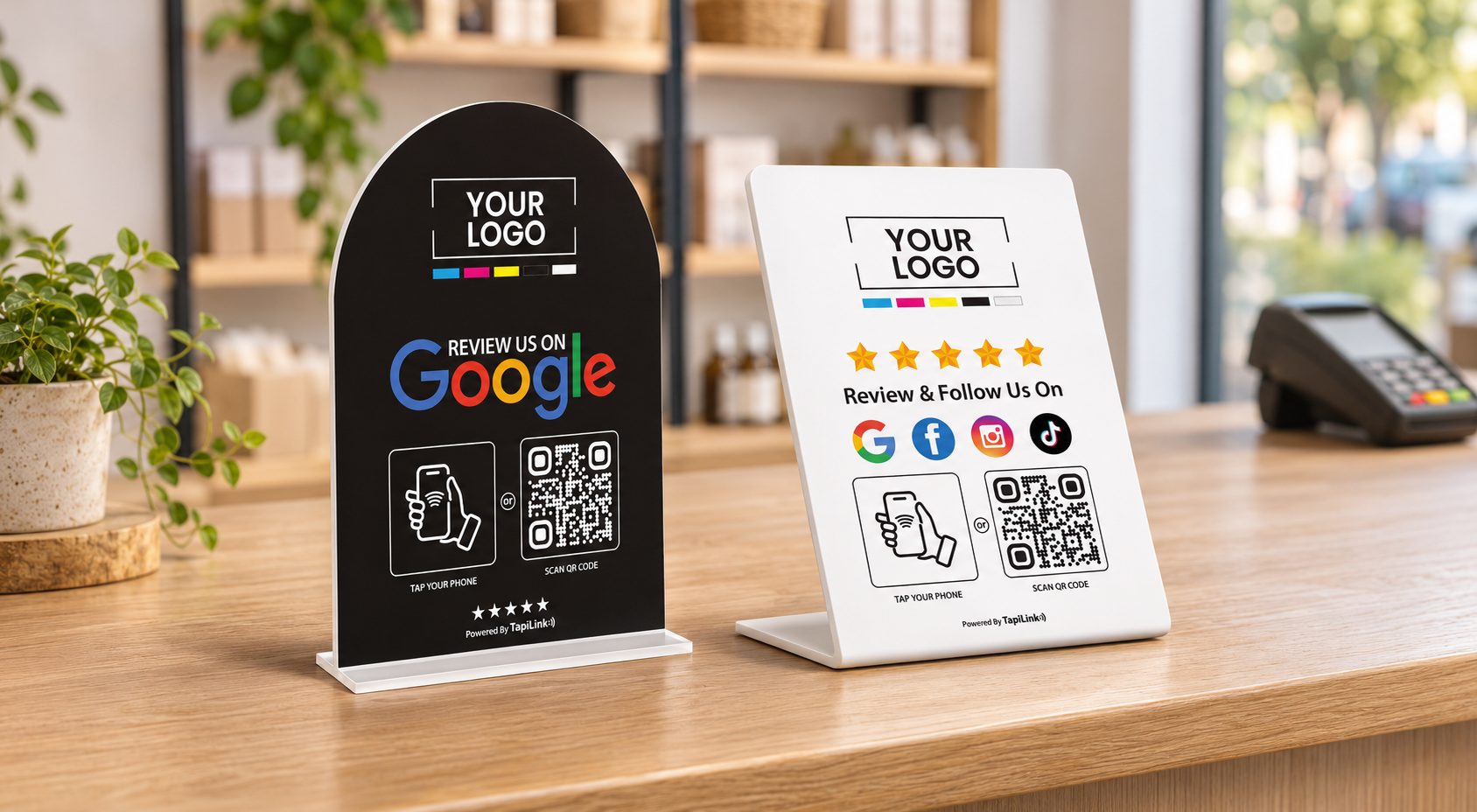
A Google review stand is a counter sign that opens your Google review destination when someone taps or scans it. A multi-link stand is a counter sign that opens a menu with several destinations, including Google reviews if you add them.
When a Google review stand fits
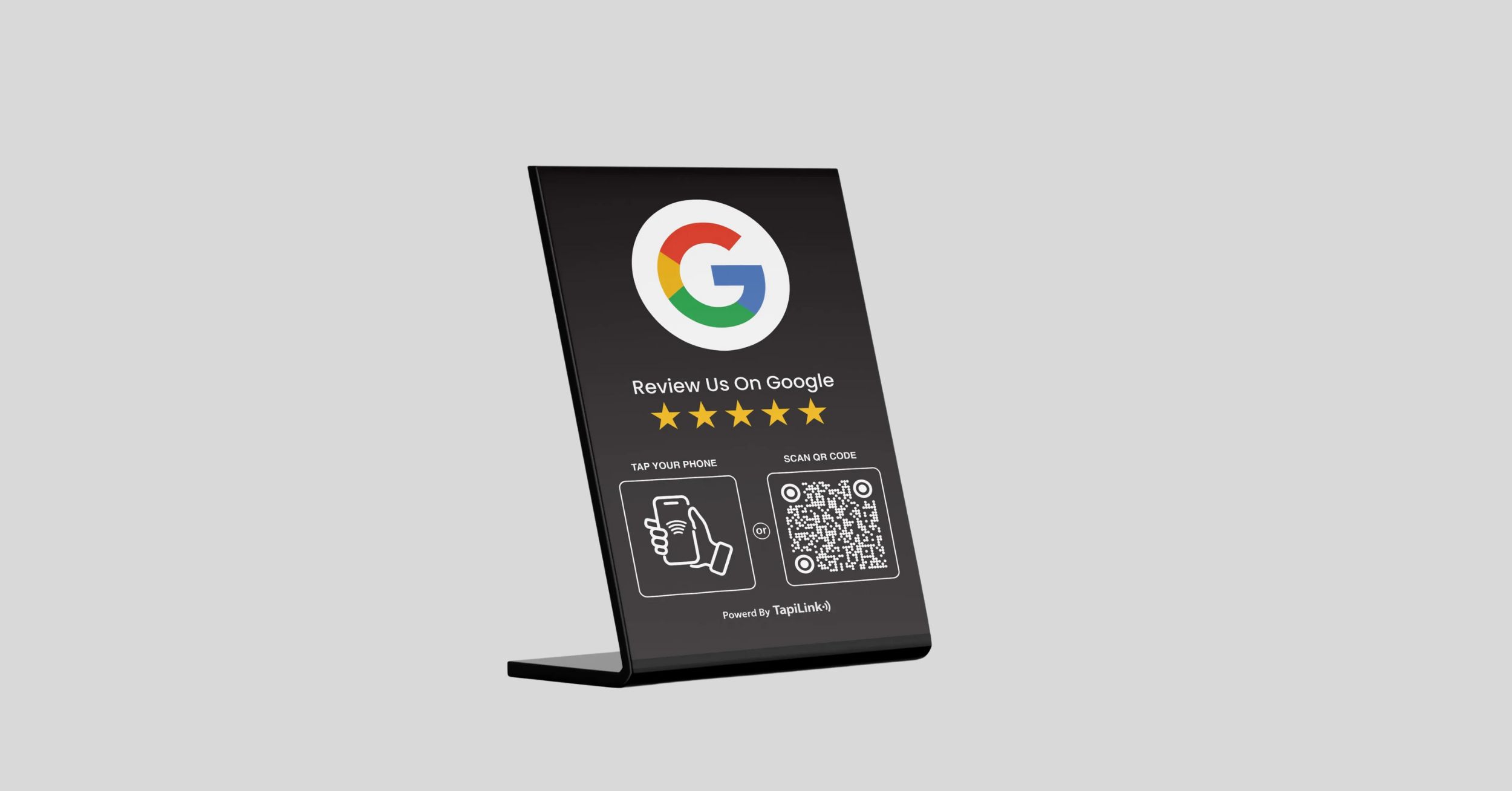
A dedicated Google review stand suits a checkout where you want one clear action: invite customers to share honest feedback. It removes the need to choose from a menu. That makes it a practical starting point for a café till, a shop counter or a service desk.
The TapiLink White Google Review Stand gives customers a choice between NFC and QR. Both routes open your Google review destination. Use a plain cue such as “Tap or scan to leave a Google review.” The wording tells customers what will happen before they pick up their phones.
When a multi-link stand fits
A multi-link stand suits a counter where customers often need different things after paying. At a salon, someone may want to rebook, browse recent work or leave a review. One sign can give them those options without adding another display to the counter.
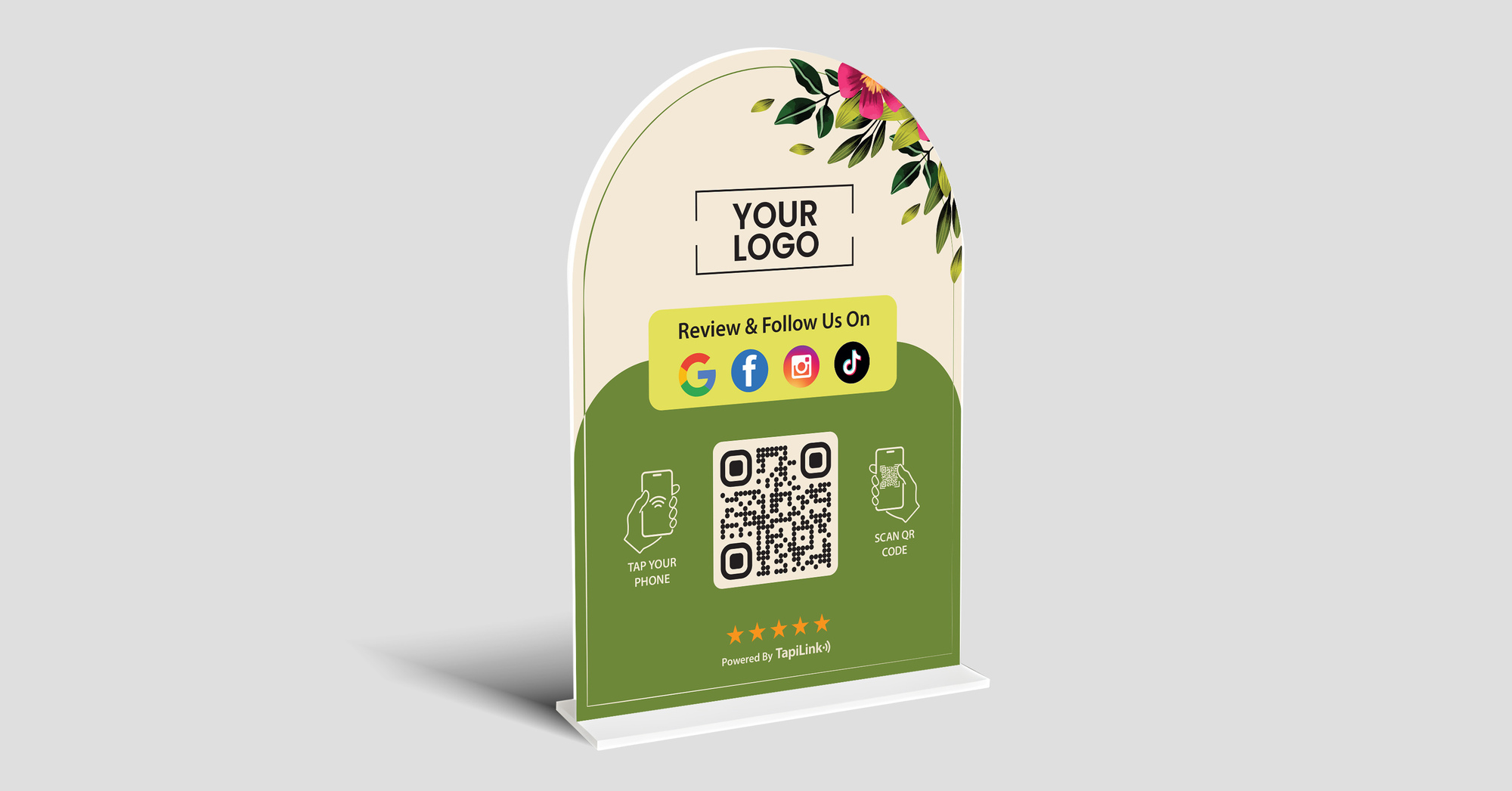
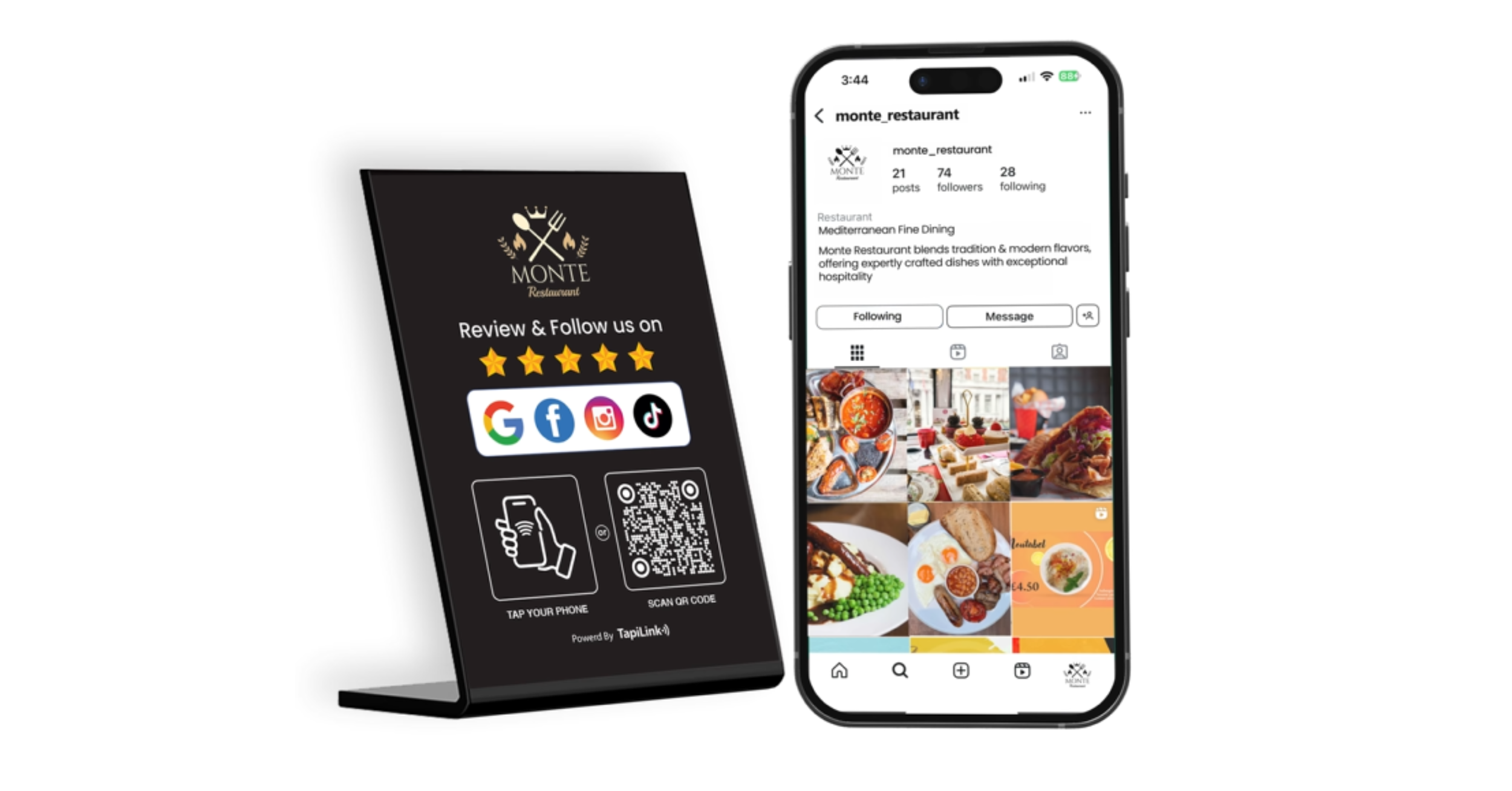
The TapiLink Customised Acrylic A5 Multi-Link Stand combines NFC and QR access with a branded display. Start with labels that describe the action, such as “Book your next visit” or “Leave a Google review.” Give the most useful action the first spot, then keep the rest easy to scan.
Choose by What Customers Ask For
Look at what customers already ask staff for after paying. If those requests point to several useful links, a multi-link stand can earn its space. If your only goal is to make honest Google feedback easier, choose the dedicated stand.
- Busy café: Start with a Google review stand if customers already have a clear way to find your menu.
- Salon or barbershop: Try a multi-link stand if customers regularly ask how to book again or see recent work.
- Independent retailer: Consider a multi-link stand if shoppers often ask where they can browse your products online.
- Shops with several branches: Use the Google review link for the branch the customer visited, whichever stand you choose.
A quick checkout exercise: Ask staff to jot down the links customers request during two typical shifts. Count repeat requests for things like booking, online stock or your website. If one link keeps coming up alongside reviews, it has a stronger case for a menu slot. If a link never comes up, leave it off the first version.
For businesses with several branches, use the same sign design if it helps customers recognise it. Label each stand discreetly on the back so staff can tell them apart. Follow TapiLink’s Google review setup guide for multiple locations before moving stands between shops.
Set Up and Test Your Stand
Place the stand where customers can see it after paying and scan it without blocking the queue. Then test both NFC and QR from that spot. A link that works on your desktop can still be hard to open under glare or behind a card terminal.
- Get the right review link. Follow Google’s review link and QR code guide to get the link from your Business Profile.
- Check what opens. Use an iPhone and an Android phone if available. Confirm both routes reach the right branch or the intended menu.
- Test every menu button. Open booking, website and social links on a phone. Check that the page matches the button label.
- Check the view from the queue. Look for glare, clutter and signs that block the QR code. Keep the stand clear of the payment terminal.
- Retest after changes. Repeat the check when you move the stand, change a booking link or update a branch.
If scanning works but tapping fails, try another compatible phone before replacing the stand. If both routes open the same wrong page, check the destination first. TapiLink’s review card troubleshooting guide explains how to separate a tap or scan problem from a link or sign-in issue.
Invite Reviews Without Pressure
Keep the invitation optional and open to customers with genuine experiences. Google Maps review policy prohibits review incentives and selectively asking for positive reviews. It also says businesses should avoid pressuring customers to post while they’re on the premises.
For a dedicated sign, staff can say: “If you’d like to share feedback, you can use this link whenever it suits you.” A multi-link menu can include a customer service link alongside Google reviews. Keep the review option available to everyone regardless of their feedback.
Measure What the Stand Actually Does
Treat taps and scans as signs of interest. A customer can open a link, choose another menu option or close the page without posting. Use Google Business Profile to check published reviews, and use stand activity to see whether customers are opening it.
For a first check, keep the sign in the same spot for two weeks. Note any link problems staff report and any menu choices customers struggle to find. If people scan the sign but still ask how to book, try a clearer booking label before adding more links. A change in review totals alone won’t tell you which reviews came from the stand.
Pick the Stand That Fits Your Till
Choose a Google review stand if the main job is to make your review link easy to find. Choose a multi-link stand when customers regularly need other links at the same point. Browse TapiLink’s NFC and QR review stands to compare dedicated, branded and multi-link options.
Frequently Asked Questions
Question: Can a multi-link stand open Google reviews?
Answer: Yes. Add your branch’s Google review link as a button on the menu. Customers can tap or scan the stand, then select that button. If reviews are your priority, place it first and confirm it opens the review destination for the branch they visited.
Question: Do customers need an app to use a review stand?
Answer: Customers don’t need a TapiLink app. They can tap with a compatible phone or scan the QR code using their camera. Opening the link and posting a review are separate steps. To publish a Google review, customers must sign in to a Google Account.
Question: Where should I put a QR stand at checkout?
Answer: Put it where customers can see it after paying and reach it without leaning across the counter. Leave room around the card terminal. Check for reflections over the QR code and try scanning from the spot where customers normally stand.
Question: How many links should a multi-link stand have?
Answer: Start with two or three links that customers are likely to use after paying. A salon might begin with booking, Google reviews and Instagram. Add another link when customers have a clear reason to use it. Short, specific labels help them choose quickly.
Question: Can I use the same stand design across branches?
Answer: Yes. You can use the same artwork across branches while giving each stand a different review destination. Label the stand on the back and test where both NFC and QR lead. Repeat the check if a stand moves or a branch’s review link changes.
Ready to revolutionize your networking approach? Explore TapiLink's range of premium NFC business cards and join the thousands of professionals who've already made the smart choice.