To order an NFC business card, choose the card style and material you want, add your personalisation details, complete your order and approve the final design before production. Once your card arrives, connect it to your digital profile and you are ready to share your details with a tap or QR code.
Ordering your first NFC business card may sound more technical than buying a traditional business card. In practice, the process is straightforward when you know what to expect.
With TapiLink, you do not need to understand NFC programming or design the complete card yourself. You provide the important information and branding requirements, while the design and setup process guides you towards a finished digital business card.
Here is how the process works from choosing your card to making your first connection.
Step 1: Decide What You Need From Your NFC Business Card
Before choosing a design, think about how you will actually use the card.
A freelancer meeting clients may want a lightweight and professional card. A company director may prefer something more premium. A sustainability-focused business may want a wood or eco-friendly option.
You should also consider what you want people to do after tapping your card.
For example, your digital profile might help people:
- Save your contact details
- Visit your website
- Connect with you on LinkedIn
- View your social profiles
- Leave a review
- Contact your business
- Share their own details with you
Thinking about these goals first makes it easier to choose the right physical card and digital profile.
Step 2: Choose Your Card Material
The next step when learning how to order an NFC business card is choosing the material.
TapiLink offers several types of digital business cards, including metal, PVC, wood and eco-friendly options.
Each material creates a slightly different impression.
Metal NFC Business Cards
Metal cards offer a heavier and more premium feel. They can work particularly well for professionals who want their physical card to make a strong first impression.
PVC NFC Business Cards
PVC cards are lightweight, practical and suitable for full-colour designs. They are a versatile choice for everyday professional networking.
Wooden NFC Business Cards
Wooden cards provide a distinctive natural appearance. The grain and finish can make individual cards feel more unique than conventional plastic cards.
Eco-Friendly Cards
Eco-friendly options can suit companies and professionals who want their networking materials to better reflect their sustainability goals.
Do not choose a material based on appearance alone. Think about durability, weight, branding, your working environment and how frequently you expect to use the card.
Step 3: Choose the Design and Finish
Once you know which material you want, consider how the physical card should represent your brand.
A simple design can often work better than trying to fit too much information onto the card itself.
Remember that the digital profile carries most of your information. The physical card does not need to contain every phone number, social account and website address.
Instead, you might include:
- Your name
- Job title
- Company name
- Company logo
- Brand colours
- A short message or call to action
- A QR code where appropriate
Different materials also support different visual finishes.
For example, a brushed metal finish creates a different impression from a full-colour PVC card. Choose a combination that matches how you want customers, partners or prospects to remember your brand.
Step 4: Add Your Personalisation Details
When ordering a customised TapiLink card, you can provide the information needed to create your design.
Depending on the product, this can include your name, job title, company logo and a design brief.
If you already have clear brand guidelines, explain them in the design brief.
You may want to specify things such as:
- Preferred colours
- Logo position
- Minimal or bold styling
- Important text
- Brand fonts
- Front and back preferences
Uploading a high-quality version of your logo will also help produce a cleaner final design.
You do not need to create the complete production-ready card yourself. The purpose of the personalisation stage is to give the TapiLink team enough information to understand how you want the card to look.
Step 5: Add the Card to Your Basket and Complete Checkout
Once your product and personalisation information are ready, add the card to your basket.
Before completing checkout, check your order carefully.
Make sure you have selected the correct card and confirm that the information you provided is accurate.
Check important details such as:
- Spelling of your name
- Job title
- Company name
- Logo file
- Design instructions
- Quantity required
A quick review at this stage can prevent unnecessary changes later in the production process.
You can then proceed through checkout and place your order.
Step 6: Review Your Design Mockup
For customised TapiLink products, placing the order does not mean the card is immediately printed.
The TapiLink team prepares a design mockup and sends it to you for approval.
This is an important part of the ordering process.
Review the mockup carefully before approving it.
Check:
- Name spelling
- Job title
- Logo
- Colours
- Alignment
- Text position
- Overall branding
Try to look at the design as a customer or new business contact would see it.
Does it look professional?
Is the branding immediately recognisable?
Is there unnecessary information making the design feel crowded?
If something needs changing, request the adjustment before giving final approval.
Step 7: Approve the Design for Production
Once you are satisfied with your mockup, approve the design.
After approval, the card can move into production and shipping.
This approval stage is one reason it is useful to prepare your logo and branding information before ordering. Clear instructions can make the design process much smoother.
It also gives you an opportunity to see how the finished concept should look before it is produced.
Step 8: Receive Your TapiLink Card and Account Details
Your NFC card is only one part of the complete system.
The digital profile behind the card is what allows you to share and update information without repeatedly printing new business cards.
TapiLink sends account details by email after purchase. You can use these details to access your dashboard and manage your digital profile.
Keep this email somewhere safe because you will need your login information when setting up your profile.
Step 9: Set Up Your Digital Profile
Once you have access to your account, sign in to the TapiLink dashboard and complete your profile.
You can add or update information such as:
- Contact details
- Profile photo
- Job information
- Website
- Social media links
- Review links
- Other relevant business links
Do not add links simply because you can.
Think about what information will genuinely help somebody who has just met you.
A salesperson might prioritise contact details and LinkedIn. A restaurant owner may want a website and review link. A creative professional may want to highlight a portfolio.
Your digital business card should support your networking objective.
Step 10: Test Your NFC Card Before Using It
Always test your card before taking it to a meeting or networking event.
Tap the NFC card against a compatible smartphone and confirm that the correct profile opens.
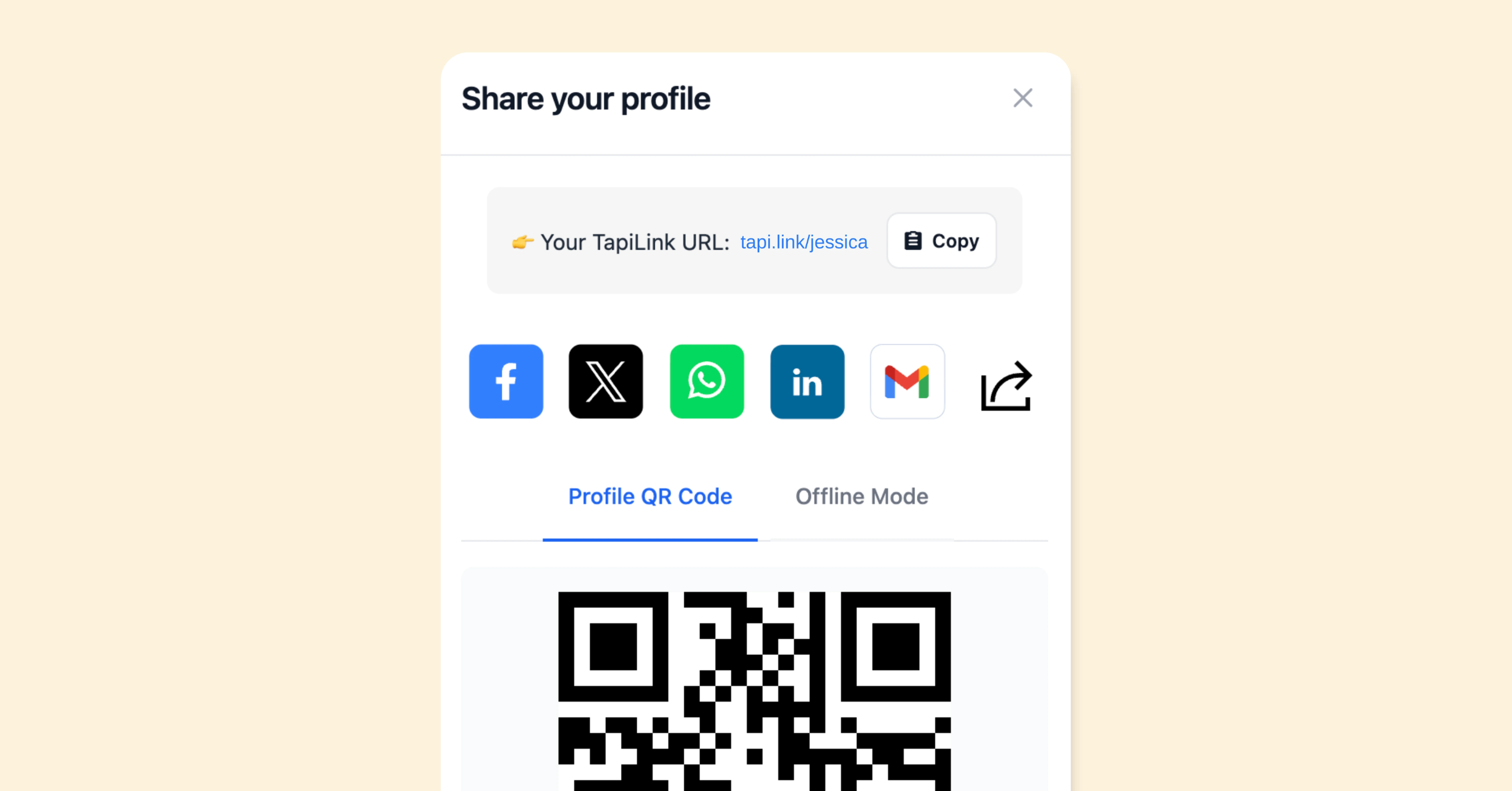
You should also test the QR code if your card includes one.
Then check the profile itself.
Make sure:
- Contact information is correct
- Links open properly
- Your profile image displays correctly
- Your website works
- Social links go to the right accounts
- Important calls to action are easy to find
Testing takes only a short time and prevents an incorrect link or outdated detail from affecting an important introduction.
Step 11: Start Sharing Your Card
Once the card and profile have been tested, you are ready to use them.
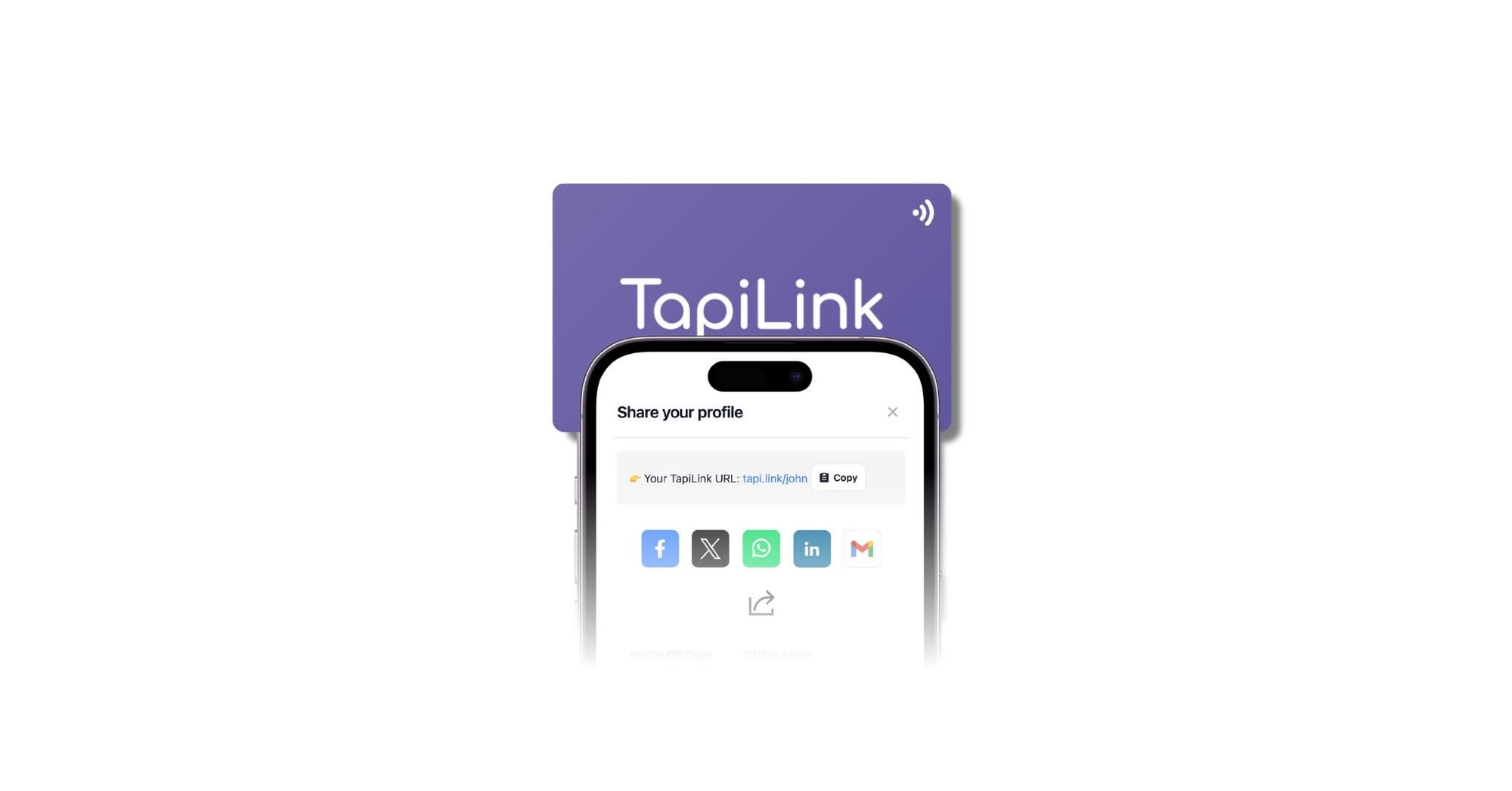
When meeting someone, hold the NFC card close to a compatible phone. The recipient can then open your digital profile without you handing over a disposable paper card.
If tapping is inconvenient, the QR code provides another sharing option.
This flexibility makes an NFC business card useful in situations such as:
- Networking events
- Trade shows
- Sales meetings
- Client appointments
- Conferences
- Recruitment events
- Business introductions
You can continue using the same physical card while updating supported details through your digital profile when your information changes.
Do You Need to Design the NFC Card Yourself?
No.
With a customised TapiLink order, you provide your information, logo and design requirements. TapiLink prepares a design mockup for you to review before the card is printed.
This is useful if you have branding but do not have a finished NFC card design.
If you already know exactly how you want the card to look, providing clear brand guidelines and suitable artwork can help communicate that direction.
Do You Need to Program the NFC Chip Yourself?
You do not need specialist NFC knowledge to start using a TapiLink card.
After purchase, you receive access to the digital platform connected with your card. You can customise your profile through the dashboard and then use the card to share it.
For most users, the important job is building a useful profile rather than learning the technical details behind NFC programming.
What Should You Prepare Before Ordering?
You can make your first order easier by preparing a few things in advance:
- Your correct name and title
- A high-quality company logo
- Brand colours
- Basic design preferences
- Your website
- Contact details
- Social profiles
- A professional profile image
- The main action you want contacts to take
Having these ready helps you move from ordering to using your digital business card more efficiently.
Ready to Order Your First NFC Business Card?
Learning how to order an NFC business card is simpler than it may initially appear.
Choose the material that fits your brand, provide your personalisation details, complete the order and review the design mockup. Once you approve the design, your card can move into production.
After receiving access to your TapiLink account, complete your digital profile, test the card and start sharing your information with a tap or QR code.
The result is more than a physical business card. It gives you a reusable connection point that can continue working even when your contact or professional information changes.
Frequently Asked Questions
Q1. How do I order an NFC business card?
Answer: Choose your preferred NFC card, add your personalisation information, upload your logo if required and complete checkout. For customised TapiLink products, a design mockup is sent for your approval before printing and shipping.
Q2. Do I have to create the card design myself?
Answer: No. You can provide your branding, logo and design requirements. TapiLink can prepare the mockup and send it to you for approval before production.
Q3. What information should I provide when ordering?
Answer: Prepare your name, job title, company logo and any important design instructions. You can add more contact and online information to your digital profile after gaining access to your dashboard.
Q4. Can I change my digital profile after ordering?
Answer: Yes. Your digital profile can be updated, so supported contact details and links can change without requiring a new physical card each time.
Q5. How do I set up my TapiLink card after purchase?
Answer: Tap or scan the card, sign in using the account details provided after purchase, customise your profile and test the card. Once everything is correct, you can start sharing it
Ready to revolutionize your networking approach? Explore TapiLink's range of premium NFC business cards and join the thousands of professionals who've already made the smart choice.