Start your digital business card rollout with one approved template and a five-person pilot. Check each profile, sharing method and contact link before rolling out cards to the remaining 20 employees. Assign one administrator to manage updates after launch.
Imagine handing out 25 cards on Monday morning. By lunchtime, one opens the wrong profile and another displays an old job title. A pilot gives you time to catch those mistakes before employees share their cards with customers.
This guide covers the full rollout for a UK business, from preparing the staff list to checking adoption. It also helps you decide who needs a physical NFC card. Use the suggested groups and checklists to plan around your team’s working day.
1. Assign a Rollout Owner
Choose one person to manage the rollout and name a backup. Give them responsibility for the staff list, design approvals and launch checks. Tell employees where to report mistakes or request changes.
For a 25-person business, that owner might sit in operations, marketing or IT. HR can confirm names and roles, while marketing approves shared branding. Department leads can check that each profile points customers to the right person or service.
TapiLink lets businesses manage employee digital business cards from one dashboard. Its Teams page lists bulk onboarding, custom branding and the ability to lock specific profile fields. Confirm which controls your plan includes before designing the rollout around them.
2. Decide Who Needs a Physical Card
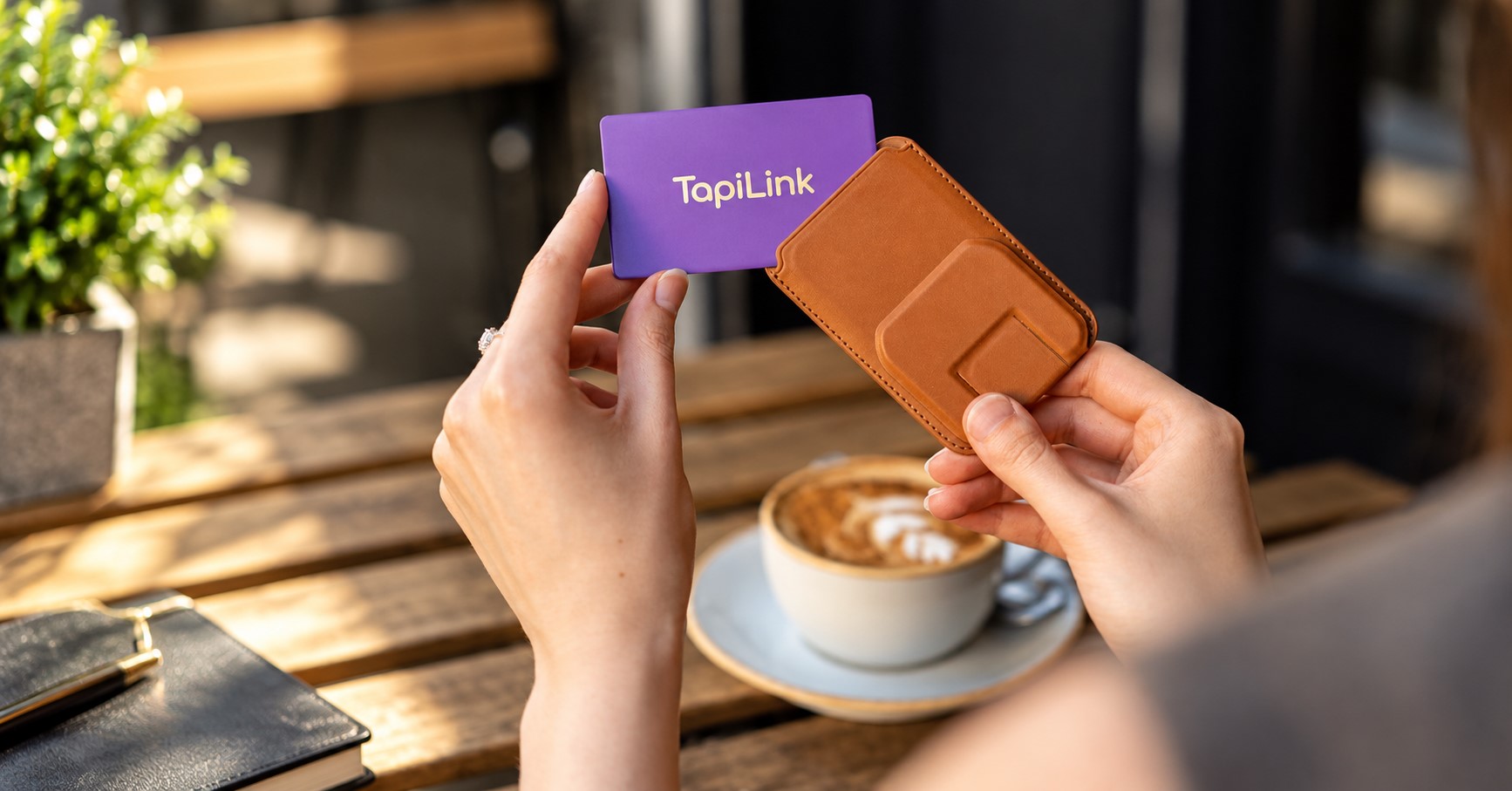
Give employees a sharing method that fits how they meet people. Physical NFC cards suit colleagues who regularly introduce themselves in person. Staff who mainly meet customers online can start with a profile link or QR code.
For example, a business might issue physical cards to 12 client-facing staff. The other 13 could share digital profiles in email signatures or meeting chats. All 25 employees can still follow the same branding rules.
Browse TapiLink’s digital business card options once you know the physical quantity. Confirm which details will appear on the card itself. A job title printed on the card needs a reprint if it changes, even when the profile can update.
If you have a deadline, work backwards from the first day staff need their cards. Allow time for artwork approval, dispatch, delivery and testing. TapiLink’s NFC business card delivery guide explains those stages.
3. Prepare the Employee List
Create one approved staff list before setting up profiles. Give each employee a separate row and ask them to confirm their public details. This helps prevent mistakes when matching profiles to physical cards.
Use these columns in your planning sheet:
- Employee name and job title: Use the approved spelling and wording.
- Department: Helps the administrator group staff and route queries.
- Work email and phone: Include only details approved for public sharing.
- Primary link: Choose a booking, enquiry or service page.
- Physical card required: Mark yes or no.
- Profile and card reference: Record the match once confirmed.
- Approval and test status: Track who signed off and which checks passed.
Treat this as your internal planning sheet. If you plan to upload staff details in bulk, confirm the required file format and fields first. Keep internal notes separate from anything intended for a public profile.
4. Build and Approve One Template
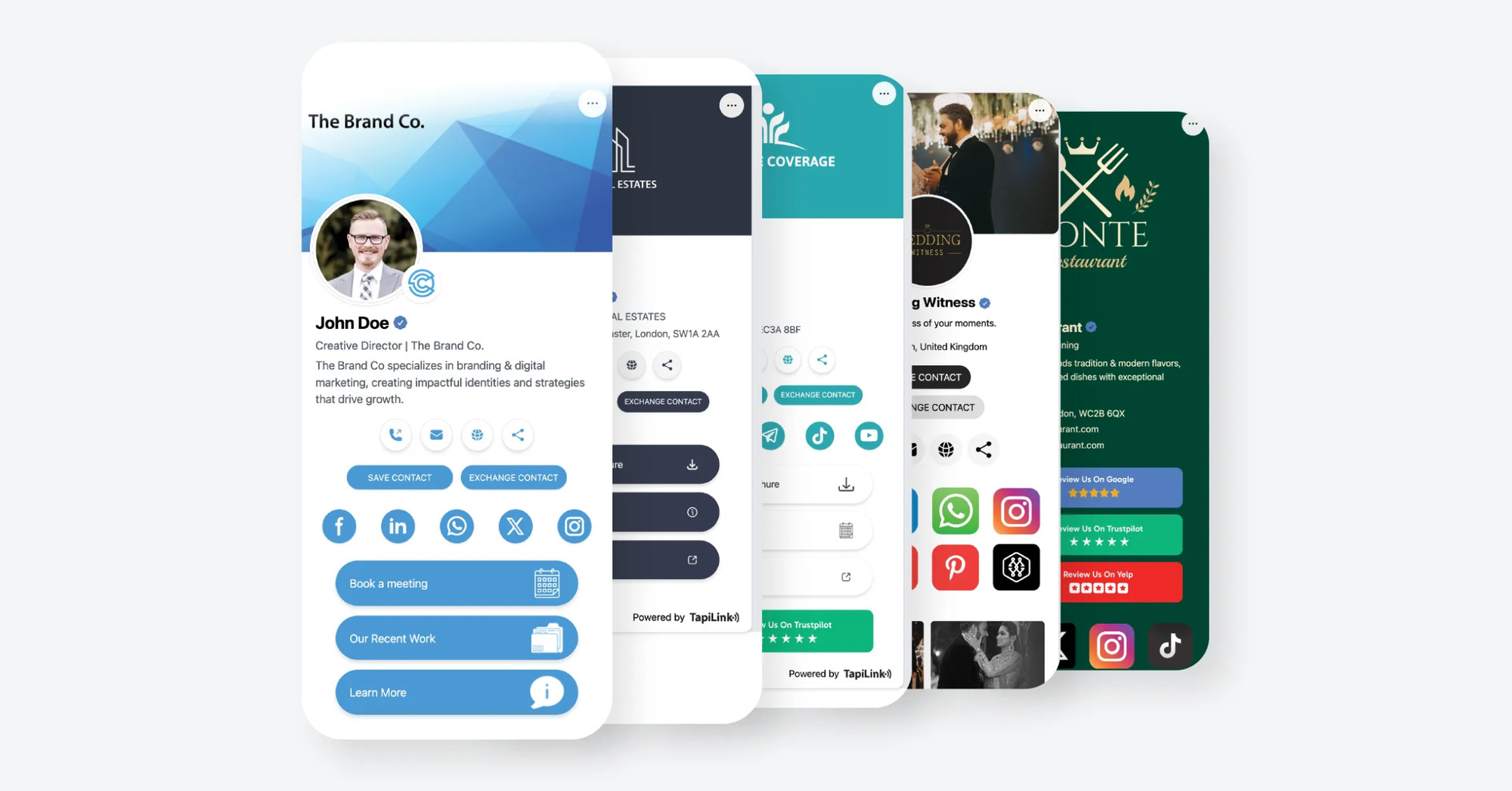
Set a shared layout for the company and personalise the details customers need. Keep the logo, colours and company website consistent. Let employee names, roles and useful links vary.
For example, a sales profile could lead with “Book a Consultation.” A support profile could link directly to the help desk. Consistent branding still gives each customer a relevant next step.
Review the template from a phone while signed out. Check that the main action is easy to find and that linked pages open correctly. Use the TapiLink profile setup guide when preparing your first profile.
5. Test With Five Employees
Choose five pilot users whose jobs reflect different sharing needs. Include someone who meets clients in person and someone who works mainly online. Ask a colleague outside the pilot to test what recipients see.
Pilot checklist
- Open each profile from its direct link.
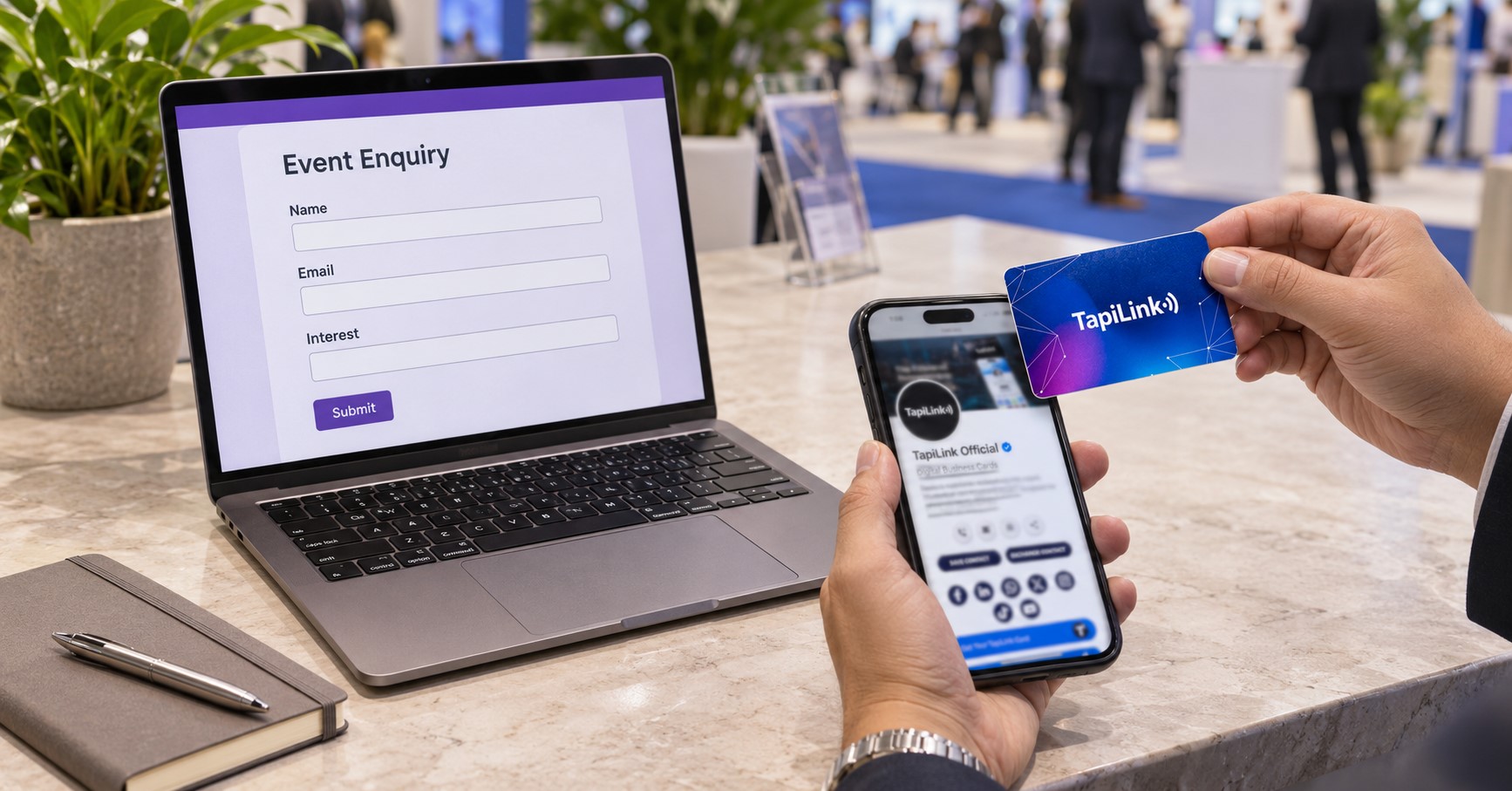
- Test NFC and QR on the sample cards, where applicable.
- Confirm each method opens the correct employee profile.
- Save a contact and check the details on the receiving phone.
- Open the main booking, website or enquiry link.
- Update a test field and check what a new visitor sees.
- Ask each pilot user to share their profile without help.
Record each result as passed or needing a fix. Pause distribution if a card points to the wrong person or a key link fails. Retest after fixing the issue and carry the corrected setup into the main rollout.
6. Roll Out to the Remaining 20
Launch the remaining profiles in two groups of ten. Check the first group before releasing the second. This gives your administrator time to resolve repeat questions without holding up the whole team.
Give each employee a short handover with:
- Their profile link and QR code.
- Their physical card, if assigned.
- A quick demonstration of how to share.
- Instructions for requesting profile changes.
- A contact for lost cards or access problems.
Ask employees to share their profile with a colleague during handover. The colleague should confirm the name and try the main contact action. Mark the profile ready once both people complete the check.
7. Review Adoption and Maintain Profiles
Review how staff use their cards after the first two weeks. Ask which sharing method they used and where they needed help. Combine their feedback with any reporting available on your plan.
Start with three measures:
- Readiness: How many employees passed the sharing check?
- Use: How many used their card, QR code or link at work?
- Outcomes: Did sharing lead to relevant enquiries or booked meetings?
Keep these measures separate. A profile view shows activity, while a booked meeting shows a different outcome. Ask staff for examples before deciding whether the rollout needs changes.
Add profile updates to your existing onboarding and leaver processes. Tell managers who to notify when employees change roles or leave. Check what an old card or link opens after any access or profile change.
Get Your Team Ready to Share
A successful digital business card rollout starts with accurate profiles and ends with employees who can share them confidently. Test with five people, fix problems early and launch the remaining cards in two groups. Keep one owner responsible for updates after launch.
If you’re preparing cards for 25 employees, contact TapiLink with your staff count, branding and physical card requirements. Confirm the plan and delivery timing for your order. Then schedule your pilot before the full launch.
Frequently Asked Questions
Question: Do all 25 employees need a physical NFC card?
Answer: No. Employees can share a digital profile through a link or QR code. Physical cards are useful for colleagues who regularly meet customers or contacts in person.
Question: Can every employee use the same design?
Answer: Yes. A shared template can use the same logo, colours and layout. Each employee can have their own name, job title, contact details and relevant links.
Question: How long should we allow for the rollout?
Answer: Set your timeline around staff approvals, profile setup and testing. Allow extra time for artwork and delivery if you order physical cards. Confirm your schedule before committing to a launch date.
Question: Can we update employee details after launch?
Answer: Supported profile fields can be updated through the dashboard. Test the new details from a visitor’s phone after making changes. Information printed or engraved on a physical card may require a replacement.
Question: What should we check before handing out the cards?
Answer: Match each physical card to its assigned profile. Test the NFC tap, QR code and main contact links. Ask the employee to complete one practice share before using it with customers.
Ready to revolutionize your networking approach? Explore TapiLink's range of premium NFC business cards and join the thousands of professionals who've already made the smart choice.