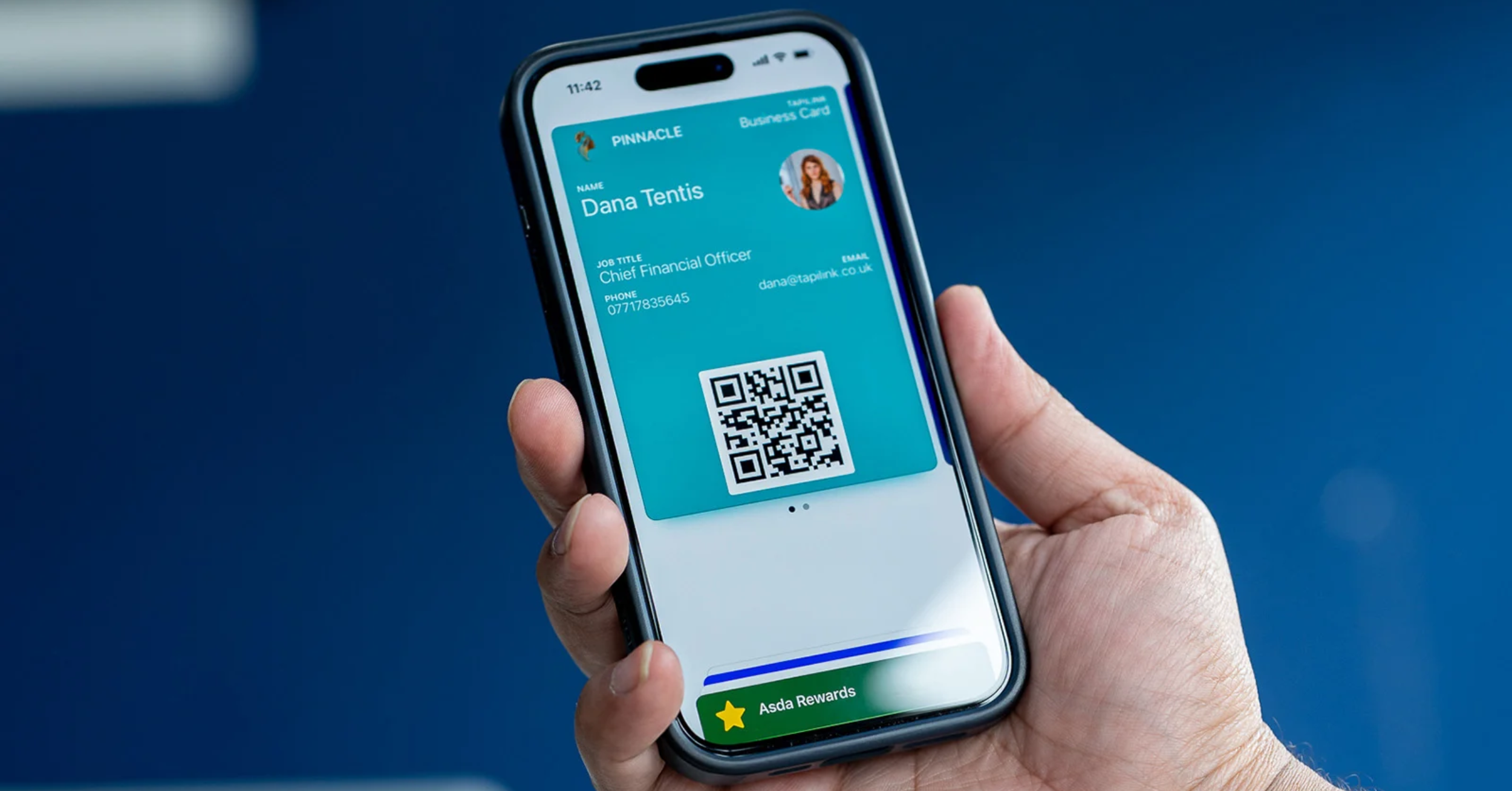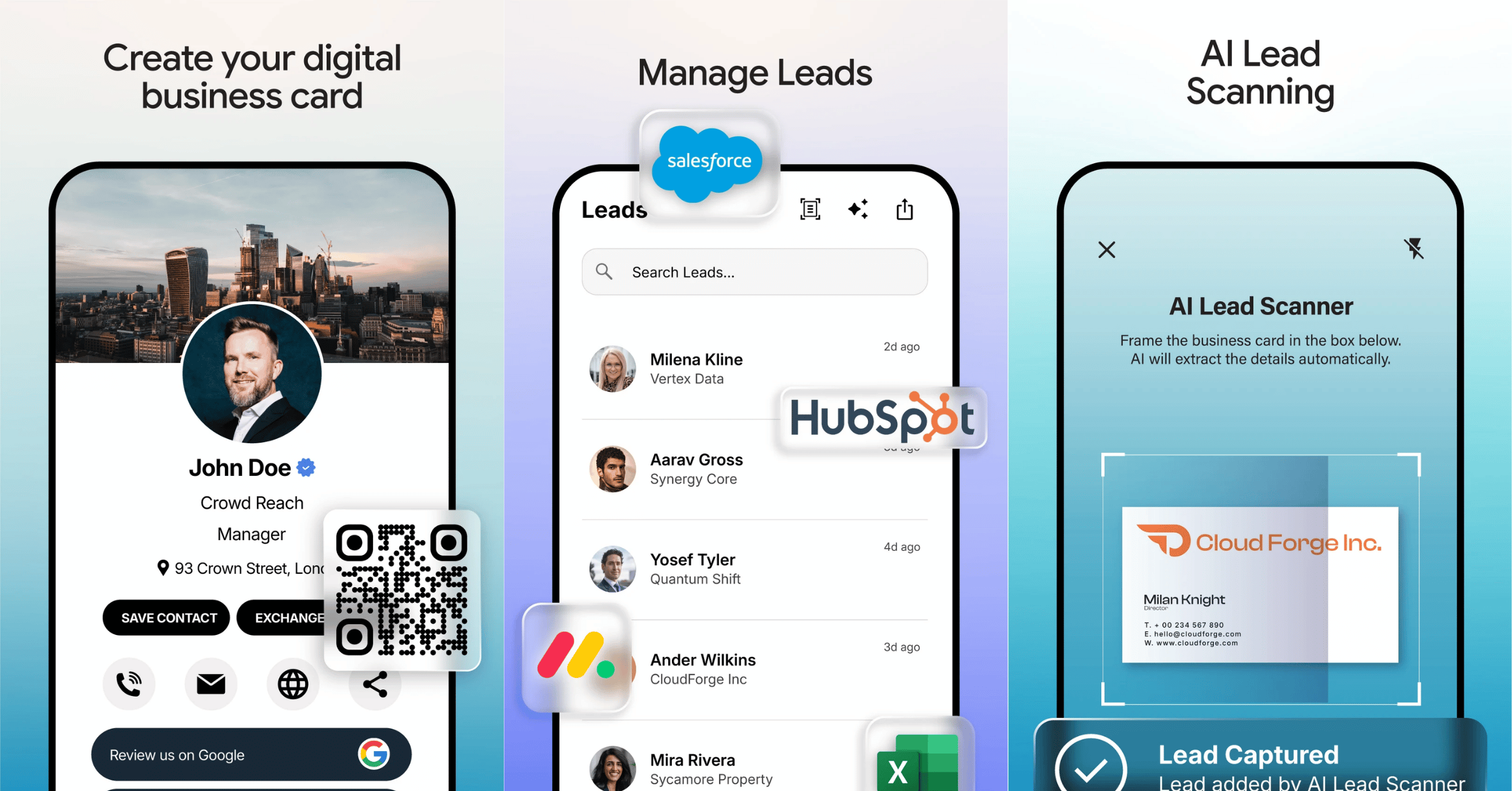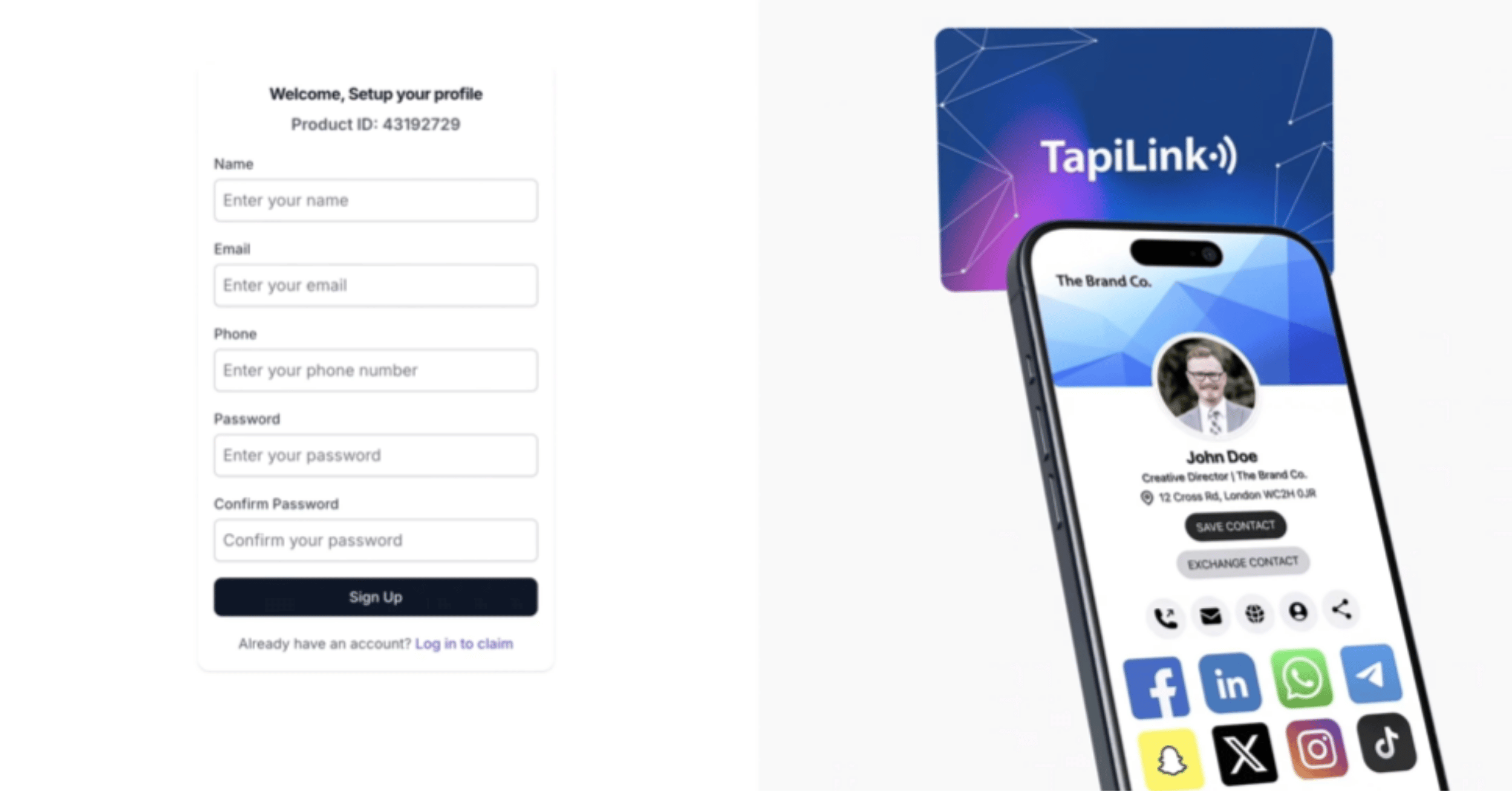
Setting up a digital profile in the app means working through a handful of sections, each doing a different job. Appearance sets how your profile looks, General Info holds the contact details people act on, and Social Links, Review Links, Custom Links and Photos build out everything beyond the basics. You do not need to complete them all at once, and every section stays editable, so your profile grows with you.
At TapiLink, we split the profile into these sections so you can build it in whatever order suits you and see clearly what each part contributes. This guide goes section by section, explaining what each one is for and what is worth putting in it, so your profile does more than list a phone number. If you are still building your card from scratch, our guide on how to create your digital business card in the app walks through that first.
Where do you set up your profile?
You set up your profile in the Setup Profile menu, reached from Quick Actions on the Home screen. This is the single place where all of your profile content lives.
Inside, each part of the profile appears as its own section: Appearance, General Info, Social Links, Review Links, Custom Links, Photos, the TapiLink Footer and WiFi Porter. The app also shows a Complete Your Profile progress bar in your account area, so you can see how much you have finished and what is still outstanding. Working through the sections one at a time is the easiest way to build a profile that feels complete rather than half-finished.
Appearance: choosing your profile style
Appearance is where you select your profile style, and it is worth setting first because it frames everything else. This is the look people see the moment your profile opens, so it carries the first impression before they read a word.
Choose the style that best reflects how you want to present yourself or your business. A profile style that matches your wider branding makes the card feel like a natural extension of your business rather than a generic page. You can revisit this section whenever your branding changes, so nothing is locked in.
General Info: the details people actually use
General Info holds your core contact information, and it is the section that does the most practical work. This is what people receive, save and act on, so accuracy matters more here than anywhere else.
Fill in your name, role and contact details carefully, and check them once before you start sharing widely. A small error in a phone number or email quietly costs you leads, because the person cannot reach you and often will not chase it. The good news is that any mistake is easy to fix later, since the section stays editable.
Social Links: connecting your channels
Social Links is where you connect your social media profiles so people can reach your channels in a tap. Each link you add appears on your profile, turning a contact swap into a follow.
Be selective rather than exhaustive. Add the platforms where you are genuinely active and where you want business conversations to happen, and leave off any personal accounts you would rather keep separate. A short list of relevant channels performs better than a long list of dormant ones, because it points people to where you will actually respond.
Review Links: turning your profile into a review prompt
Review Links lets you add or manage the places you want people to leave reviews. It turns your profile into a prompt for feedback, which matters if reviews influence how customers find and choose you.
This is one of the most commercially useful sections for local and service businesses, where a steady flow of reviews shapes reputation. Once your review link is in place, every share of your profile becomes an opportunity to ask. If collecting reviews in person is a priority, our NFC Review Cards work alongside your profile to make the ask effortless at the counter or after a job. We cover this section in more depth in review links: collect Google reviews from your profile.
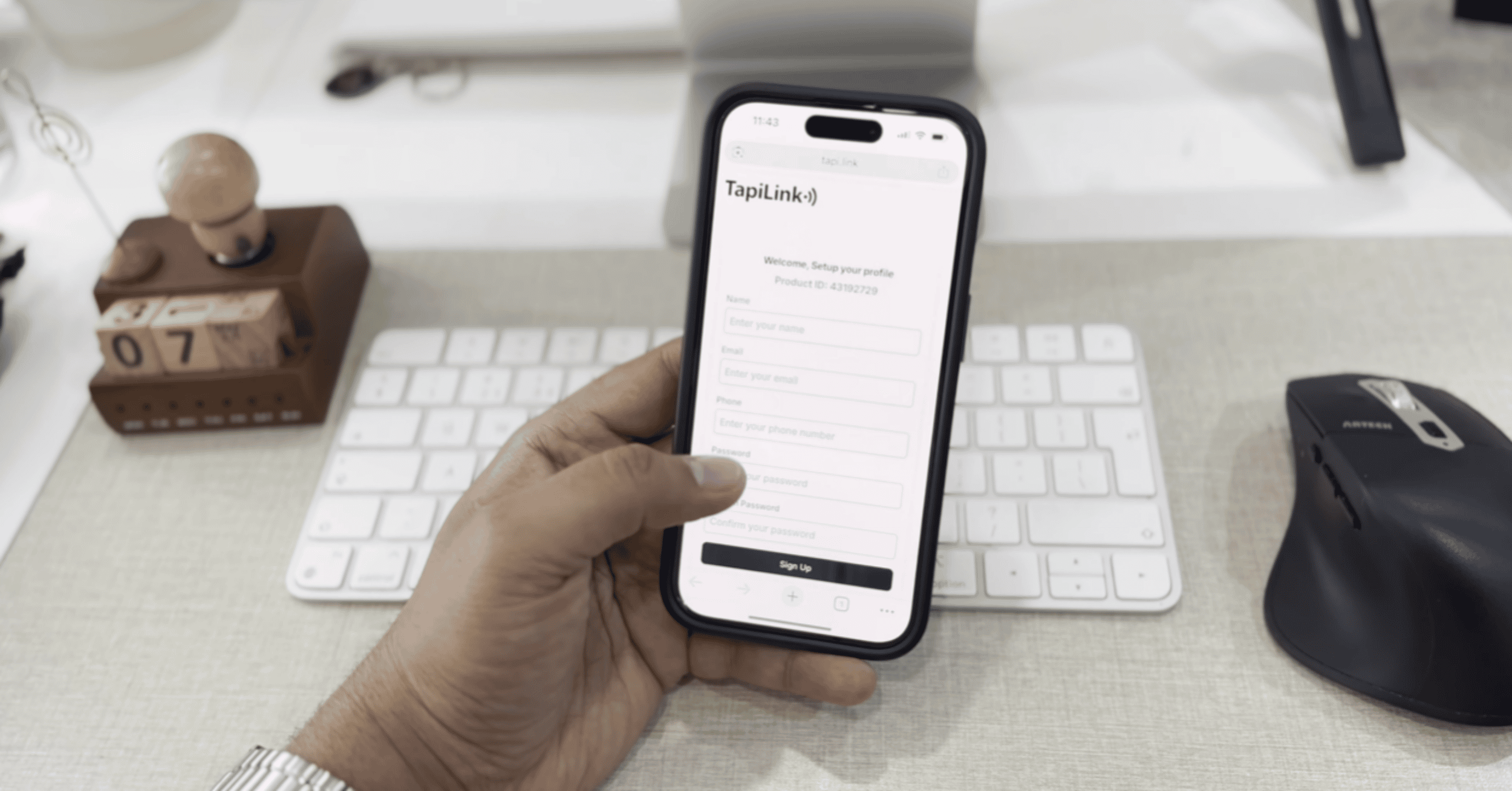
Custom Links: sending people to the right action
Custom Links is where you add or manage anything else you want on your profile, such as your website, a booking page, a portfolio or a payment link. This is the section that lets your profile drive an action rather than simply share your details.
Think about what you most want someone to do after meeting you. If it is booking a call, the booking link should be there. If it is paying an invoice or browsing your work, the payment or portfolio link earns its place. Ordering matters too, since the things nearer the top get noticed most. There is more on this in custom links, photos and payment links.
Photos: showing your work
Photos lets you add or manage images that showcase your work, products or brand. It gives your profile a visual dimension a paper card could never carry.
This section is especially valuable if your work is visual, because showing beats describing. Keep the images current so your profile reflects your latest work, and choose a small number that represent you well rather than uploading everything you have.
Keeping your profile current
The advantage of a digital profile is that nothing is permanent. You can edit any section at any time, and your updates appear instantly wherever your profile has been shared, with no reprints and no out-of-date cards in circulation.
That makes it worth revisiting your profile occasionally, especially after a role change, a rebrand or a new offer. A profile that stays current keeps working for you long after you first set it up.
At TapiLink, we designed these sections so you can start simple and build depth over time, from basic contact details to a full showcase of your brand. When you are ready, you can build your profile in the app and share it the same day. If you would like a physical way to share it too, our NFC Business Cards let people open your profile with a single tap.
FAQ
Q1. How do I set up my digital profile in the app?
Answer: Open Setup Profile from Quick Actions on the Home screen, then work through each section: Appearance, General Info, Social Links, Review Links, Custom Links and Photos. You can complete them in any order, and the progress bar shows what is left.
Q2. Do I have to fill in every profile section?
Answer: No. You can complete only the sections that are useful to you and add more later. Every section stays editable, so you can build your profile up over time rather than finishing it in one sitting.
Q3. What should I put in Custom Links?
Answer: Add whatever you most want people to do after meeting you, such as your website, a booking page, a portfolio or a payment link. Placing the most important link nearer the top helps it get noticed.
Q4. Can I change my profile style after setting it up?
Answer: Yes. Appearance can be changed at any time, so you can update your profile style whenever your branding changes. The update applies wherever your profile is shared.
Q5. Will my changes appear on cards I have already shared?
Answer: Yes. Because the profile is digital, edits appear instantly wherever it has been shared, so anyone opening your link, QR code or tap sees your latest details.
Ready to revolutionize your networking approach? Explore TapiLink's range of premium NFC business cards and join the thousands of professionals who've already made the smart choice.