You can add your digital business card to Google Wallet on Android and Apple Wallet on iPhone, so your card sits alongside the things you already carry on your phone and is ready to share in a moment. Instead of opening an app to find your card, you pull it up from your wallet and share your profile straight away. It takes just a few taps to add, and once it is there, your card is always to hand.
At TapiLink, we made it easy to keep your card in your phone's wallet, because the quickest card to share is the one you do not have to go looking for. This guide explains what a wallet card is, how to add it on both Android and iPhone, and why it is worth doing. This is about your digital business card, not payment cards, so if you want to add a payment or bank card to Google Wallet, our separate guide on how to add an NFC card to Google Wallet covers that side.
What does it mean to add your card to your wallet?
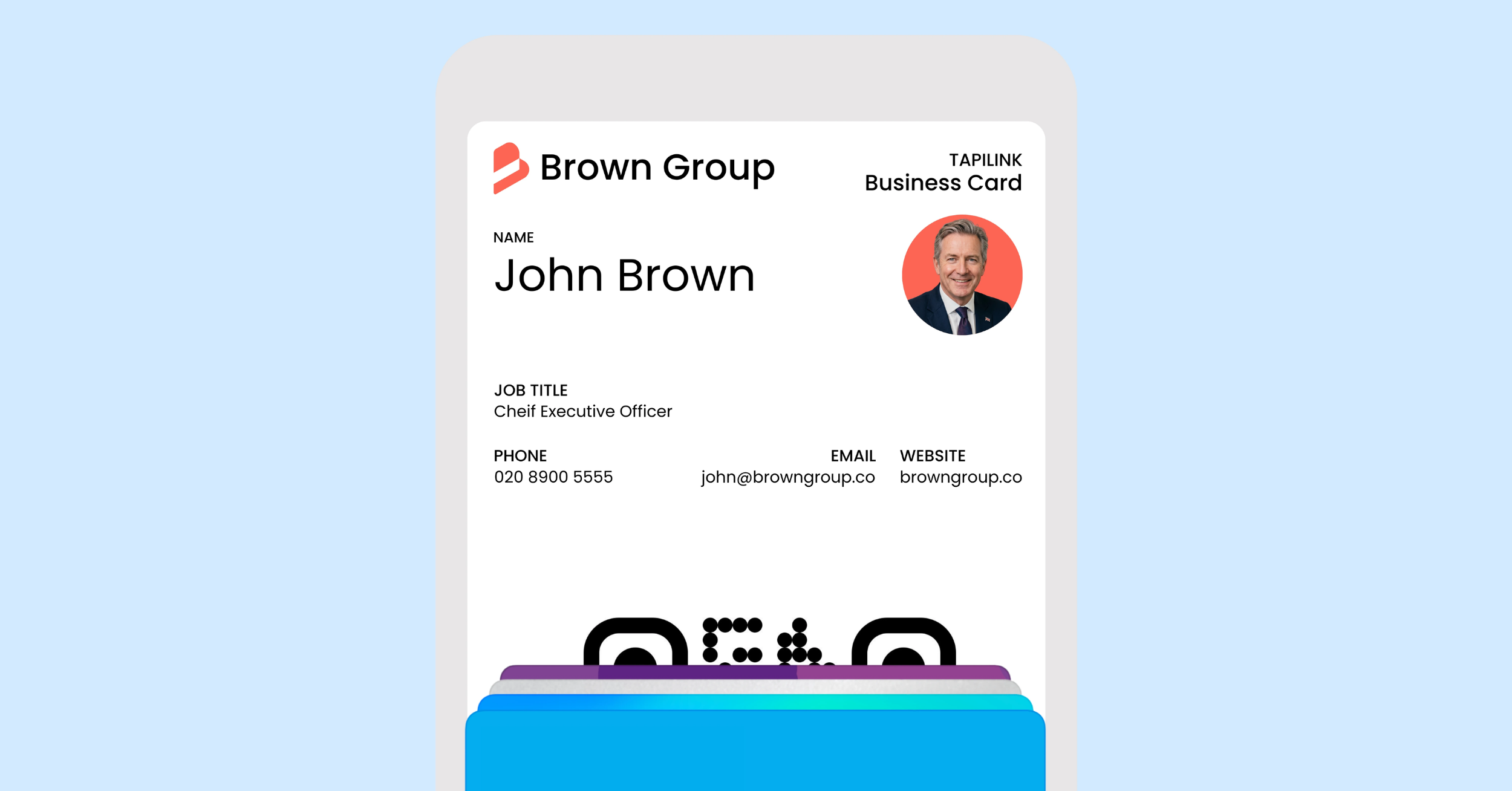
Adding your card to your wallet means saving your digital business card as a wallet pass, so it lives in Apple Wallet or Google Wallet next to your other passes. A wallet pass card is simply your business card in a form your phone's wallet can hold and display.
The benefit is speed and convenience. Rather than opening the app each time, you open your wallet, bring up your card, and share your profile. It is the same digital card you already have, just kept somewhere even quicker to reach. Because it still points to your live profile, anyone you share it with sees your latest details, and they need no app to view it.
How do you add your card to Google Wallet on Android?
On Android, you add your card to Google Wallet straight from the app. On your Home screen, tap Add to Google Wallet, and follow the prompt to save your card as a pass.
Once it is saved, your Google Wallet business card sits in your wallet with your other passes, ready whenever you need it. From there you can open it in a moment and share your profile, without first opening the full app. It is a small setup step that makes sharing noticeably quicker day to day.
How do you add your card to Apple Wallet on iPhone?
On iPhone, you add your card to Apple Wallet so it is saved as a pass on your device. You add your card to your wallet from the app, and once saved, your Apple Wallet card is ready to open and share like any other pass. [VERIFY: confirm the exact in-app steps and button label for adding to Apple Wallet on iPhone before publishing.]
Keeping your card in Apple Wallet gives iPhone users the same quick access that Android users get with Google Wallet. Your card is always a couple of taps away, so you can share your details at a meeting or event without hunting through your apps.
Why keep your business card in your wallet?
Keeping your card in your wallet is worth it because it makes sharing faster and more reliable. The easier your card is to reach, the more you will actually use it, and a card in your wallet is about as quick to reach as it gets.
It is especially handy in the moments that matter, such as a chance introduction or a busy event, when opening an app and navigating to your card would slow you down. With your card in your wallet, you open, show or tap, and you are done. It also works as a dependable backup to your other sharing methods, so you are never caught without a way to share.
Does the wallet card stay up to date?
Yes, your wallet card links to your live profile, so it stays current. When you update your details in the app, the card people open from your wallet still shows your latest information, because the pass points to your profile rather than storing fixed details.
That means you can add your card to your wallet once and rely on it long term, without re-adding it every time something changes. It is the same always-current benefit your digital card has everywhere else.
How does the wallet fit with other ways to share?
The wallet is one of several ways to share, and it is the one built for speed of access. A tap suits a one-to-one handover, a QR code suits anything on display, a link suits messages, and your wallet keeps your card ready to pull up instantly.
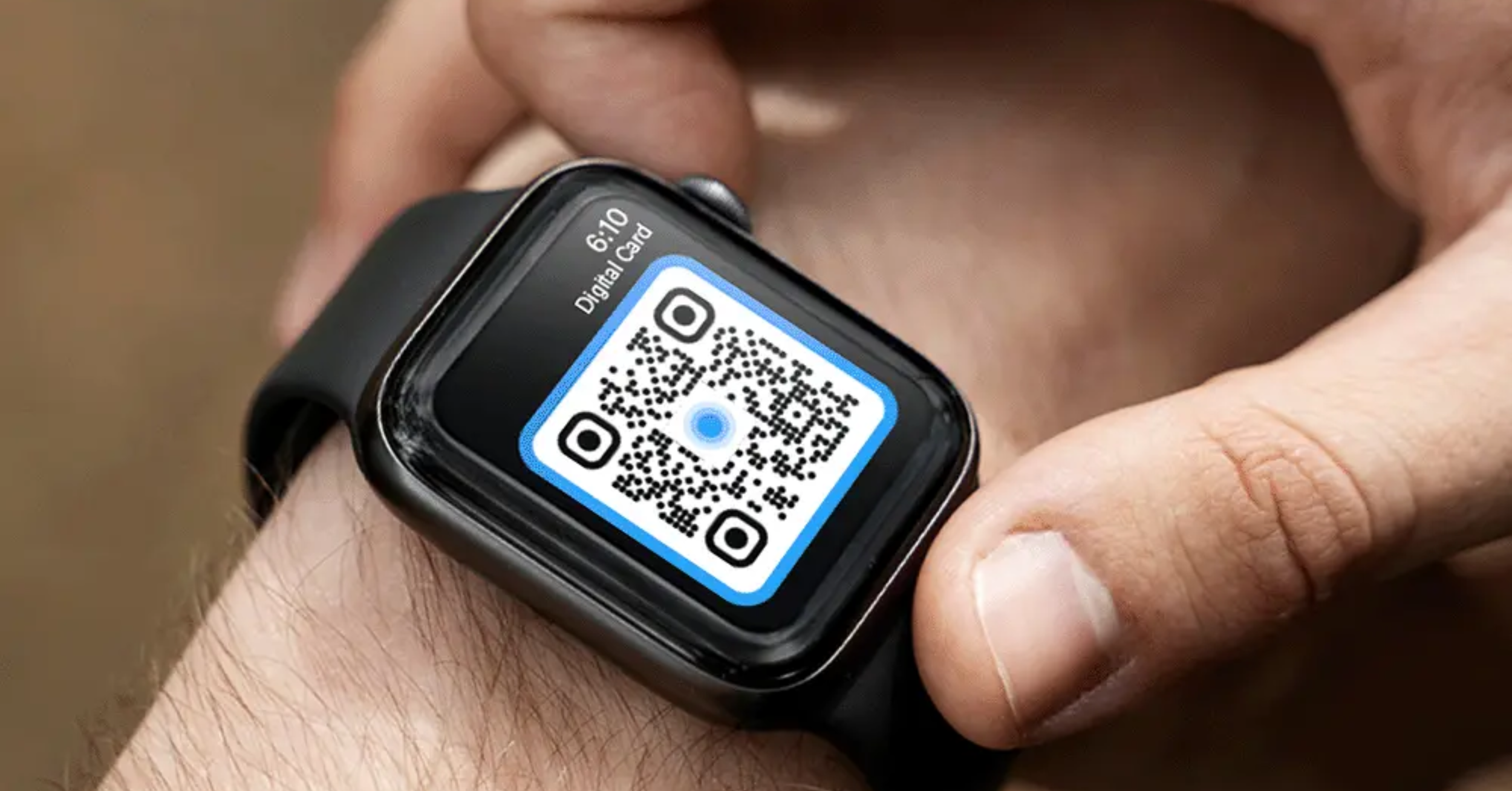
They all open the same live profile, so you can use whichever suits the moment. Your wallet pairs especially well with quick, in-person sharing, and you can see the other quick-access options in widgets and smartwatch: more ways to share. For the full set of methods, see how to share your card from the TapiLink app.
At TapiLink, we make it simple to keep your card in Apple Wallet or Google Wallet, so your details are always a couple of taps away and always current. When you are ready, open the app and add your card to your wallet, or if you have not set up your card yet, our guide on how to set up the TapiLink app gets you started. For an effortless physical way to share too, our NFC Business Cards open your profile with a single tap.
Ready to revolutionize your networking approach? Explore TapiLink's range of premium NFC business cards and join the thousands of professionals who've already made the smart choice.