To share your card from the TapiLink app, open the Home screen and tap Share Card to send your live profile by link or QR code. You can also add it to Google Wallet for quick access or use a TapiLink NFC card for physical tap-to-share networking. For ongoing sharing, add your card to an email signature, create a home-screen widget or access it from a smartwatch. Every method directs people to the same up-to-date profile, and they do not need the TapiLink app to view it.
At TapiLink, we put your sharing options one tap away on the Home screen, so you can hand over your details in seconds from wherever you are in the app. This guide covers each in-app action step by step: using Share Card, adding your card to your wallet, and setting up passive sharing. If you want the wider strategy of when and where to use each method, our guide on 10 smart ways to share your digital business card covers that side, while this one focuses on the buttons inside the app.
Where do you share your card in the app?
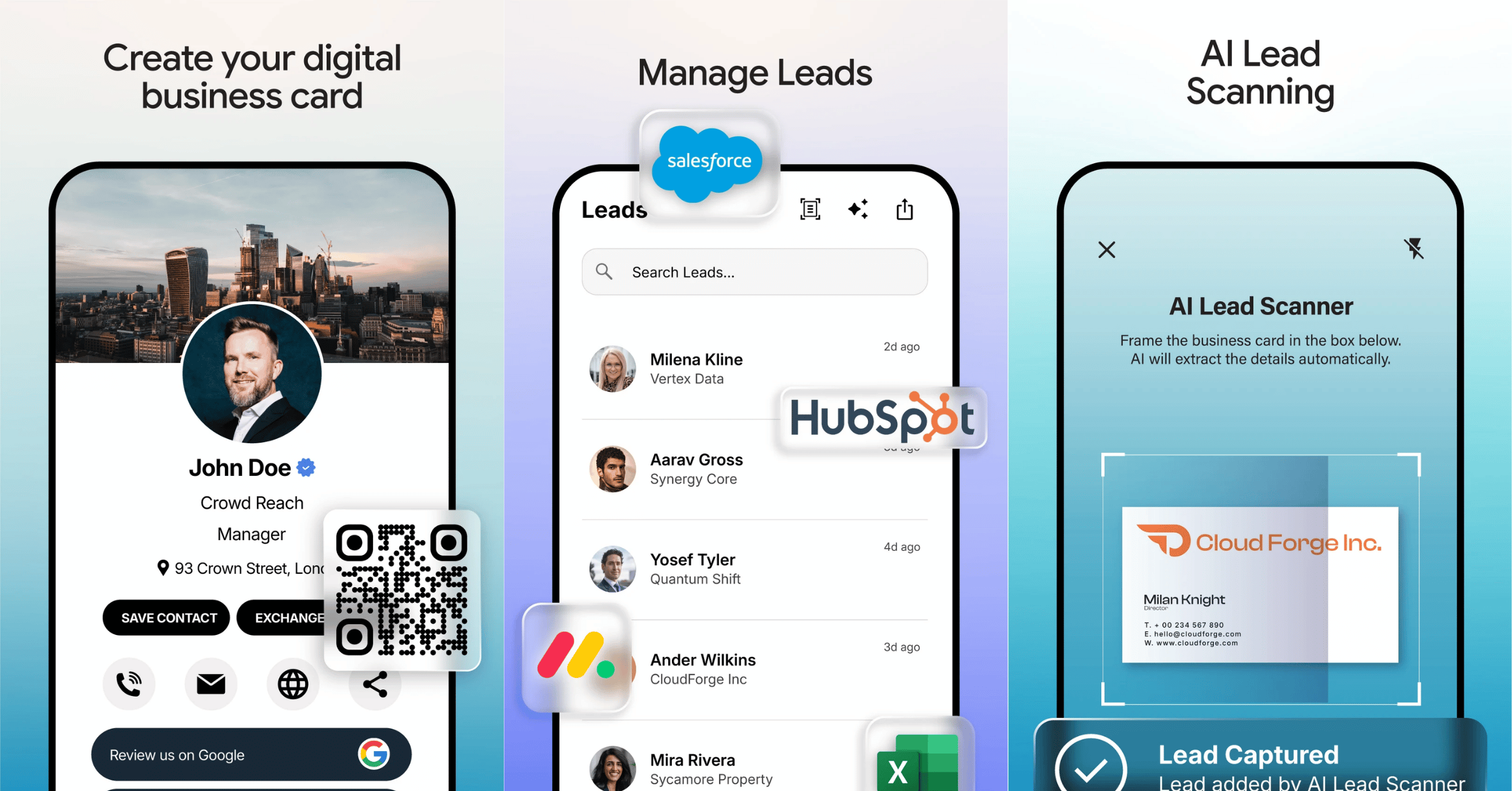
You share your card from the Home screen, which is the first screen you see when you open the app. Your Digital Profile sits at the top, with Share Card and Add to Google Wallet directly beneath it.
That means sharing is never more than a tap away. You do not need to dig through menus, because the two main actions are on the screen you land on. The sections below walk through each one, plus the Quick Actions and profile options that give you more ways to share.
How do you use the Share Card button?
Tap Share Card on the Home screen to bring up your sharing options and send your profile. From here you can share your card as a link or let the other person open it however suits the moment.
Because your card is a link to your live profile, you can send it through whatever channel you are already using, and it opens on the other person's phone with no app needed. This is the quickest route when you are not tapping a physical card, for example following up after a call or a meeting. If you want to preview what the other person will see first, use Preview Profile from the Quick Actions before you share.
How do you add your card to Google Wallet from the app?
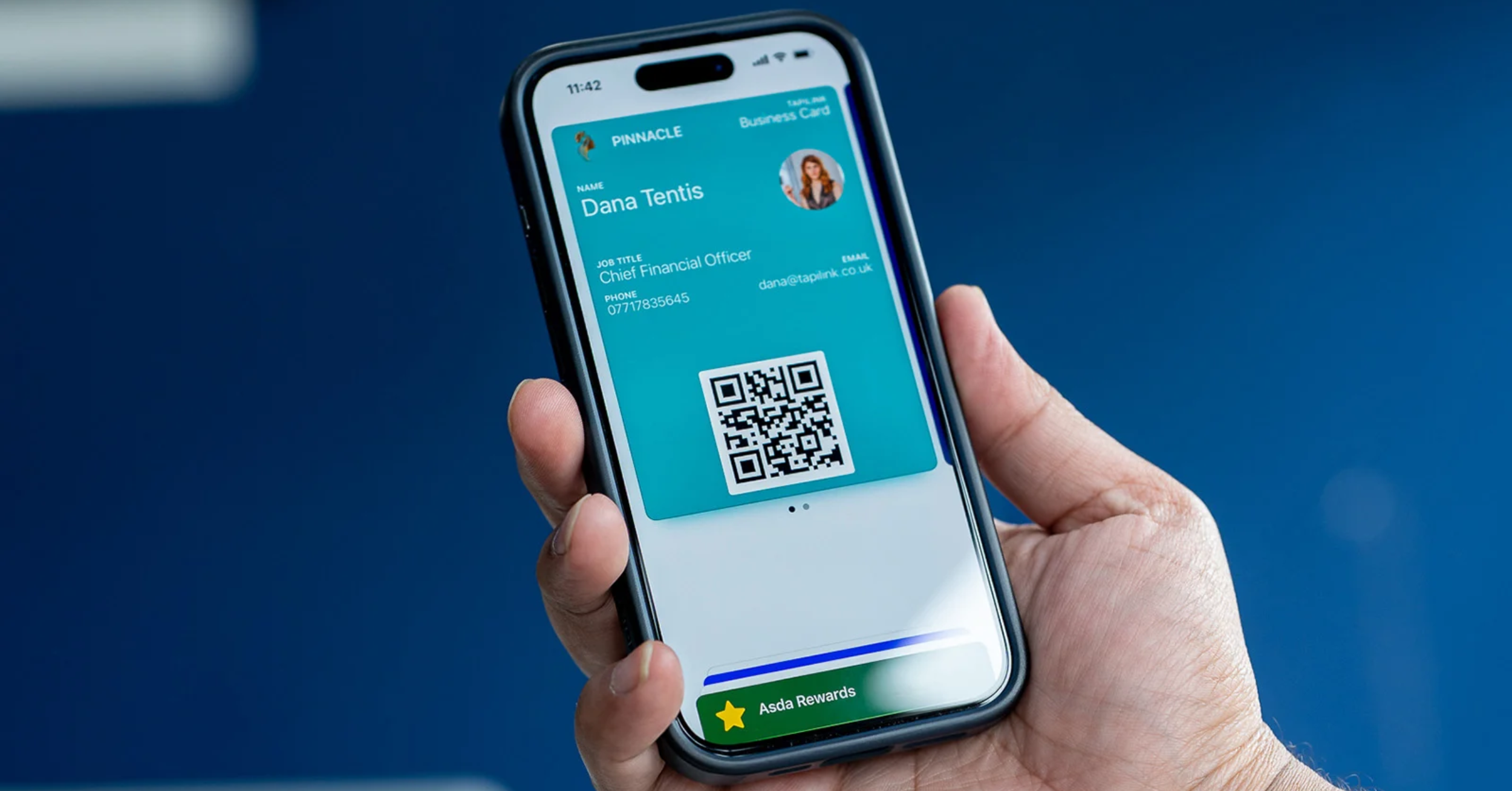
Tap Add to Google Wallet on the Home screen to keep your card in your phone's wallet. Once it is there, you can pull it up in a moment whenever you want to share, without opening the full app.
Keeping your card in your wallet is handy because it lives alongside the things you already reach for on your phone. It is especially useful as a quick backup at events or meetings when you want your profile ready instantly. The wider Wallet setup, including Apple Wallet, is covered in add your digital card to Google Wallet and Apple Wallet.
How do you share your card by NFC tap or QR?
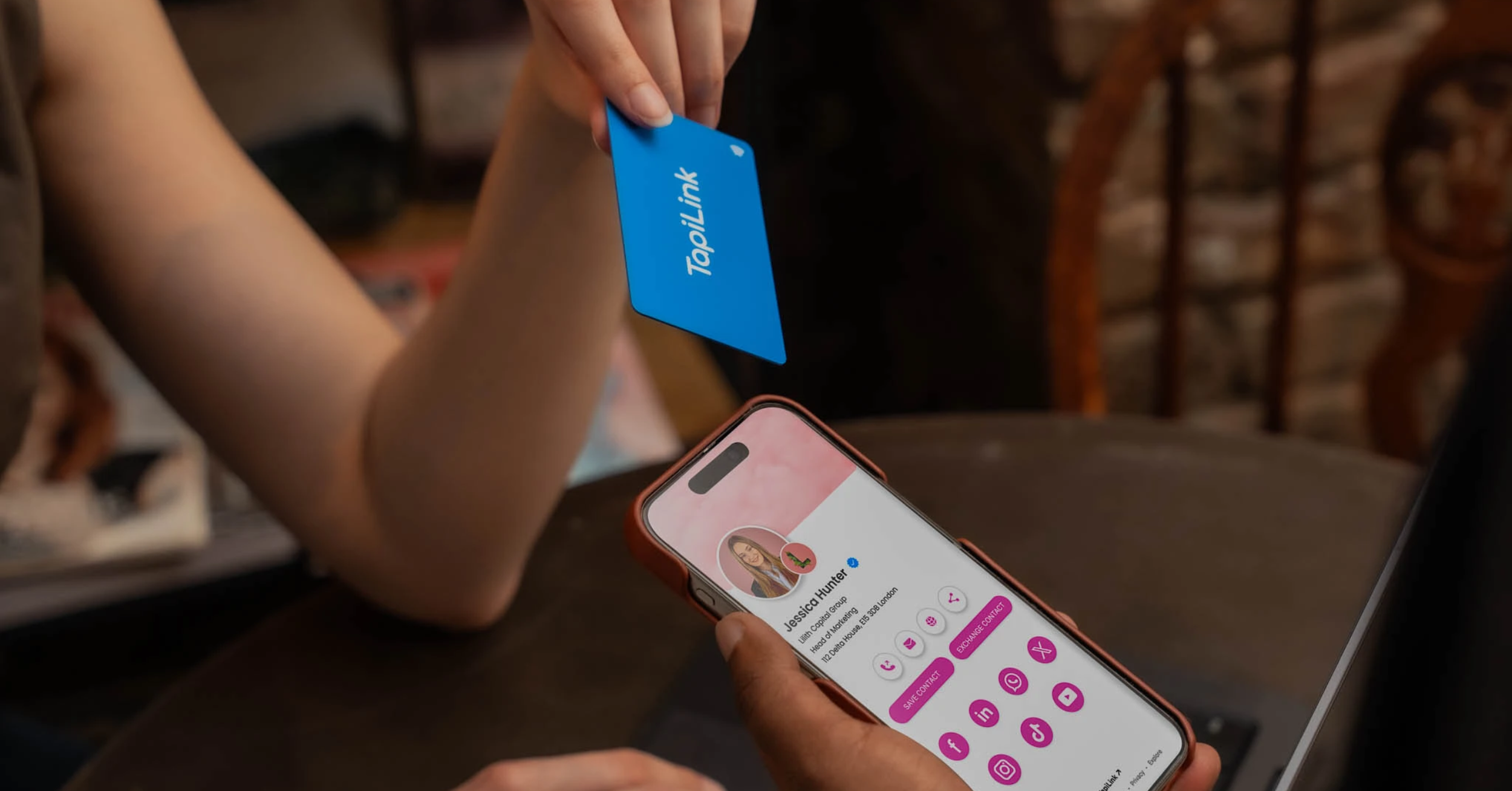
You can show your QR code directly from the TapiLink app, or use a TapiLink NFC card for tap-to-share networking. Both methods open your live digital profile, and the person receiving your details does not need to install the TapiLink app.
A QR code is useful when you have your phone with you or when someone prefers to scan. With TapiLink’s QR code generator, you can create a branded QR code linked to your live profile. An NFC card provides a faster physical tap-to-share option for meetings, events and face-to-face conversations. Your QR code continues to direct people to your current profile details whenever you update them.
How do you set up passive sharing?
Beyond sharing in the moment, the app lets you set your card up so it shares itself. You can add your card to an email signature so it appears at the foot of every email, place a home-screen widget for a one-tap shortcut, or share from a smartwatch.
These are worth setting up once because they then work in the background. An email signature quietly shares your card with everyone you email, while a widget or smartwatch lets you share in a second without opening the app fully. You can set up these options through the relevant sharing feature in the app or your device settings, and each one directs people to the same digital profile.
Do your shared cards stay up to date?
Yes, every card you share from the app links to your live profile, so it never goes out of date. When you edit your details, anyone who opens your link, scans your QR code or taps your card sees your current information straight away.
That means you can share freely without worrying about old details in circulation. A link you sent last month still opens your latest profile today, which is something a printed card can never do.
At TapiLink, we built every sharing option in the app around one live profile, so however you choose to share, people always reach your latest details with no app needed on their side. When you are ready, open the app and tap Share Card to send your profile, or explore our NFC Business Cards if you would like a physical way to tap and share in person.
Frequently Asked Questions
Q1. How do I share my card in the TapiLink app?
Answer: Open the Home screen and tap Share Card to send your profile by link or QR. You can also save it to Apple Wallet or Google Wallet for quick access. For physical tap-to-share networking, use a TapiLink NFC card. The person receiving your details does not need the TapiLink app.
Q2. Where is the Share Card button?
Answer: The Share Card button is on the Home screen, directly beneath your Digital Profile, next to Add to Google Wallet. It is on the first screen you see when you open the app, so sharing is always one tap away.
Q3. Can I add my card to my wallet from the app?
Answer: Yes. Tap Add to Google Wallet on the Home screen to keep your card in your phone's wallet, so you can open and share it quickly without launching the full app.
Q4. Do I need to reshare my card when my details change?
Answer: No. Every card you share links to your live profile, so when you update your details, anyone who opens your link, QR code or tap automatically sees the latest version. Nothing you have already shared goes out of date.
Q5. Can I share my card without a physical NFC card?
Answer: Yes. You can share straight from the app by link, QR code and wallet, so you do not need a physical card. An NFC card simply adds an effortless tap-to-share option for in-person meetings.
Ready to revolutionize your networking approach? Explore TapiLink's range of premium NFC business cards and join the thousands of professionals who've already made the smart choice.