A digital business card email signature is a clickable email footer that connects recipients to your live professional profile. From one link, they can save your contact details, visit your website, view social profiles, access a portfolio or book a meeting, without searching across multiple platforms.
With a TapiLink email signature, you can add your digital business card to Gmail, Outlook, Apple Mail and other email platforms. The signature displays your essential information while directing recipients to a profile that you can update whenever your role, phone number, website or branding changes.
This guide explains how to create a clean, clickable email signature, add it to your email account and optimise it for both mobile and desktop users.
What Is a Digital Business Card Email Signature?
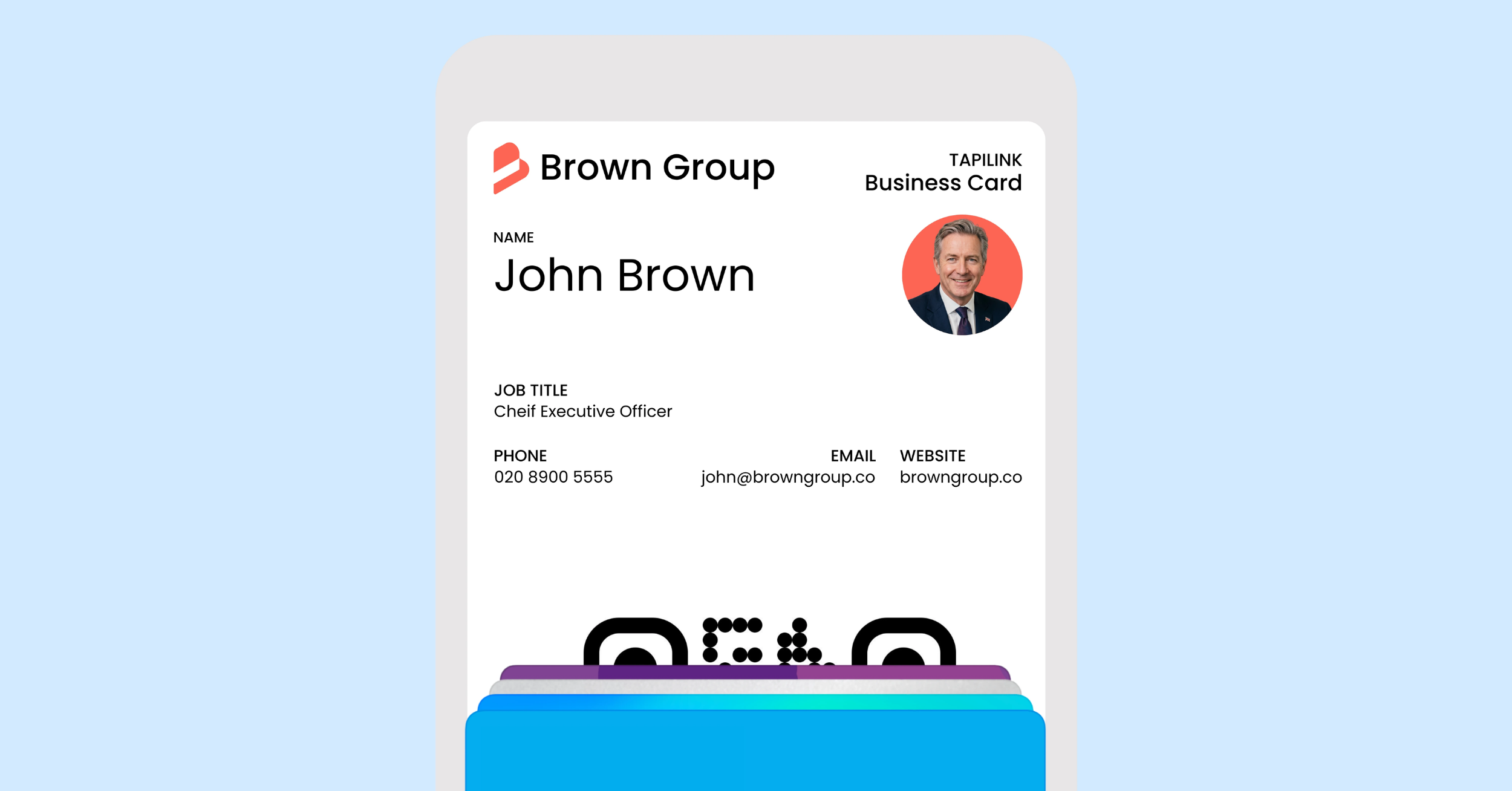
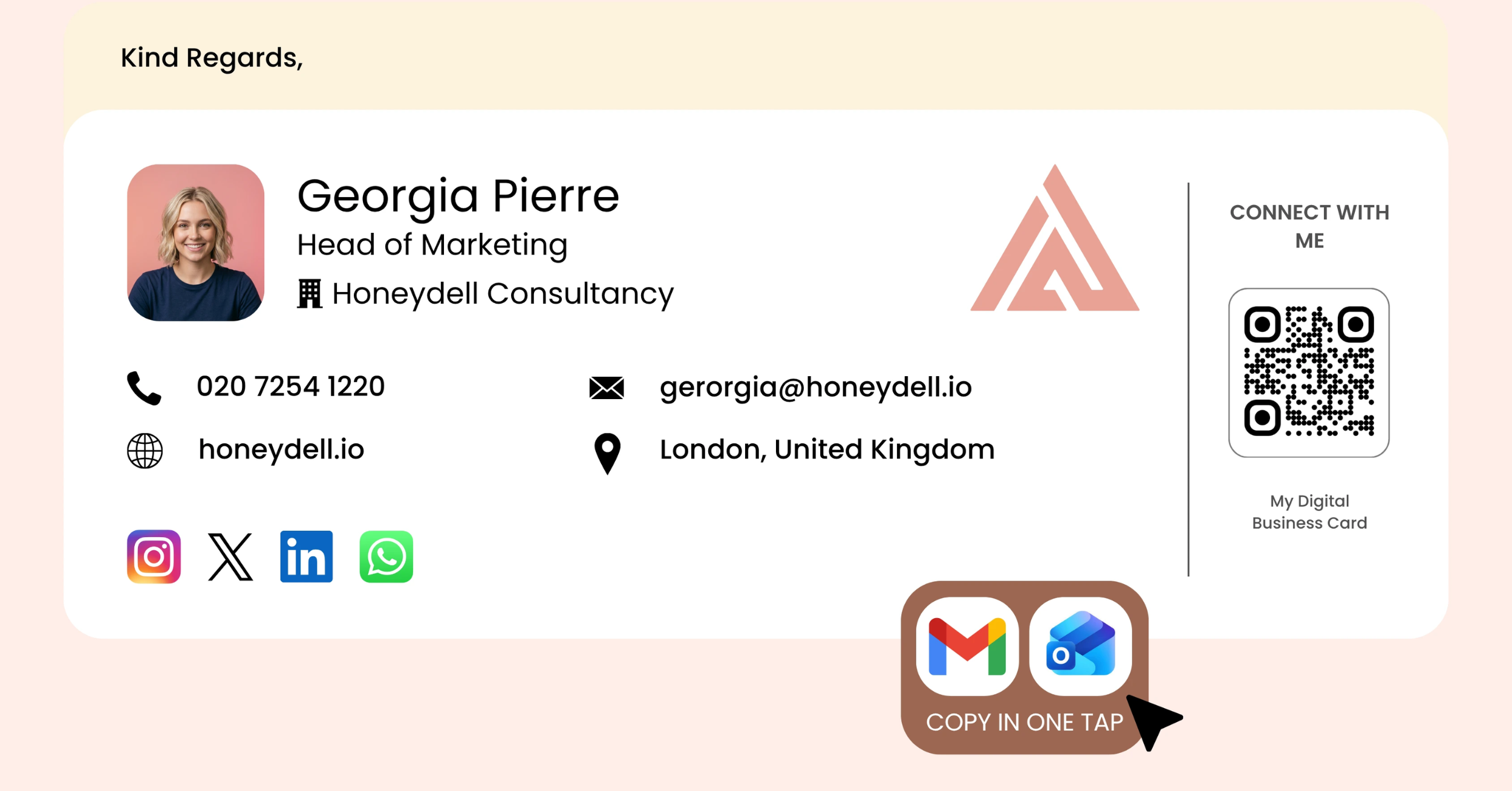
A digital business card email signature is an email footer linked to a live digital profile. It can show your name, role, company, phone number, logo and a call to action such as “View my digital business card” or “Save my contact details”.
The profile behind the link can hold far more than a traditional signature. A digital business card may include contact buttons, social links, a portfolio, booking options, review links, photos and other useful resources.
Instead of crowding your email with every detail, you keep the signature clean and let one relevant link open the full experience.
Why Add Your Digital Card to Every Email?
Make Your Details Easier to Use
People often return to emails when they need to call, book or share a contact. A clickable email signature card keeps those actions in one place. The recipient does not have to copy a number, search for your LinkedIn profile or ask you to resend your website.
Keep Your Information Current
A printed business card becomes outdated when your role, number or website changes. A digital profile is editable, so the same signature link can continue leading to your latest information.
Before adding the link everywhere, use the guide to setting up your digital profile to check your contact information, branding and custom links.
Turn Routine Messages Into Useful Touchpoints
Your signature appears in introductions, replies, proposals, invoices, support messages and follow-ups. That repeated visibility helps people remember you and gives them a simple next step without adding another sales message to the conversation.
Keep Your Brand Consistent
A clear logo, matching typography and one focused link look more professional than a footer full of unrelated icons. For organisations, TapiLink for Teams can help maintain consistent branding across employee profiles and signatures.
How to Add a Digital Business Card to Your Email Signature
1. Complete Your Digital Profile
Start with a profile that is ready for visitors. Add your correct name, job title, company, email address and phone number. Then include only the links that support your main goal.
A consultant might prioritise a booking page and case studies. A recruiter may feature LinkedIn and current roles. A photographer might lead with a portfolio and enquiry form. The guide on how to create a digital business card in the app explains the profile-building process in more detail.
2. Choose One Main Action
Do not treat the signature as a miniature website. Pick one action based on what most recipients should do next.
Good options include:
- View my digital business card
- Save my contact details
- Connect with me
- Book a call
“View my digital business card” is the clearest general choice. “Book a call” may suit sales or consulting emails, but the linked profile should make that action immediately visible.
3. Build a Clean Signature
Use the email signature solution to create a branded signature with your essential details and clickable links. Keep the layout simple enough to work on desktop and mobile.
A practical structure is:
- Name and role
- Company
- Phone or email
- View my digital business card
A small logo or professional photo can help, but avoid oversized banners, too many icons and several competing buttons.
4. Add It to Your Email Platform
Open the signature settings in Gmail, Outlook, Apple Mail or your preferred email service. Insert the completed signature, assign it to the correct account and choose whether it should appear on new messages, replies or both.
Menu names vary by device and software version, so preview the result after saving.
5. Test the Complete Experience
Send test messages to yourself and open them on a phone and computer. Check that the digital card link opens the right profile, the text stays readable, images display correctly and booking or contact buttons work.
Also ask a colleague to test it. A signature that looks good in your own inbox may display differently in another email client.
Should You Add a QR Code?
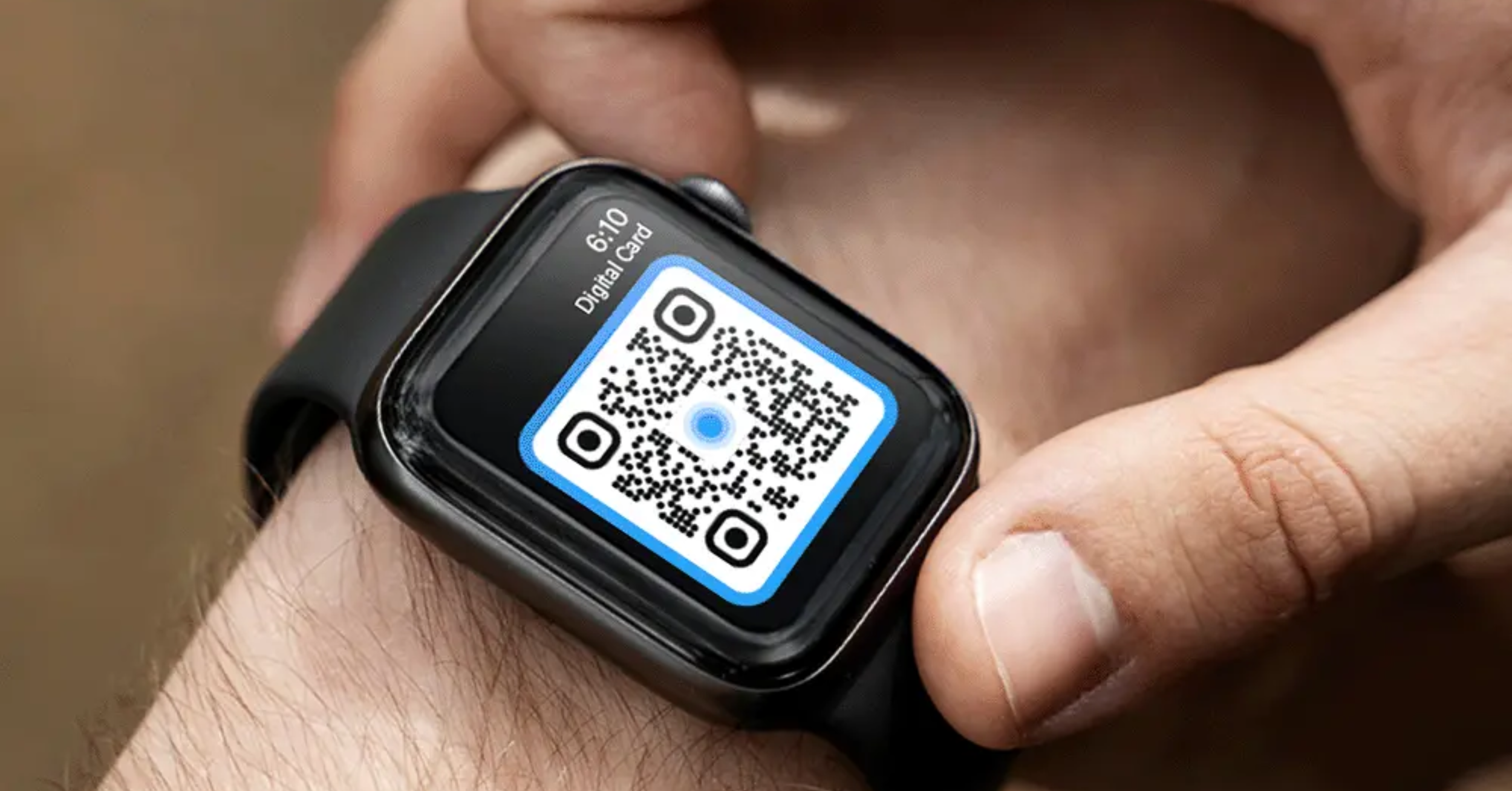
A QR code can help when someone reads your email on a desktop and wants to open your card on a phone. TapiLink’s business card QR code generator creates a branded code linked to your live profile.
The clickable text link should still be the primary action. Many people read email on the same phone they would use to scan the code, so tapping is easier. If you add a QR code, keep it small, label it clearly and test it after the email platform resizes the image.
Common Email Signature Mistakes
The first mistake is adding too many links. A row of social icons, several websites and competing buttons creates distraction. Lead with one digital card link and let the profile organise everything else.
The second is linking to an incomplete or outdated profile. A clickable signature only works when the destination is useful.
The third is ignoring mobile users. Keep the layout narrow and the text concise. Finally, use a stable profile link. The value of a live digital card is that you can update the destination without rebuilding every signature.
For more ideas beyond email, explore 10 smart ways to share your digital business card, including NFC, QR codes, Wallet and social media.
Make Every Email Easier to Act On
A digital business card email signature turns a routine footer into a practical connection tool. It gives recipients one click to save your details, learn more about your work or continue the conversation while keeping the email itself uncluttered.
Once the signature is working, you can strengthen the wider follow-up journey with email automation, helping new leads receive timely welcome and follow-up messages.
Build your profile, choose one clear call to action, test it on different devices and add it to every relevant email account. Your next useful connection may begin with a message you were already going to send.
Frequently Asked Questions
Q1. Can I Add a Digital Business Card to Gmail or Outlook?
Answer: Yes. Create your card and signature, then add the finished signature through your email platform’s signature settings. Test it because formatting can vary between services.
Q2. Is a Link or QR Code Better?
Answer: A clickable link is usually the easiest primary option. A QR code can be a useful secondary choice for desktop readers.
Q3. Do I Need a Physical NFC Card?
Answer: No. You can share your digital profile through a direct link or QR code. An NFC card simply adds a tap-to-share option for in-person networking.
Ready to revolutionize your networking approach? Explore TapiLink's range of premium NFC business cards and join the thousands of professionals who've already made the smart choice.